How to track clicks from automated Instagram DMs
Separate workflow starts, sent DMs, tracked clicks, and confirmed bookings. Use a blank review sheet and understand what AI recipient attribution can tell you.
 LinkStack
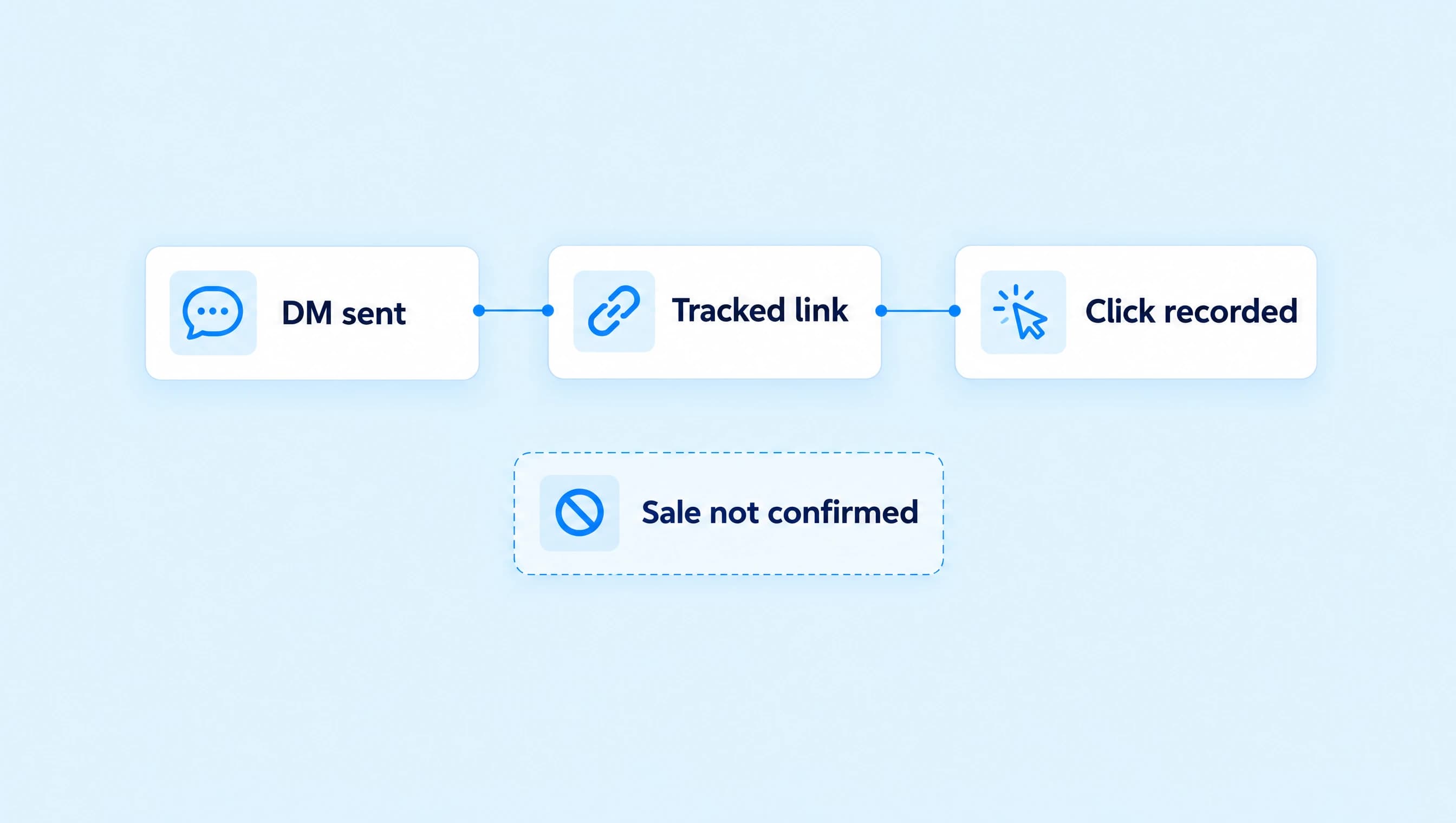
Track an automated DM at two points: the workflow that sent it and the saved Link inside the message. Compare the same reporting period, then check the booking or checkout system for the result you actually wanted. A click shows the tracked link was followed; it does not prove the destination loaded. A purchase or appointment needs confirmation in the system that handles it.
For Northline Coaching, the journey is a CALL comment, a DM with the discovery-call Link, and a booking on the call page. Each step answers a different question. Keeping them separate makes it easier to find a delivery problem before rewriting a message that already works.
Check what the button opens
Start with the destination inside the DM. If the workflow sends a bare booking URL, visits to that URL will not become visits to a saved Link you created elsewhere.
Create the booking destination in Links, name it Book a discovery call, and open its public URL to check that it reaches the correct page. In the workflow's message button, choose Open Link and select that saved Link. Keep View call times as the button title so the recipient knows what happens next.
The booking-link walkthrough covers the comment trigger and message. For measurement, the important check is that the button actually uses the Link you plan to inspect.
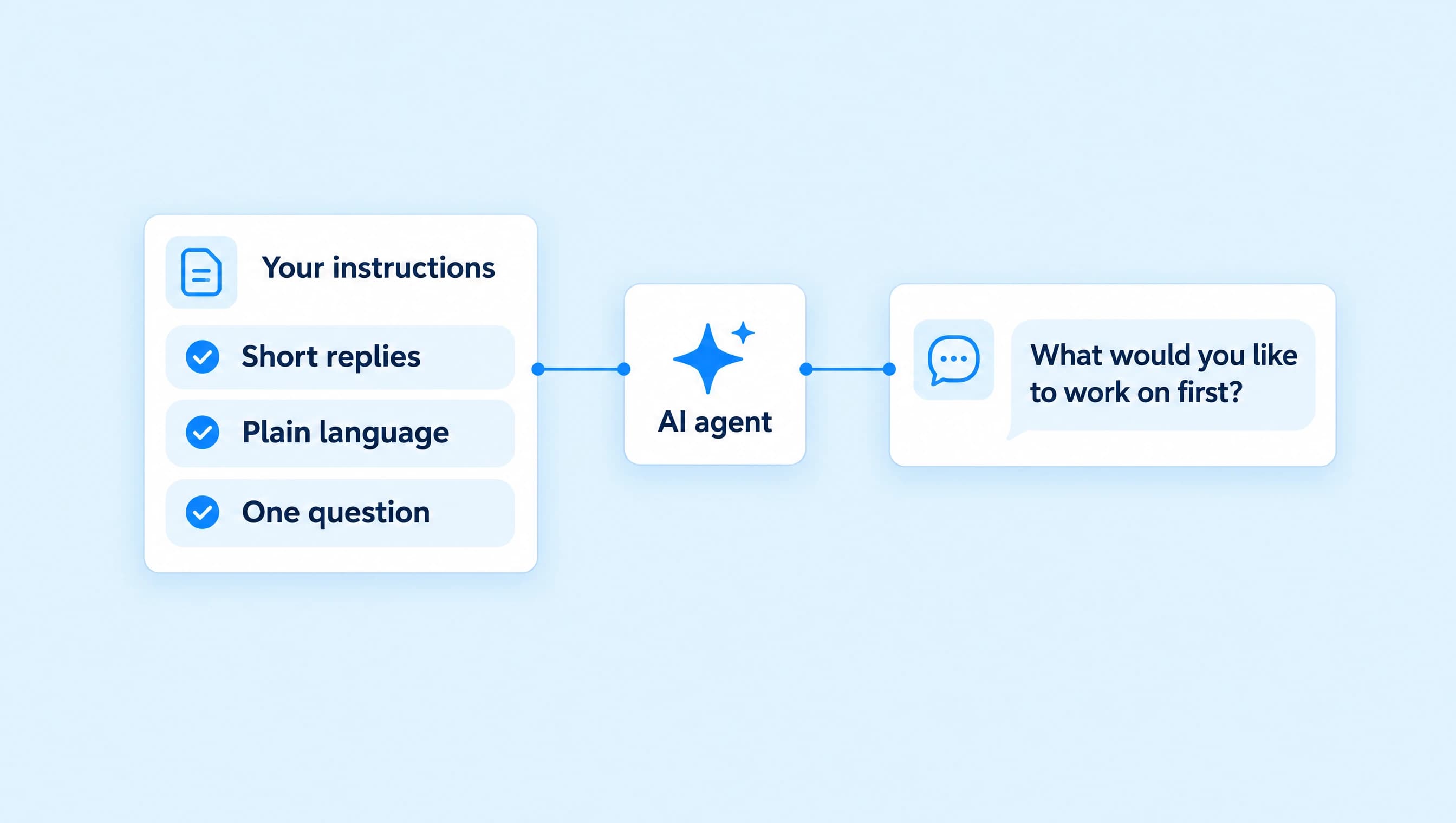
An AI advisor needs the same destination approved under Knowledge → Resources and actions, with Send saved links enabled:
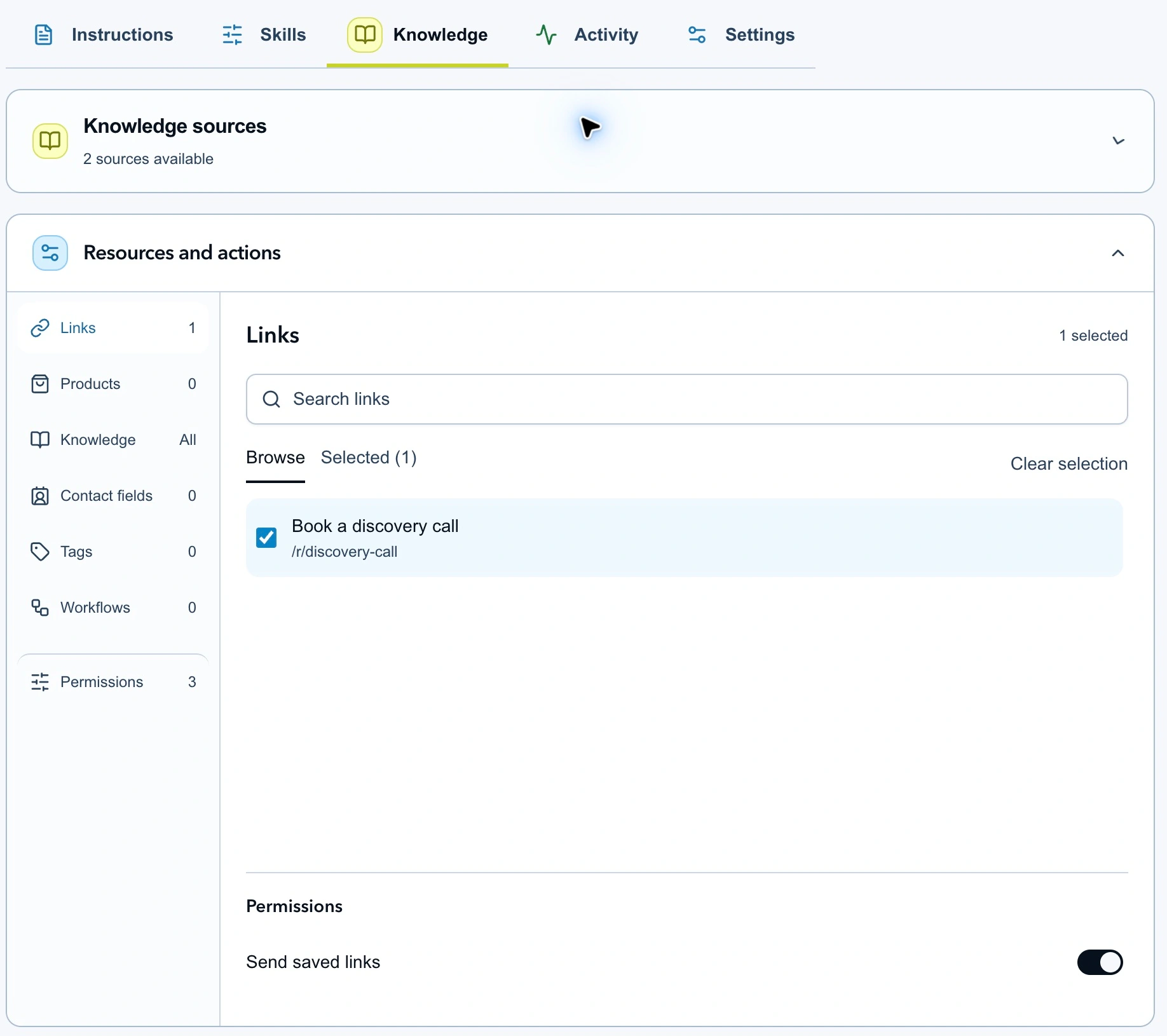
This configured draft shows the saved Link the advisor may send. Permission to share it is separate from a recorded send or click.
Keep a note of everywhere you use that Link. If it also appears in your bio or newsletter, its total clicks can include those placements. Use the automation's attributed clicks for the workflow question and the Link's total for the destination question.
Match the reporting period before comparing numbers
Open Automation Analytics, choose the CALL workflow, and set the period you want to review. Then open the saved Link's analytics with the same dates. Record your account timezone and use Refresh before writing down results.
A seven-day workflow report and a thirty-day Link total will not describe the same activity. A workflow edit during the period can also change what people received, so record the date and the wording you changed.
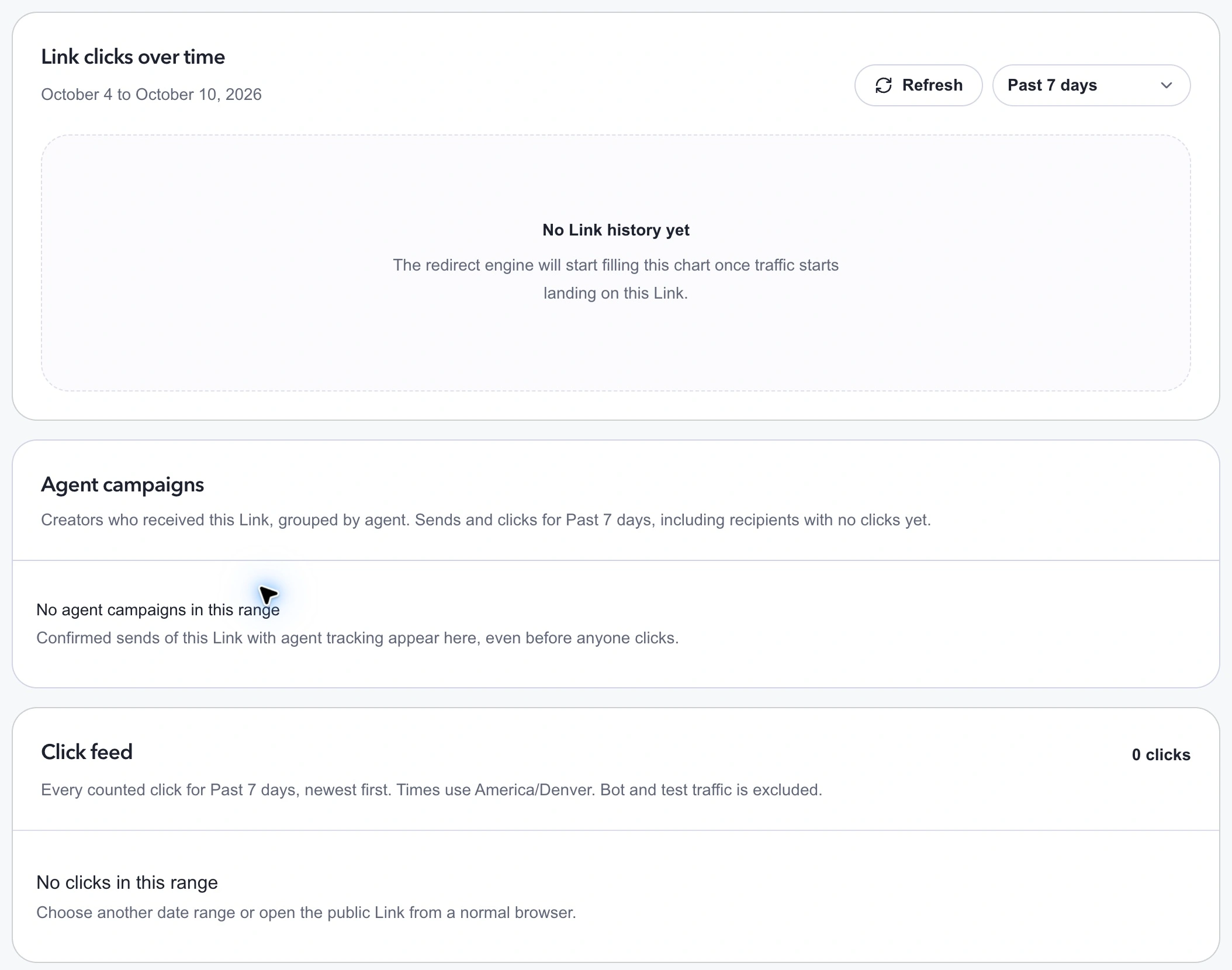
Check the selected range before interpreting a chart or recipient list. Use the same period in the workflow and Link reports.
When reviewing a workflow with several published versions, remember that the headline totals combine versions for the selected date range. Selecting a version narrows the diagram and step details. It does not turn the headline totals into results for that version alone. The automation metrics guide explains the report's scope.
Keep a small set of numbers with clear meanings
| Measure | What it tells you | What it does not establish |
|---|---|---|
| Runs | The automation started from a matching trigger. | Every run delivered a message. |
| Sends | The provider accepted a message as sent. | The recipient read it or opened its button. |
| Automation Clicks | A tracked link or button click was attributed to the workflow. | A unique person clicked only once. |
| Saved-Link clicks | Counted visits to that Link during the period. | Every visit came from this one DM workflow. |
| Confirmed bookings | The booking system recorded an appointment. | This workflow caused every booking in the period. |
LinkStack's automation CTR is clicks divided by runs, using sends as the fallback if no runs were recorded. It is not a unique-buyer conversion rate. Repeat clicks can push it above 100%.
For a quick arithmetic check, 120 clicks divided by 100 runs gives 120%. Those are calculation inputs, not reported Northline results. They show why a high percentage needs its definition beside it.
Each event belongs to its own reporting date. Someone can open an old DM today, giving this week's report a click from a message sent earlier. Do not treat a date-range ratio as a matched group of people who all entered and completed the journey in that period.
Use Agent campaigns for links sent by AI
For a saved Link shared by an AI agent, open that Link's analytics and find Agent campaigns. The report groups recipients by agent and channel and shows sends, clicks, last sent, and last clicked. A recipient can appear with zero clicks, and a period can contain clicks from an earlier send.
You do not need a separate saved Link for each person. New tracked agent sends attach their own tracking values to the approved destination. View contact opens the available Audience record. Click feed shows individual counted visits and a Contact link when a match is available; Not matched means there is no available contact match.
Use those records to inspect a particular message journey, with these limits in mind:
- Attribution follows the original send. If someone forwards its URL, a later click can still belong to that original recipient record.
- Older untracked sends are not matched retroactively.
- Playground does not create a live send record. Bot and test clicks are excluded from the recipient reporting.
- A matched click does not establish an order, a booking, or the identity of the person holding the phone.
The agent tracking instructions cover the current reporting behavior. Native product buttons have their own public-page reporting; do not assume they create the same saved-Link campaign rows.
Fill in one row before changing anything
Use this review sheet for the CALL workflow. Leave unavailable measurements blank and explain the gap; zero means you checked and the count was zero.
| Field | Record |
|---|---|
| Workflow and offer | CALL; Northline's 20-minute discovery call |
| Period and timezone | Start, end, and the account timezone |
| Saved Link | Book a discovery call and its public URL |
| Workflow activity | Runs, sends, failures, and automation-attributed clicks |
| Link activity | Total counted clicks; other placements using the same Link |
| Confirmed outcome | Appointments in the booking system; note whether source matching is available |
| Change made | The exact caption, message, button, destination, or availability change, with its date |
| Next check | One suspected problem and the evidence needed to resolve it |
Download the DM click review sheet.
If the booking tool does not preserve a usable source reference, record bookings as a separate business total. Do not divide all appointments by this workflow's clicks and present the result as its conversion rate. The same limitation applies to an affiliate network's sales or commissions when it cannot connect those outcomes to the DM traffic.
Let the weak step choose the next fix
| What you see | Inspect first | A useful next action |
|---|---|---|
| Runs without corresponding sends | Activity, failures, pending delivery, and permissions | Resolve the delivery issue, then repeat a controlled check. |
| Sends with few attributed clicks | The message promise, visible button, and actual destination | Make the button specific and verify that it uses the intended Link. |
| Link clicks without bookings | The booking page on a phone | Check availability, timezone, call details, and the booking process. |
| High Link totals but low workflow-attributed clicks | Other placements and report scope | Separate traffic sources before crediting the DM. |
| Agent recipients listed with no clicks | The sent offer and elapsed time | Inspect the conversation; a zero alone does not explain their decision. |
Change one part of the journey at a time and keep the reporting period visible in your notes. A new Reel audience, fewer open call times, and a rewritten button can each change results. If all three change together, the report cannot tell you which change mattered.
Use a controlled delivery check to confirm that the message and destination work, then evaluate ordinary audience activity. Test traffic is for verification and can be excluded from reporting; a missing test click alone does not prove that live tracking is broken.
For missing messages, start with the Instagram DM troubleshooting guide. When the path works, record your first complete review row before deciding what to change.