Send your coaching booking link from an Instagram comment
Reply to CALL comments with your discovery-call booking page. Use a clear invitation, check the calendar, and measure confirmed appointments separately from clicks.
 LinkStack
An Instagram comment can start a DM containing your discovery-call booking page. Set a keyword such as CALL, choose the post it applies to, and send a message with a View call times button. The recipient can read the call details and pick a time on your booking page.
For a business coach, this is a useful way to answer the same calendar request without rewriting the reply for every interested viewer. The automation delivers the invitation. Your booking page handles the appointment.
Finish the booking page first
Before building the workflow, open the public booking page as a prospective client would. It should explain who the call is for and what they can expect to discuss.
The offer is a 20-minute business coaching discovery call. The page should make these details easy to find:
- The kinds of businesses or problems you work with.
- The call’s duration and whether it has a price.
- What you will cover and whether the call is an introduction to a paid coaching offer.
- Available times, timezone, and any information needed to book.
- What happens after booking, including the confirmation and meeting details.
Use your booking tool’s public booking URL. This workflow sends that URL in a DM; it does not need access to your calendar account.
Check the page on your phone while signed out. If there are no available times, fix availability before inviting viewers to book. If the page asks for a password or sends visitors to your dashboard, you have copied the wrong URL.
Make the Reel’s invitation specific
Give viewers a reason to ask for the call. A Reel about an offer that is not selling might end with:
If you want to talk through whether business coaching fits your next step, comment CALL. I’ll send the page for a 20-minute discovery call with the details and available times.
Use that promise only if it matches your actual call. Avoid calling it a free strategy session when the purpose is an introductory sales conversation. You can explain the purpose plainly and still make the invitation useful.
Keep the booking request separate from a resource offer. Someone commenting for a worksheet should receive the worksheet. If the Reel asks for CALL, the first message can go straight to the booking page.
Set the comment trigger
Connect your Instagram professional account, check the current automation limits, and open Automations. Create a custom workflow with Post or Reel comments as the trigger, then add a Send Message step. If you already have a saved Link for the booking page, the Send booking links workflow template is another starting point.
Name the workflow “CALL · Business coaching discovery call.” In the trigger, select Words, enter CALL, and press Enter. Remove any starter words that are not part of this offer.
Choose Specific post if the Reel is already published. For an offer you are preparing to post, choose Next post, publish the workflow first, then publish the intended Reel. Do not slip an unrelated post between those two actions.
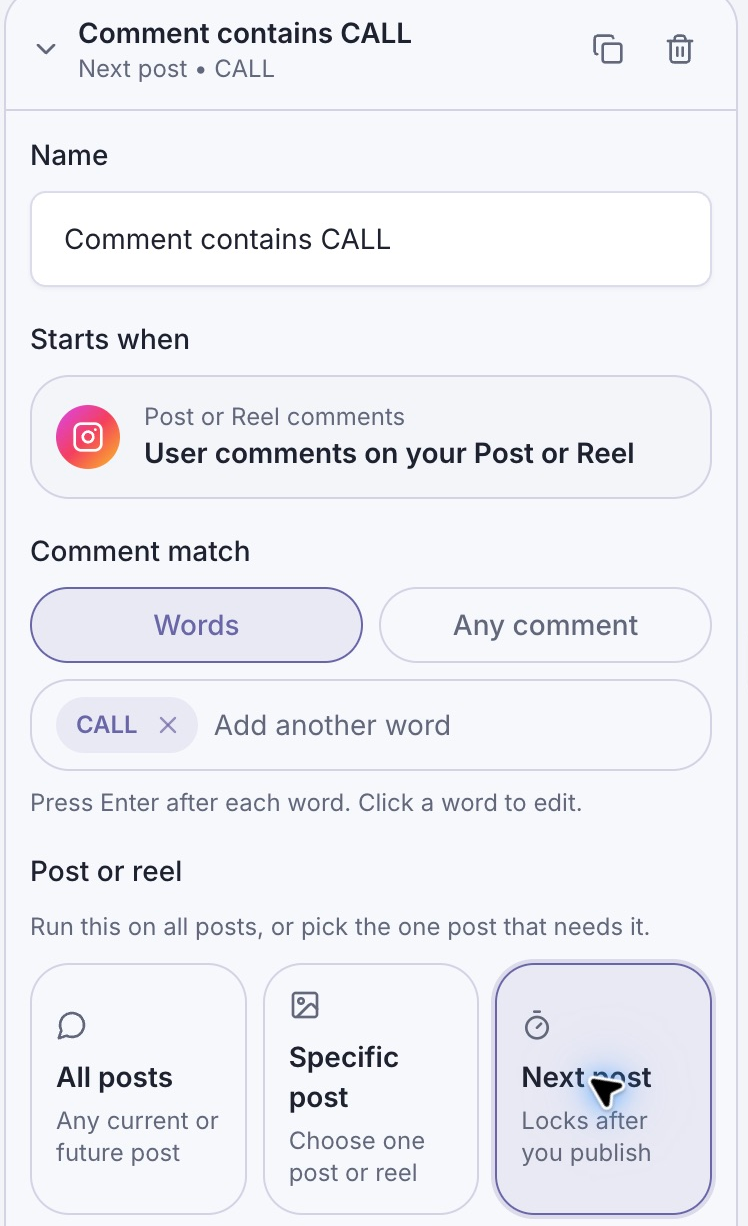
This workflow is prepared for the next post. Use Specific post when the coaching Reel is already live.
A public reply is optional. If you use one, “Sent the call details. Check your DMs.” matches what the workflow does. Avoid announcing that someone has booked before they have chosen a time.
For the full connection and trigger walkthrough, use the comment-to-DM help guide.
Write the DM and point it at the calendar
In the Send Message Text block, explain the link in one short paragraph:
Here’s the page for a 20-minute business coaching discovery call. You’ll see what we’ll cover and the available times before you book.
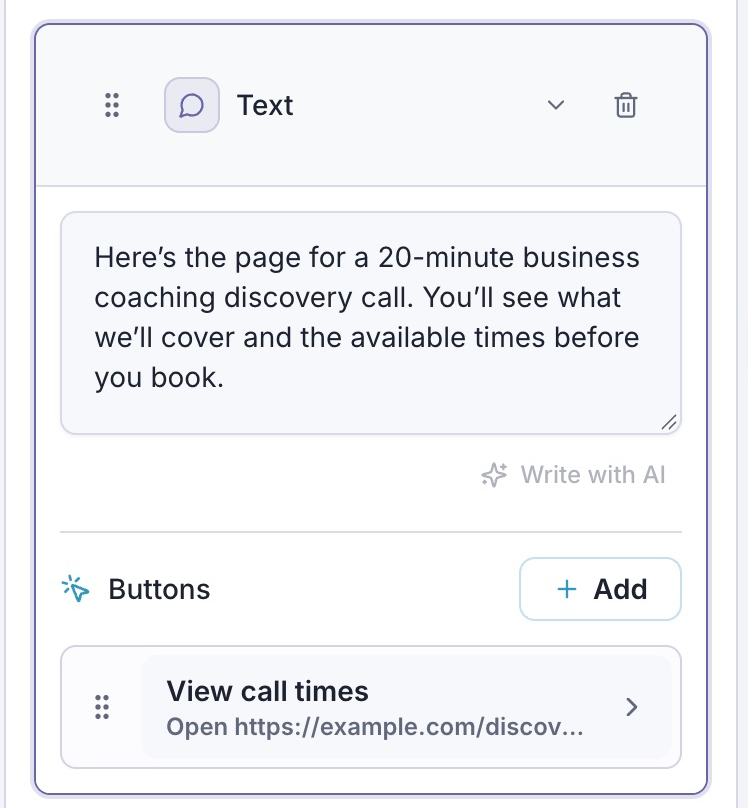
The message explains the next step without claiming an appointment has been made.
Add a button and set Button title to View call times. Choose Open website under When this button is pressed, then paste the public booking URL into Website URL. Click Done.
The button opens the booking page. The visitor still chooses and confirms a time there.
If you prefer a saved Link, choose Open Link and select the correct booking Link instead. That gives you a named destination to manage in Links. Whichever action you choose, reopen the button once and check the destination before publishing.
Keep the first message focused on the call. Adding a course, newsletter signup, and several other offers makes it harder to tell which button continues the request the viewer just made.
Test delivery and booking separately
Run Check, then inspect the wording and button in Preview. The preview is simulated. A clean workflow check does not confirm that a real Instagram message reached anyone or that the calendar accepts bookings.
Use the draft’s Test with a second Instagram account to check the message path. After publishing the workflow, leave a fresh CALL comment on the selected Reel to verify the trigger. If you chose Next post, confirm that it has bound to the intended Reel.
Then open the button in the real DM. Confirm the page’s title, timezone, and available times. If you make a test booking, use a time and address you control and remove the test appointment through the booking tool when finished.
Track each result where it happens:
| Question | Where to check |
|---|---|
| Did the comment start the workflow? | The automation’s Activity. |
| Was the DM delivered? | Delivery status and the receiving Instagram account. |
| Did the visitor open the destination? | Available click reporting for the workflow or saved Link. |
| Did they confirm an appointment? | The booking tool’s appointment record. |
If the DM arrives but nobody can book, inspect the booking page before rewriting the automation. Empty availability, an unclear call description, or the wrong destination can each stop the journey after a successful send. Fix the specific failure, then repeat that part of the test.