Why your Instagram automation isn't sending DMs
Find out whether your Instagram DM never started, is waiting, or failed. Check the trigger, connection, repeat limits, messaging window, and destination in order.
 LinkStack
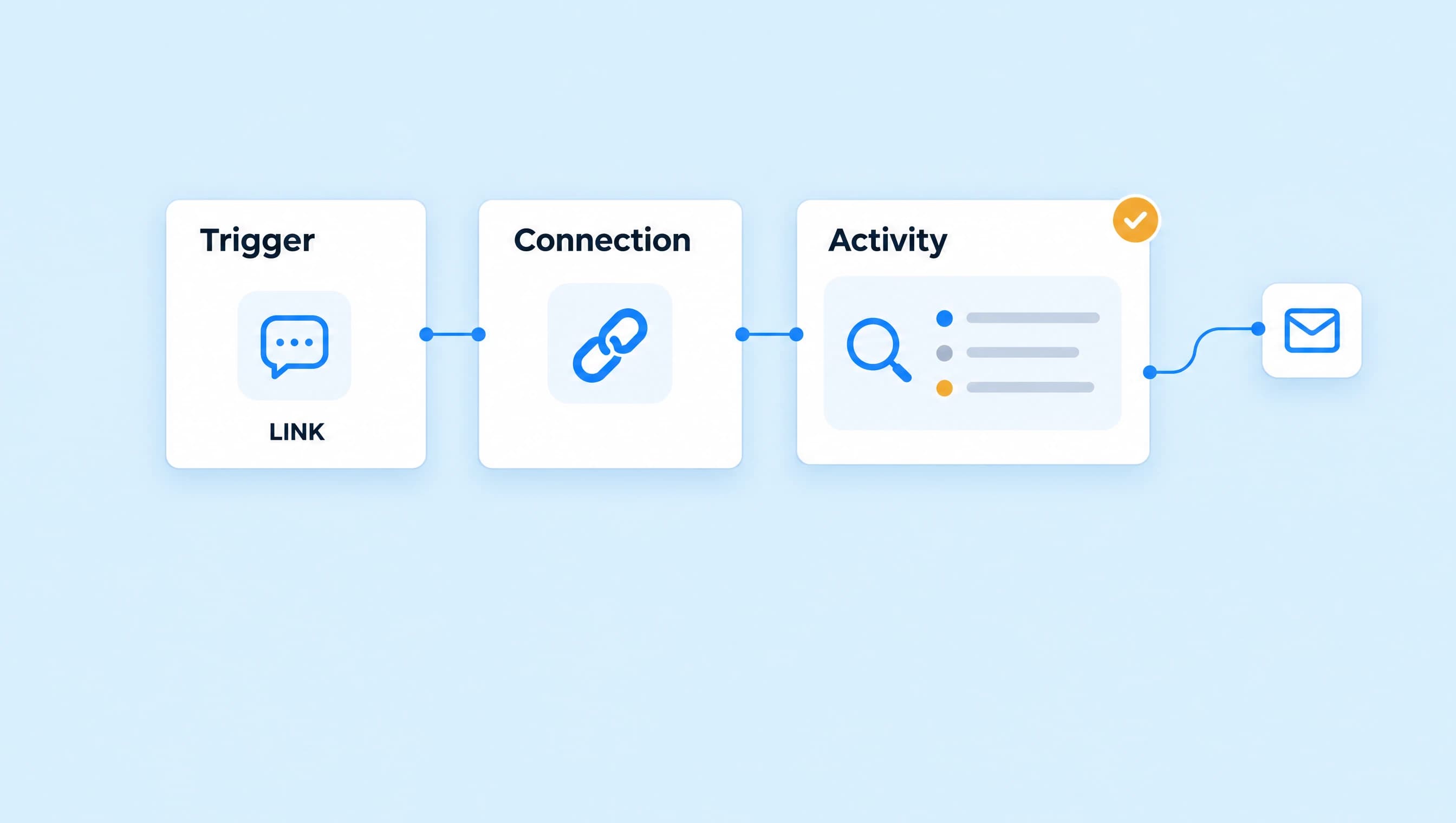
Your caption says "Comment LINK for my weekly workout planner." People comment, but someone tells you the planner never arrived.
Start with Automations → Activity. Find the person's comment and read its status before changing the message. A trigger that never started, a queued DM, and a failed send need different fixes. Changing the wording won't repair a disconnected Instagram account or reopen an expired messaging window.
Find the symptom first
| What you see | Check | What to do |
|---|---|---|
| No run for the comment | Active status, account, keyword, and selected post | Correct the trigger, publish the changes, then test with an eligible fresh comment |
| Skipped | The saved reason and any earlier run | Inspect the existing workflow or repeat-trigger limit before testing again |
| Pending | Instagram queue, contact pause, or a waiting step | Read the reason and resolve that condition; a queued message has not been sent |
| Failed or Comment unavailable | Delivery error and original comment | Fix the reported cause; retry only when Activity offers it |
| Sent, but the person cannot find it | Their Instagram inbox and message requests | Check both locations; Sent does not mean they have read it |
| DM arrives, but the button is wrong | Button action and selected Link | Choose the intended destination and publish the change |
The workflow here delivers Weekly workout planner when someone comments LINK on its selected Reel. Keep that same caption, keyword, and destination in front of you while checking the setup.
1. Check the trigger and published version
Open the workflow in Automations. Confirm that it is active. Saving a draft or passing Check does not activate it. After correcting the setup, choose Publish workflow and review the changes before confirming.
Open the trigger and check these fields:
- Starts when: Post or Reel comments
- Comment match: Words
- Words: LINK
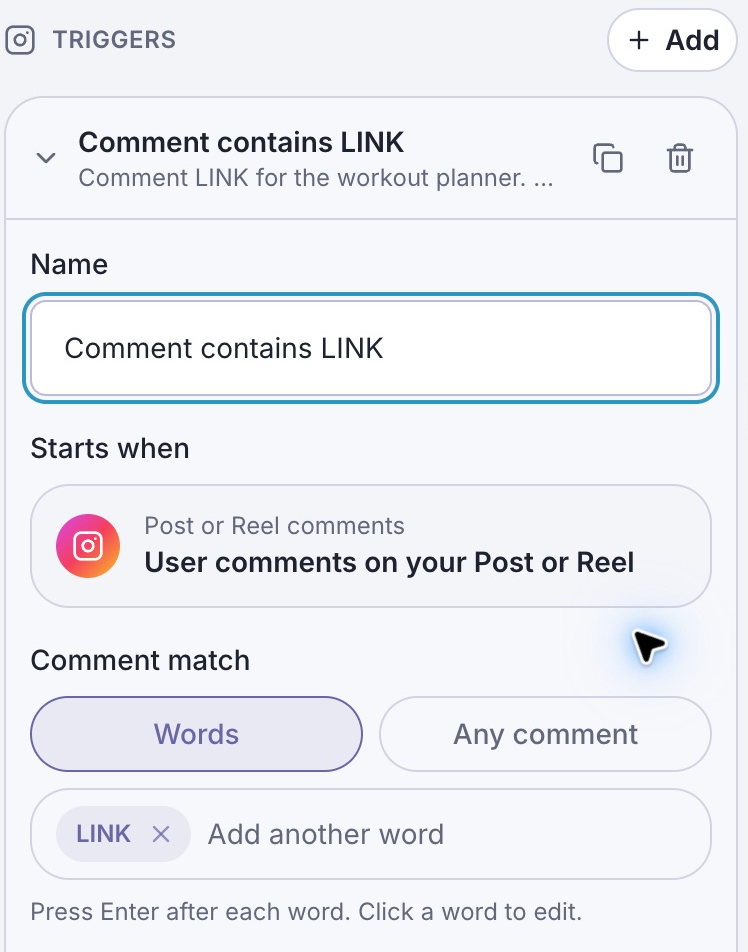
Words controls the match. The trigger's name only helps you recognize it on the canvas.
Compare the saved keyword with the actual comment. A comment saying "planner please" will not match a rule containing only LINK. Capitalization is ignored, so "link" and "LINK" match the same rule.
Next, check Post or reel. If you chose Specific post, confirm the intended Reel is selected. Next post waits for the next post after publication; it does not mean the most recent post already on your profile. Use All posts only if this offer belongs under every matching post.
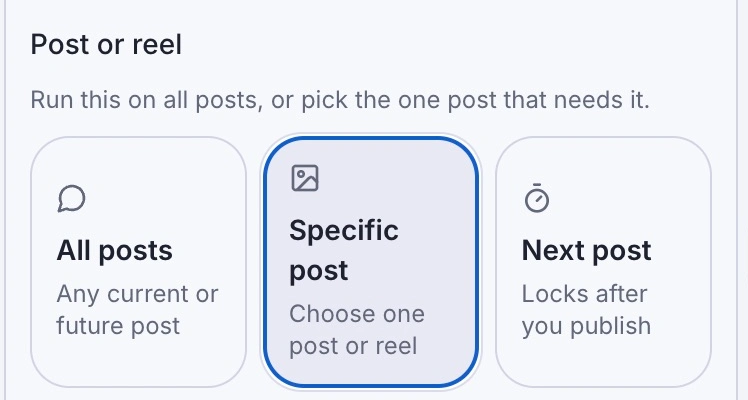
Specific post limits where the keyword can start the workflow. Check the selected Reel beneath this control.
For a full setup walkthrough, use send a link from Instagram comments.
2. Check the account and contact pause
In Settings → Integrations, check that the intended Instagram Business or Creator account is connected. If LinkStack requests refreshed permissions, reconnect and allow comment and message access. An account that can display profile information may still be missing the permissions needed to send.
Then open the person's conversation in Inbox. Check Pause automations. A manual reply can pause workflow automations for that contact, so a conversation you handled yourself can explain why later workflow messages wait. Use Resume automations when you are ready for workflows to continue.
You can change the manual-reply behavior under Settings → Inbox → Conversations. The conversation pause guide explains that setting.
Reconnecting an account does not clear contact pauses, reactivate a paused automation, or resend old failed messages. Check those states separately after reconnection.
3. Read Pending and Skipped correctly
In Automations → Activity, use Queued Instagram DMs, Skipped activity, or Failed sends to narrow the list, then choose Apply filter.
If a Reel receives a rush of matching comments, LinkStack queues private replies for the connected Instagram account. A Pending message may simply be waiting its turn. The public confirmation also waits until Instagram accepts the DM, so an absent "check your DMs" reply can have the same cause.
A contact pause also holds unsent queued workflow replies. Those sends can resume while their messaging window remains open. Later workflow steps wait for the held message. Republishing the automation does not move it ahead in Instagram's queue.
If the reason says This contact already had a workflow in progress, the new trigger did not start another run. Choose View existing run when it is available and inspect the earlier workflow. It may be waiting for a reply or a connected button path. Older records may not have that link.
A skipped trigger is not a delayed message. It will not send later just because the earlier run finishes.
4. Stop testing with the same comment
LinkStack limits repeated triggers. These protections are separate from the Instagram messaging window and from a contact pause.
| Trigger | Repeat limit |
|---|---|
| Comment keyword | One start per person, post, automation, and matching keyword, with no time reset |
| Incoming DM keyword | One start per person, automation, and matching keyword every five minutes |
Once someone has triggered LINK on the workout-planner Reel, posting LINK again from that same account does not start the same automation again. Waiting five minutes does not reset the comment allowance. Changing capitalization or adding more text does not reset it either.
Suppressed repeats create no new reply or queued send. The original accepted delivery can still be eligible for a retry after a temporary failure.
For a comment-trigger check, use another account you control that has not already triggered that keyword on the post. For a DM keyword, wait until its five-minute cooldown has passed and send a new matching message. Active runs and contact pauses can still prevent a new start.
5. Separate the first comment reply from later DMs
The initial comment reply and an ongoing DM conversation have different timers:
- A qualifying comment can receive one private reply within seven days of the comment.
- Ordinary automated DMs need a qualifying incoming chat interaction and must stay within its rolling 24-hour window.
A comment alone does not open the normal DM window. If someone replies to the private message, sends a DM, replies to a story, or uses a qualifying quick reply or message button, that interaction can open or refresh it. A button that opens a website does not. See how the messaging window works.
For the planner, put the requested destination in the first DM:
Here's the weekly workout planner from the Reel. Tap below to open it.
Use one text block with Get the workout planner as its button. LinkStack permits one text, image, or audio block in the first comment private-reply step. Put additional messages in a later Send Message step; those messages need an open DM window or must wait for a qualifying response.
If the first DM arrives but a later one waits, inspect what the person actually did. Opening the planner is a website visit. It is not a chat response, even if the click appears in your link analytics. A delay also does not extend the window.
6. Check the destination when the message arrives
Open the message step and click its button to open Edit button. Check:
- Button title: Get the workout planner
- When this button is pressed: Open Link
- Link: Weekly workout planner
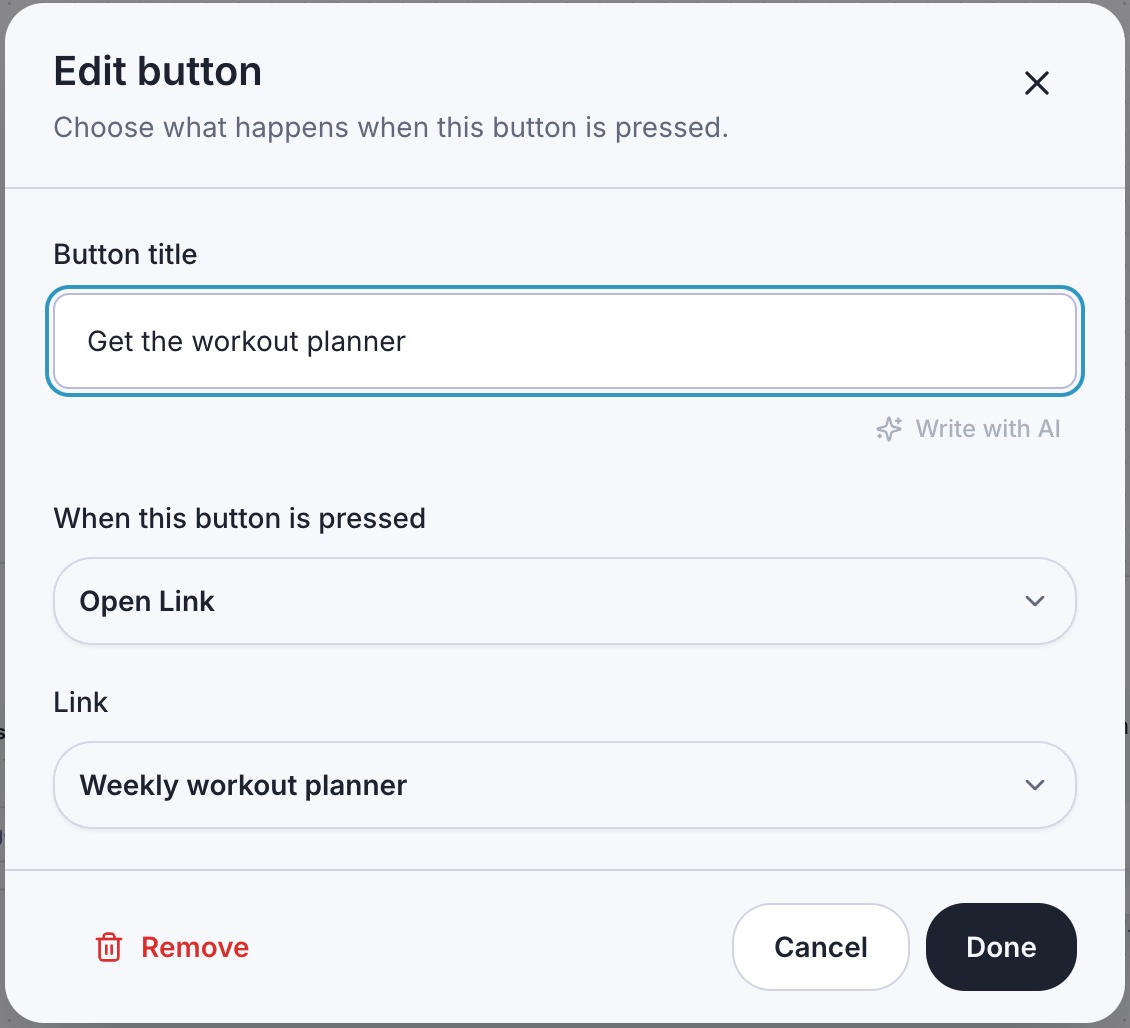
The visible button title and its destination are separate settings. Check both.
Open the saved Link separately on your phone. Confirm that it is active, opens the right planner, and does not require access your audience lacks. A correctly delivered DM cannot fix a broken destination. Publish any changes to the workflow's button selection before testing again.
7. Retest once, then retry only the failed message
After fixing the cause, click Check in the workflow toolbar. Resolve any reported issues. This validates the workflow; it does not prove Instagram delivery.
With the account connected and the draft saved, the Test panel can check delivery using its one-time-code instructions from another Instagram account. This sends real DMs. Use an account you control, and remember that a code-based draft test does not verify the public comment keyword.
After publication, leave an eligible fresh LINK comment on the selected Reel. Check the run in Activity, the receiving account's messages and requests, and the button destination. If you enabled a public confirmation, check that too.
For an existing failure, read the saved error under Failed sends. Select the affected eligible row and choose Requeue selected. This sends only that message; it does not restart the original workflow. The current account, automation, recipient, pause state, and messaging window still have to permit sending.
Comment unavailable means Instagram no longer exposes the original comment or commenter. LinkStack does not offer a retry for that event. If a delivery outcome is uncertain, check the Instagram conversation before attempting another send.
If the cause is still unclear, contact support with the automation name, post URL, exact comment text, approximate time and timezone, and the Activity status or error. Those details identify the failed step far more quickly than "DMs stopped working."
Open Automations and inspect the most recent affected comment before changing the workflow.