
How to understand automation metrics
Learn what runs, sends, replies, failures, and clicks measure, and check Link performance.
5 min read
In this article
Terms to know
- Runs are times the automation started from a matching trigger.
- Sends are messages LinkStack attempted and the provider accepted as sent.
- Pending can include a comment private reply that LinkStack deliberately queued to stay within Instagram limits.
- Replies are inbound messages or comments connected to the automation path.
- Failures are sends that could not be completed because of provider limits, permissions, missing setup, expired windows, or invalid destinations.
- Automation Clicks counts tracked link and button clicks attributed to an automation. Bot and test clicks are excluded.
- CTR is clicks divided by runs, with sends as the fallback when no runs were recorded. Repeated clicks can make it exceed 100%.
- Leads counts email and phone details captured by automation collection steps. One person can contribute both; it is not a count of unique people or all new Audience contacts.
How plan allowances count usage
Your monthly automation allowance counts trigger starts. A workflow can send several messages in one run, so the allowance is separate from the send count in analytics and the number of workflows you save. Check the dashboard or pricing page for the current allowance. An unlimited allowance removes the monthly trigger cap; Instagram messaging windows and rate limits still apply. AI credits and email availability are separate.
How to read the numbers
- High runs with low sends usually means the automation matched but could not deliver.
- High sends with low clicks usually means the DM copy or link offer needs work.
- High clicks with high fallback rate usually means the Link needs better country or device routing.
- High replies can be good intent or a sign the first message was unclear.
- A few failures are normal. Repeated failures need a setup check.
What to check next
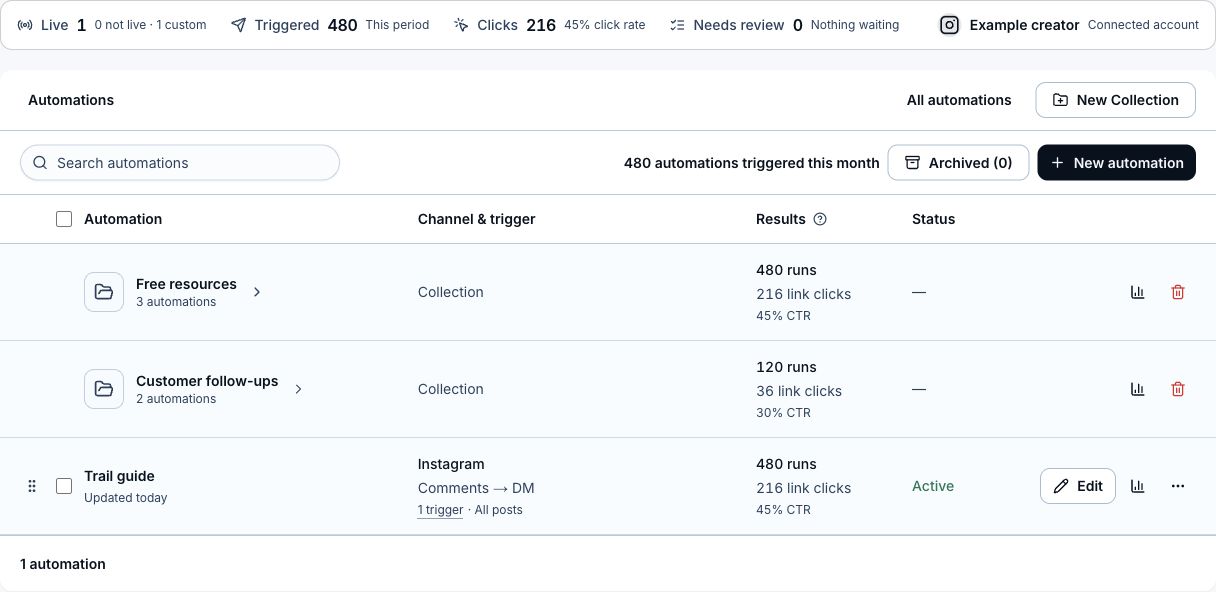
- On Home, use the date filter to choose Today, 7 days, or 30 days within your plan's available history. The Automations section below the traffic chart shows Runs, Clicks, CTR, and Leads for that range. Choose View analytics or one of the metrics to open the full report with the selected range. Refresh reloads these metrics along with the rest of Home.
- Open Automations and choose a Results range: Today, 7 days, or 30 days. The default is 30 days. Results and Collection totals combine all workflow versions within that range, using your account timezone. Monthly automation usage is a separate billing count. CTR is total clicks divided by total runs, falling back to sends when no runs were recorded. Collection CTR uses total clicks divided by total runs.
- Choose the analytics icon to open the automation report with the same date range. All versions is selected by default, showing combined step history on the current published layout. Moving or editing the same step retains its clicks and other results across versions. Deleting and recreating a step or button starts separate history, even if its name or destination is the same.
- When earlier published versions exist, use the Version dropdown to choose one by version number and publication date. Its saved diagram, step results, lead breakdown, drop-off steps, and diagnostics appear for the selected date range, including steps removed from the current workflow. Choose All versions to return to combined history. Switching versions keeps the range; changing the range keeps the version. Drafts never appear in this selector. Choosing a version changes only the report, not the running automation.
- Headline triggers, sends, clicks, CTR, replies, leads, and drop-off stay combined across all versions for the selected date range. Total CTR uses total clicks divided by total runs, falling back to total sends when there are no runs; version percentages are never averaged. The version selector only filters workflow details.
- A version with no activity in the selected range shows its saved diagram with zero results for its steps, while headline totals still include other versions. Home, All automations, and individual reports keep combined totals, including leads captured by steps removed from later versions. Older activity without a reliable version reference is included only in combined reporting; clicks with a known step still contribute to that step's combined history. Each activity uses its own date: a click this week can belong to a message sent last month.
- Choose Edit to change the workflow or manage publication; Status in the table is read-only. The menu beside analytics contains Activity, Rename, Duplicate, and Archive.
- Check recent sends, replies, failures, and linked Link activity.
- Open the Link analytics for the link used in the automation.
- Compare countries, devices, referrers, route outcomes, and fallback rate.
- Update the automation copy or Link routing based on the weak spot.
Related articles
Still need help?
Support & feedback