How to hand an AI conversation to a person
Take control of one AI conversation, choose what happens when you reply manually, and restart an agent only when it fits. Includes a practical takeover checklist.
 LinkStack
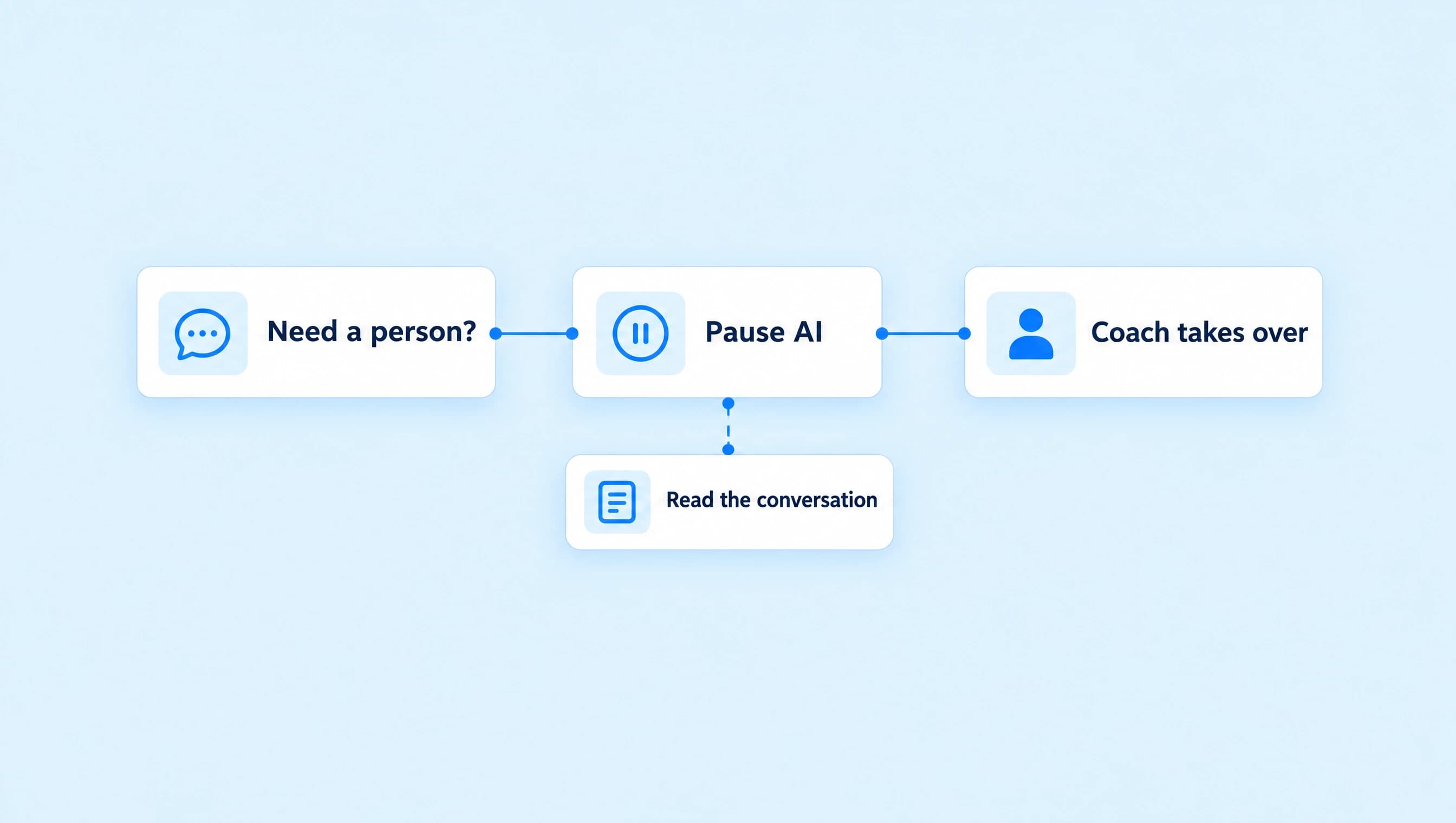
To stop an assigned AI agent in LinkStack, open the conversation in Inbox and choose No chat agent in the Chat agent selector. If you're sending a manual reply, choose Send & turn off when prompted. That sends your message and ends the agent's control of that chat.
Use this when a person asks for you, needs a decision the agent cannot make, or has already been through an unhelpful loop. Pausing workflow automations is a separate control and does not stop AI replies.
Northline Coaching's Discovery call assistant can answer questions about its free, 20-minute call. When someone says, “I've explained my situation twice. Can I speak to the coach?”, the next step is a handoff, not another question about their business.
Take control before continuing the conversation
Open the correct thread in Inbox and read the latest incoming message. Check whether the agent has already sent an answer or has a reply waiting. A takeover can stop pending work; it cannot recall a message the person has already received.
Use Chat agent above the conversation and select No chat agent. Wait for the change to finish and confirm the agent is no longer selected before writing your reply.
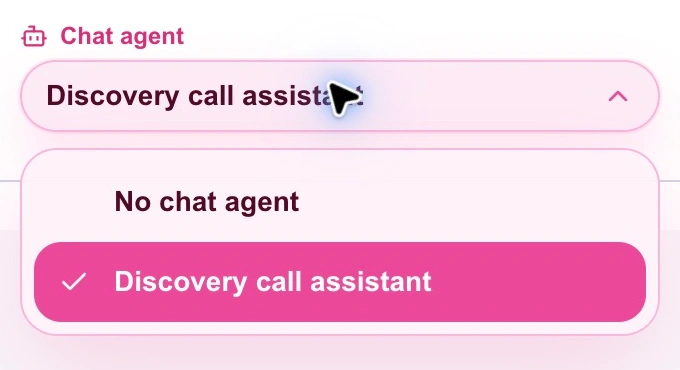
Choose No chat agent to remove the assignment from this conversation.
If you are already checking the agent's activity, open Activity, expand the relevant Recent sessions row, and use Take over for an active session. View conversation opens its Inbox thread so you can read and continue the exchange.
Taking over or removing the assignment ends AI control and follow-ups for that conversation. It also cancels an assignment queued to start on the person's next message. The agent assignment guide covers these controls and their effects.
Keep the distinction between one chat and the whole agent clear. Removing Discovery call assistant from this conversation lets you handle this person. It does not pause that agent across every other conversation.
Sending a manual reply has two different outcomes
If an agent is still assigned when you choose Send, LinkStack can ask Turn off the agent for this chat? The two Send choices send the reply you've written:
| Choice | What happens after your message sends |
|---|---|
| Send & turn off | The agent is removed and its session and pending work end for this chat. |
| Send & keep agent | The agent stays assigned and can handle future messages. |
| Keep editing | The dialog closes without sending the message. |
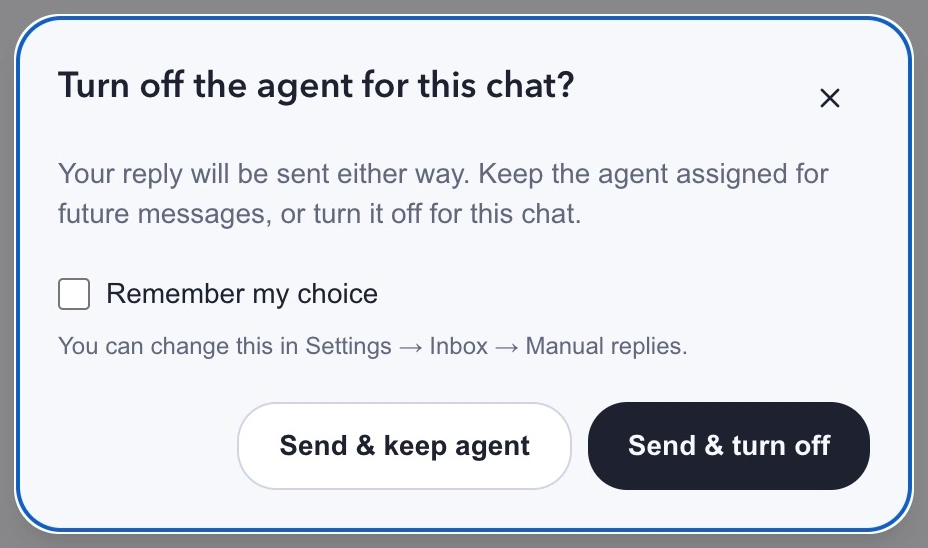
Choose Send & turn off when you intend to take responsibility for the conversation.
For the Northline request, the coach could reply:
I'm here. You said the main issue is fitting client delivery around sales work. What would you like me to look at first?
That message uses what the person has already told the agent. The coach should read the thread before sending it and change the wording to fit what was actually said.
Remember my choice applies the selected behavior to future manual replies across your account. If the prompt stops appearing, check Settings, Inbox, Manual replies. Choose Ask every time if you want to decide separately for each chat.
A manual reply by itself is therefore not a reliable indication that the agent has stopped. Check the choice you made and the current Chat agent selection.
Pause workflows only when you also need that pause
Pause automations holds workflow automation activity for the contact. It does not stop an assigned agent, prevent AI replies, or replace No chat agent.
You may want both controls during a complaint: remove the agent so you can respond personally, then pause workflows if campaign messages would interrupt the conversation. Decide that separately from the handoff.
Manual replies also use your configured workflow cooldown. Keeping the AI agent assigned can let it continue while that cooldown holds workflows. The manual-reply pause guide explains the setting.
Resume automations clears the workflow pause. It does not restart a stopped agent or replay its cancelled work. To give the conversation back to an agent, assign it explicitly when the person is ready for that step.
Tell the agent when to hand over on its own
In the agent's Instructions, name the situations that need you. A vague “escalate when necessary” leaves too much undecided. Northline's rule can be specific:
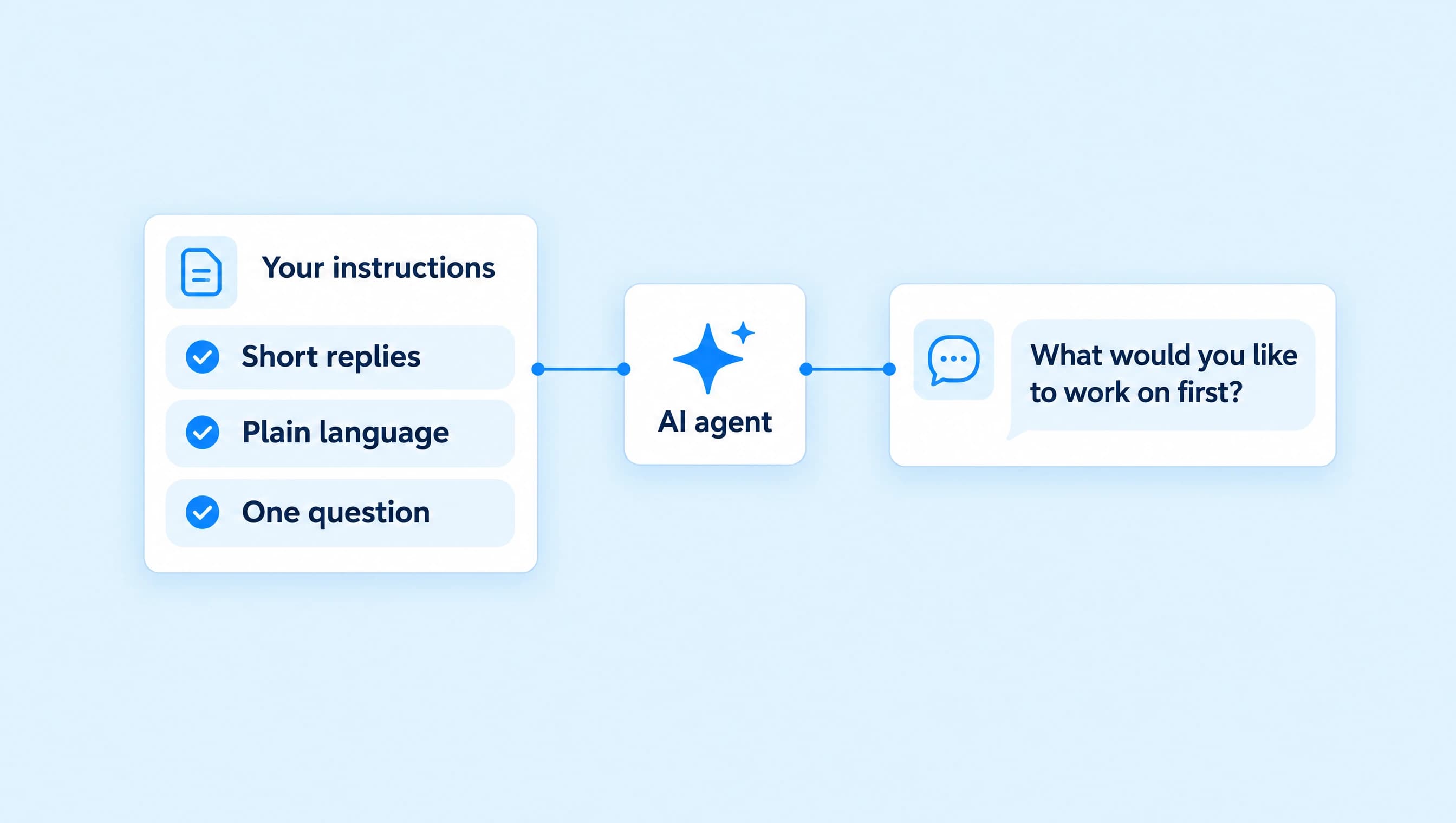
Hand the conversation to the coach when someone asks for a person, has a complaint, needs a policy answer missing from the assigned knowledge, or says that repeating the current questions is not helping.

Acknowledge what needs attention in one short reply. Use details already in the conversation so the person does not have to start again. Stop qualification and booking offers once they ask for the coach.

Do not promise when the coach will respond, claim that an appointment has been made, or say a request has been approved. Do not claim to have opened a ticket or contacted another department.
In Knowledge, open Resources and actions, then Permissions, and make sure Hand over to me is enabled. Instructions describe when to act; the permission allows that action. Save the draft and publish the updated setup when you're ready.
A human handoff returns control to the account owner. It doesn't establish that someone has read the request, create a ticket in another support service, or guarantee an answer by a particular time. Check Inbox and follow through on the conversation yourself.
Check the handoff before relying on it
Use Test agent with Direct message selected. Send “Can I speak to the coach?” and inspect both the reply and proposed action. The agent should stop the qualification conversation and hand over, without inventing an answer or promising a response time.
Then test a complaint and a question outside the supplied policy. These should reveal whether the instruction is clear enough. Tests simulate actions and don't send messages to the person; the Playground guide explains how to inspect the result.
For a controlled real conversation, keep Review first while checking the setup. Manual only lets you choose which chats receive this agent.
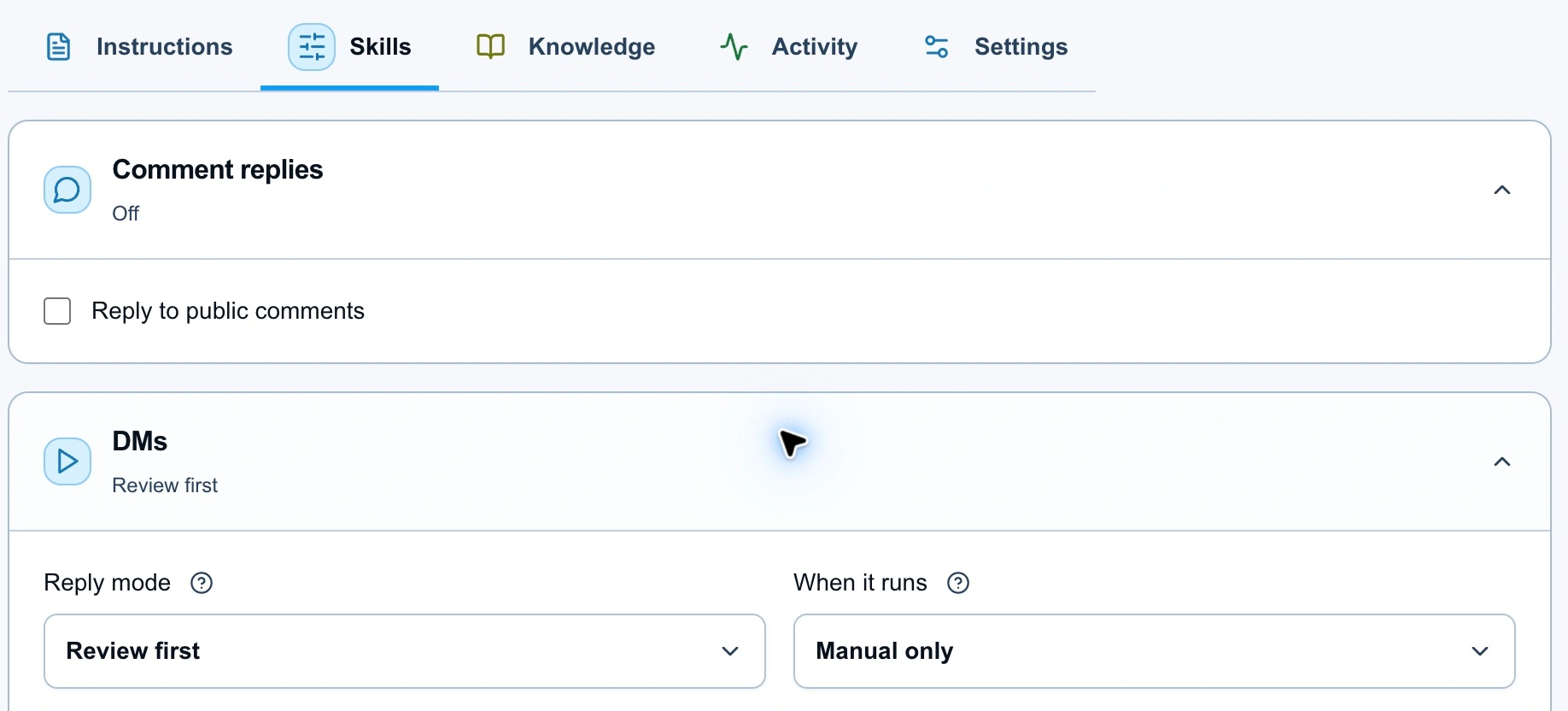
Use reviewed replies and manual assignment while checking the handoff path.
Use this checklist when a real chat needs a person:
- Read the latest messages and any reply already sent by the agent.
- Remove the assignment with No chat agent, use Take over from its active session, or send your reply with Send & turn off.
- Confirm the agent is no longer assigned. Check for an error before assuming the change succeeded.
- Decide whether workflow automations also need to be paused for this contact.
- Reply using the context already in the thread, then handle the actual request.
- Leave the chat under human control until you have a reason to assign an agent again.
Return the chat to AI deliberately
After resolving the request, decide whether more automated help would be useful. If the person still needs your judgment, leave the agent off. Don't restart it just because the conversation has gone quiet.
To resume AI control, select a published, active agent from Chat agent. Check its current instructions and reply policy first. If you use the Assign AI agent dialog, On their next message lets the assignment wait for a new incoming DM; queued assignments use no AI credits or session timer until activation.
Reassignment starts new work. It does not replay the replies cancelled during takeover. An explicit request to stop contact should also guide your decision: don't reassign an agent simply to continue a conversation the person asked to end.
Keep the handoff useful for both sides. The person should not have to repeat everything, and you should be able to see exactly why the conversation needs your attention.