How to auto-reply to Instagram comments and send a link
Set up an Instagram comment-to-DM workflow in LinkStack. Choose LINK, pick a Reel, write the public reply, and send one DM with the right destination.
 LinkStack
Someone asks for the link under your Reel. You find the comment, open their profile, paste the URL, and do it again for the next person.
With a comment-to-DM automation, they comment LINK and get the destination in a private message. You can also leave a public reply telling them to check their DMs.
This walkthrough builds that flow in LinkStack: one keyword, one Reel, and one message with a button. A fitness coach uses it to share a weekly workout planner. The same setup can share a content calendar, product recommendation, or coaching booking link.
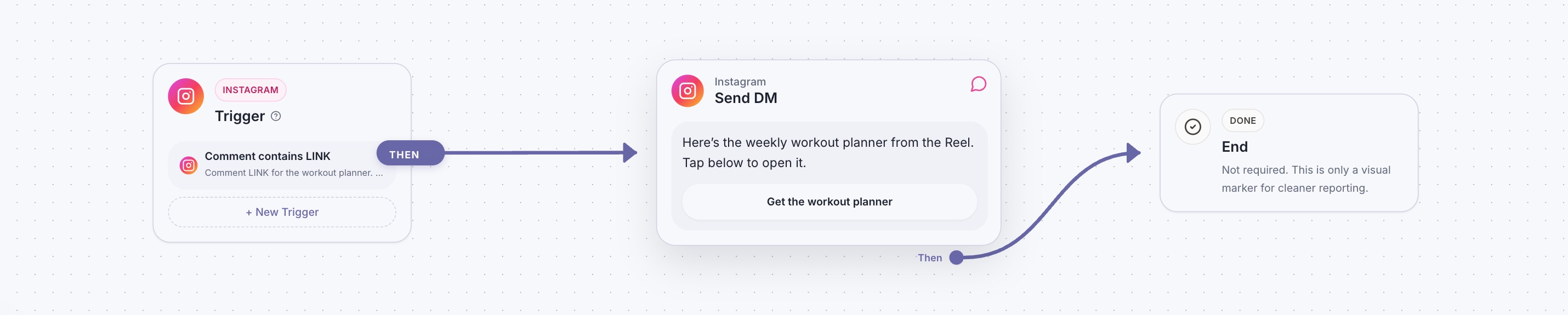
The complete workflow. These are real captures of LinkStack's editor using sample data. The workflow stays a draft; the phone view below is a simulated conversation.
What happens when someone comments LINK?
Your caption tells people what they will receive:
Want a simple way to plan your workouts? Comment LINK and I'll send you my weekly workout planner.
When a matching comment arrives on the selected Reel, the workflow sends a DM with a Get the workout planner button. After Instagram accepts the DM, LinkStack can post the public confirmation you wrote.
The public reply and private message have different jobs:
| Where it appears | What it says | What the reader does |
|---|---|---|
| Under the comment | Sent the planner. Check your DMs. | Opens their messages |
| In the DM | Here's the weekly workout planner from the Reel. Tap below to open it. | Taps Get the workout planner |
| At the destination | The workout planner promised in the caption | Reads or saves it |
The link goes in the first DM. This workflow does not ask for an email address or require another reply before sharing it.
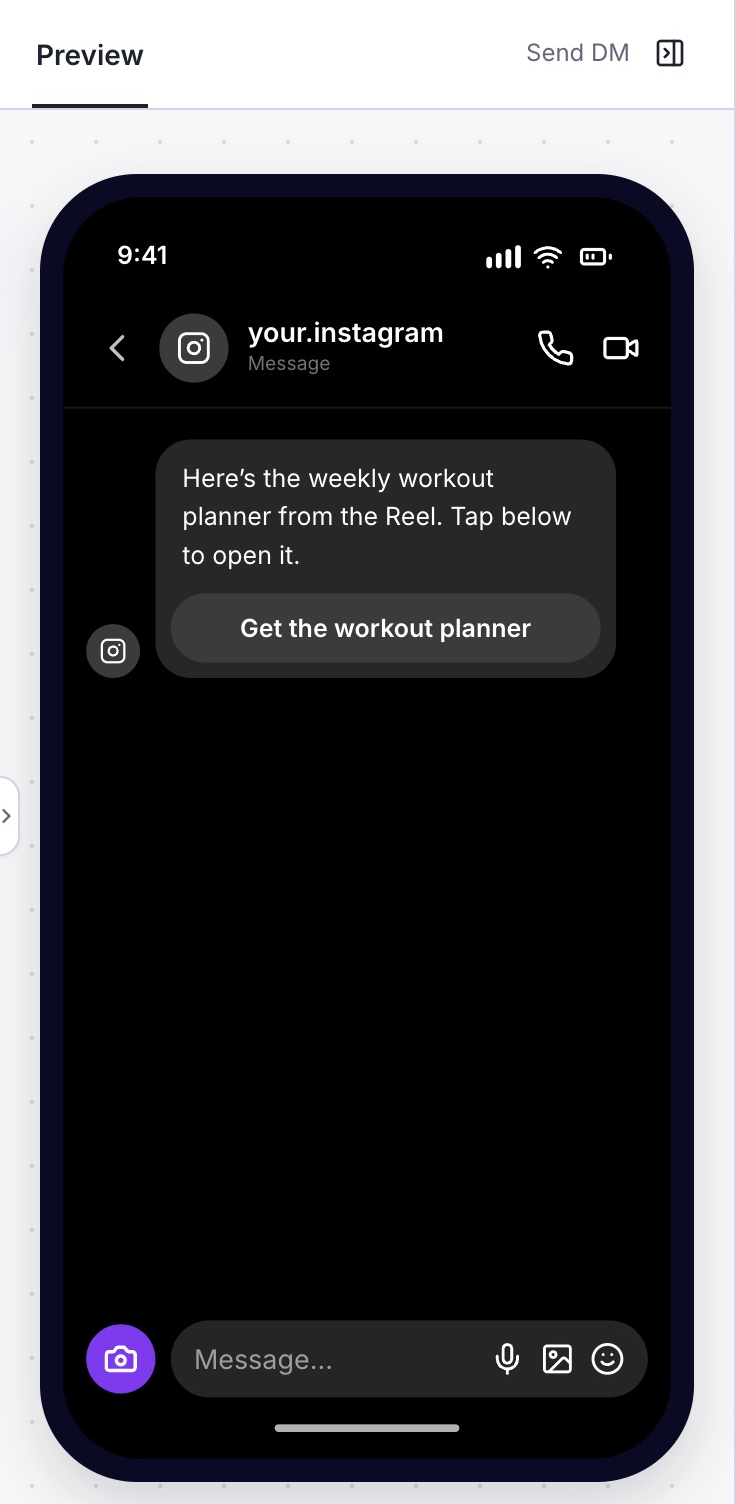
The phone preview shows the message layout. It does not send a DM or test the destination.
Before you build it
You need a professional Instagram Business or Creator account, access to Automations in LinkStack, and a destination you are ready to share.
Connect Instagram through Settings → Integrations, or connect during the guided setup below. Allow the required comment and message permissions. You can draft before connecting; choosing your real posts, testing delivery, and publishing require an active connection.
Open your destination on your phone first. Check that the page loads, that the intended visitor can access it, and that it contains what the caption promises. If you need to create a saved Link first, follow Create your first Smart Link.
1. Start an Instagram automation
On Home, choose Create an Instagram automation. Connect Instagram, then choose Continue to workflow. If you are drafting first, choose Continue without Instagram and connect before publishing.
The canvas opens with a setup guide. Under Your Smart Links, select the destination to send. You can also choose Create a Smart Link, paste the destination URL, and give it a title you will recognize later.
Our saved Link is named Weekly workout planner. Select it, then choose Continue.
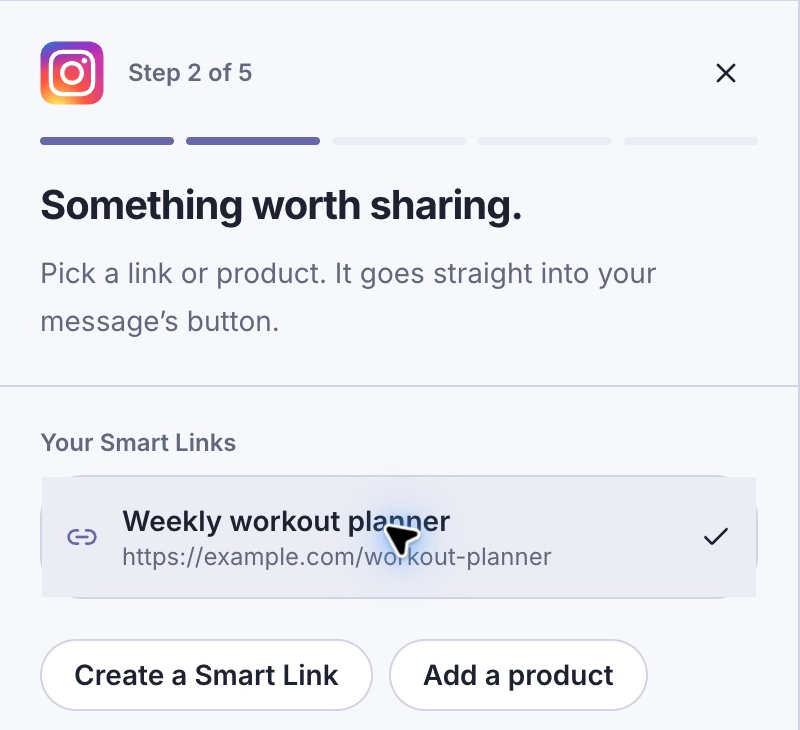
Choose the destination once. The guide puts that Link into the message's button.
Already working in Automations? Choose New automation → Send link on keyword, select your saved Link, and choose Use template. That opens the workflow editor too. The controls below are the same; the screenshots follow the Home setup guide.
2. Set LINK as the comment keyword
In the trigger settings, keep Starts when set to Post or Reel comments. Under Comment match, select Words and enter LINK. Press Enter to add the word if it is not already there.
Give the trigger a clear name, such as Comment contains LINK. The name helps you recognize it on the canvas. The Words field decides which comments match.
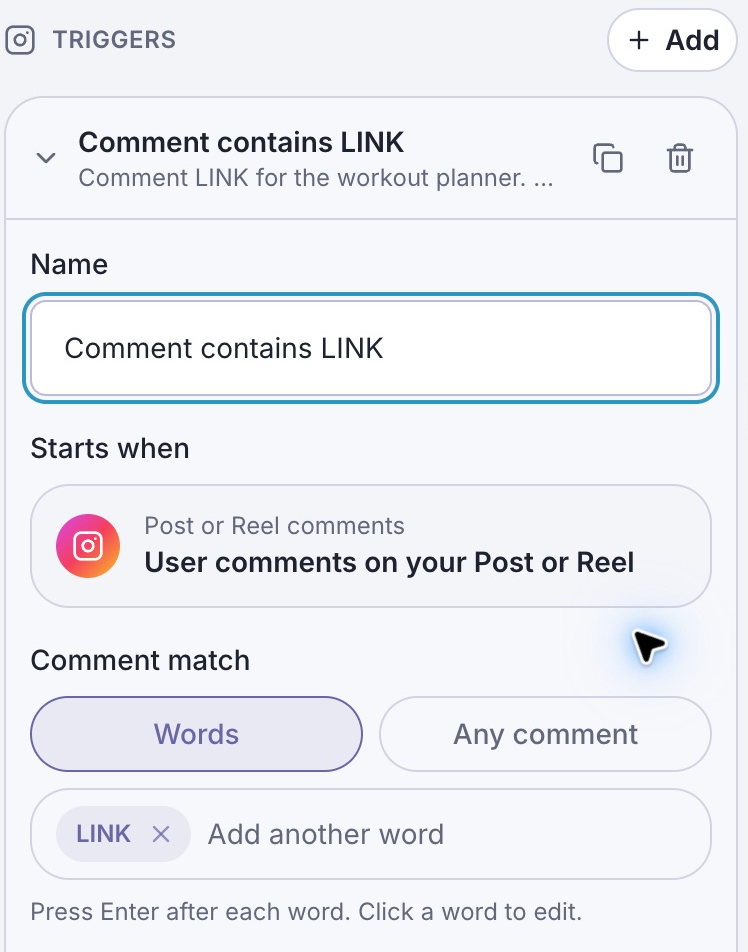
Put LINK in Words. Renaming the trigger alone does not change its matching rule.
Use the same keyword in your caption. Choose Any comment only when every commenter should receive the message, including someone who simply leaves an emoji or says they enjoyed the Reel.
3. Choose the post or Reel
Under Post or reel, choose where this keyword should work:
| Setting | Use it when |
|---|---|
| Specific post | One post or Reel has one offer |
| Next post | You are preparing the automation for your next post |
| All posts | The same keyword should deliver the same destination across current and future posts |
For the workout planner, choose Specific post and select the matching Reel. This keeps LINK under a future product video from accidentally sending the workout planner too.
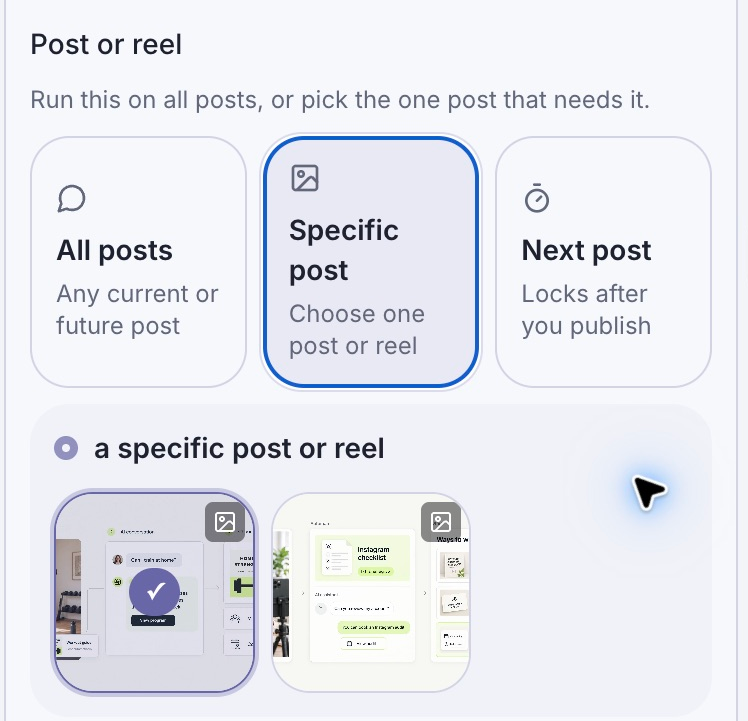
The selected Reel limits where the LINK keyword starts this workflow.
4. Add the public reply
Under Public reply in feed, select Yes, random multiple replies. Replace the starter copy with a short confirmation. You can keep one reply or use New Replies to add variations.
Use short confirmations:
- Sent the planner. Check your DMs.
- The workout planner is in your DMs.
- Sent! Check message requests too.
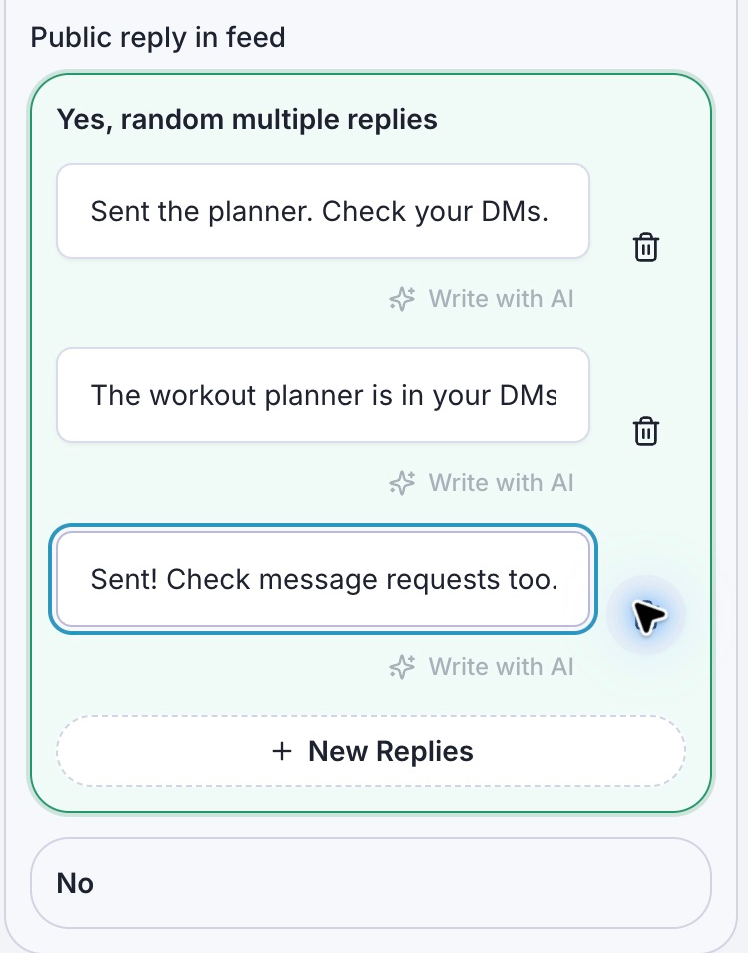
Each version tells the commenter where to look next.
LinkStack sends this confirmation after Instagram accepts the workflow's DM. A queued DM makes the public reply wait; a failed or skipped DM does not receive a false “sent” confirmation. Choose No if you do not want a public reply.
Choose Continue to edit the private message.
5. Write the DM and check its button
In Message sequence, edit the Text block. Keep the message close to the promise in the caption:
Here's the weekly workout planner from the Reel. Tap below to open it.
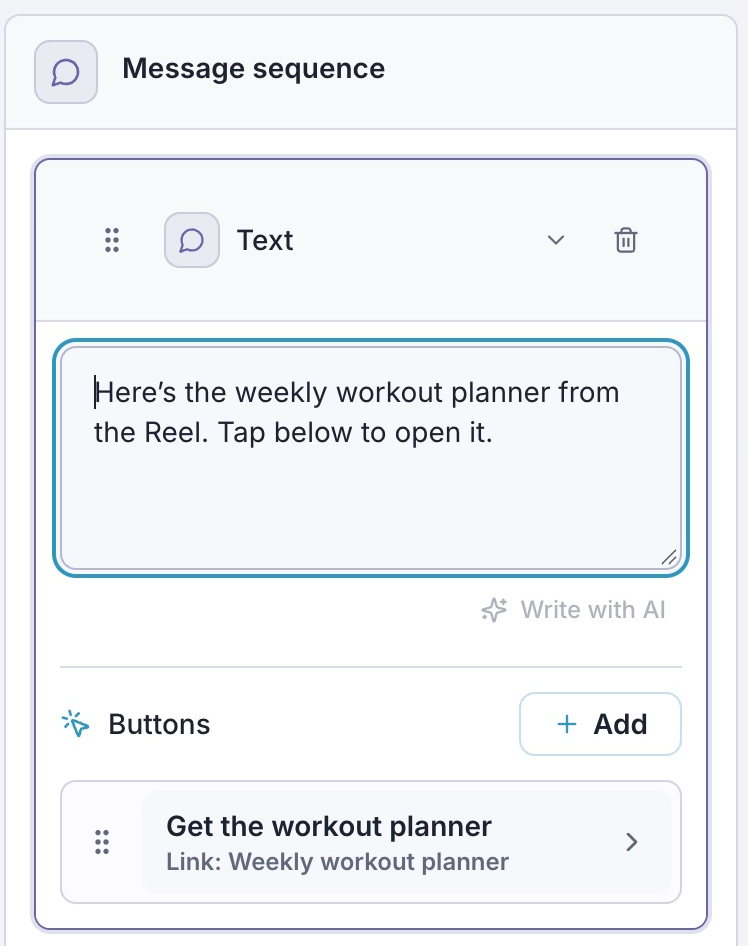
Click the button beneath the message to open Edit button. Set:
- Button title: Get the workout planner
- When this button is pressed: Open Link
- Link: Weekly workout planner
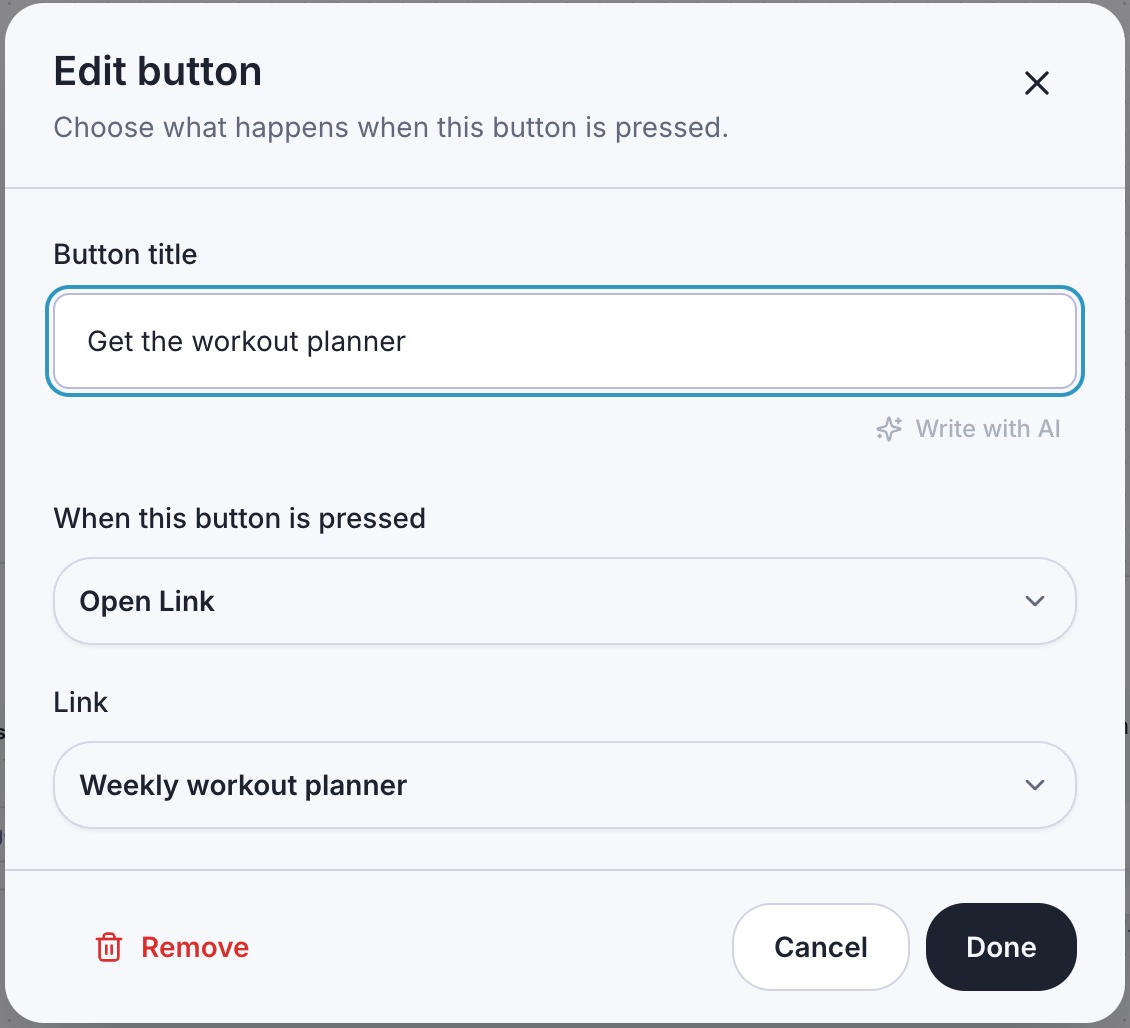
The button title is visible in the DM. The selected Link controls the destination.
Choose Done. Continue through the guide and use the phone preview to check the message and button label. Open the saved destination separately to test it; preview buttons do not open it.
One short text block with one destination is enough for this workflow. If you later want to collect an email before sharing a resource, use the separate email collection walkthrough.
6. Check the workflow, then test delivery
Click Check in the toolbar. Resolve any issues before publishing. This saved workflow returns Workflow looks good, which confirms the graph check. It does not prove that Instagram delivered a message.
With your professional account connected and the draft saved, use the editor's Test panel. Follow its one-time-code instructions from a different Instagram account. Live tests send real DMs, so use an account you control.
Confirm that the DM arrives and that Get the workout planner opens the right destination. This checks the message path. A code-based draft test does not prove that your public comment keyword matches.
When you are ready, choose Review & publish in the guide, or Publish workflow in the toolbar. Review the changes, then confirm Publish workflow.
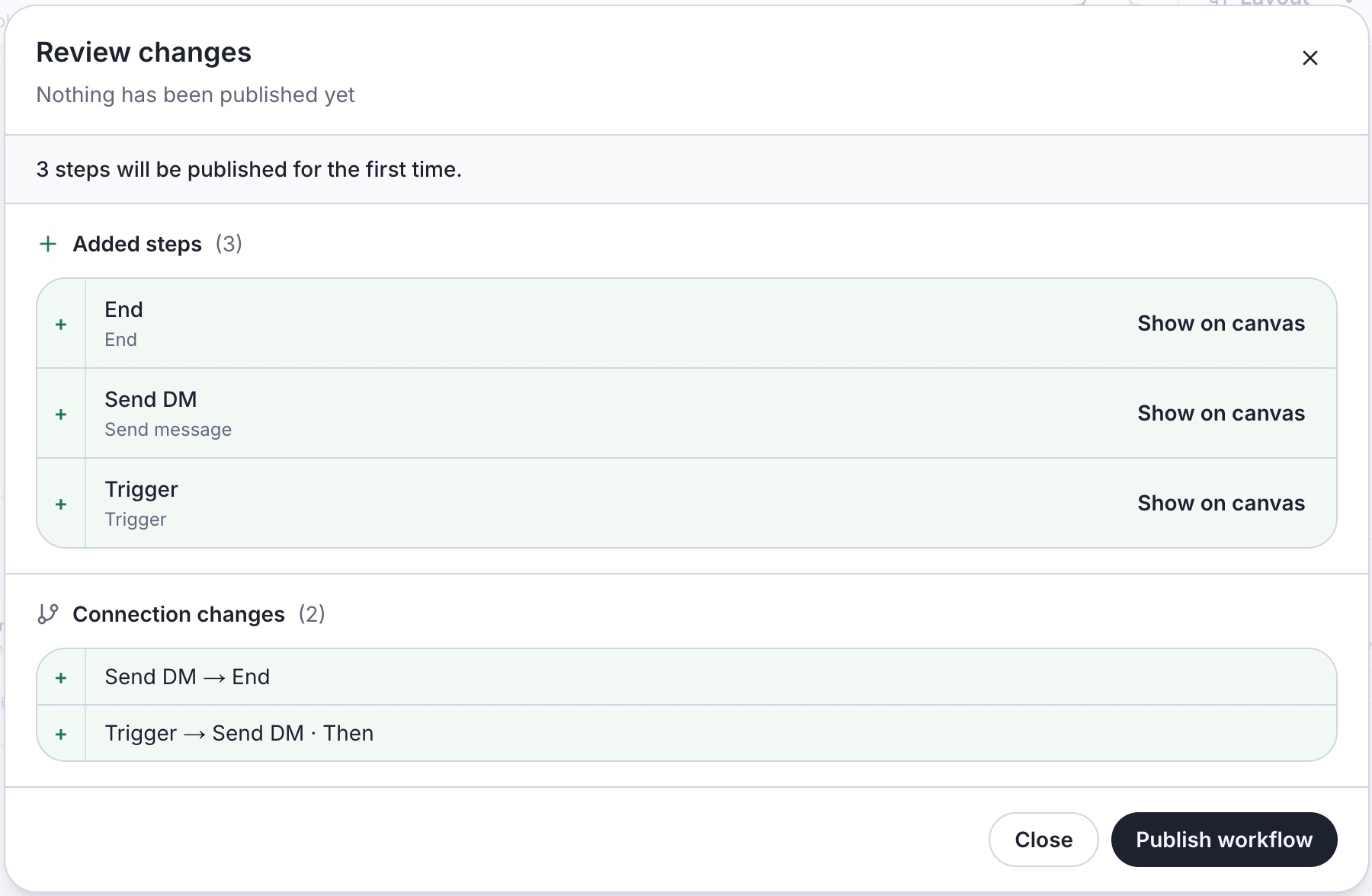
Review the steps and connections before activation. The workflow shown here has not been published.
Now leave a fresh comment containing LINK from the second account on the selected Reel. Verify each part of the result:
- The comment starts the correct workflow.
- The DM arrives with the expected message and button.
- The public reply appears if you enabled it.
- The button opens the intended page.
Return to Automations → Activity to inspect the run and delivery status. Use automation metrics and the saved Link's analytics to review activity. A sent DM and a clicked Link are separate results.
If the reply does not arrive
| What you see | What to check |
|---|---|
| No run after a comment | Confirm the workflow is published, LINK is in Words, and the comment is on the selected post |
| A connection or permissions notice | Reconnect the intended professional Instagram account in Settings → Integrations |
| Pending delivery | Open Activity and inspect the status; queued messages have not been sent yet |
| The DM arrives but the link is wrong | Edit the message button, select the correct Link, save, and publish the changes |
| The commenter cannot find the message | Ask them to check message requests as well as their inbox |
| Replies stopped after a manual conversation | Check whether that contact's automations are paused |
The Instagram delivery troubleshooting guide explains how to inspect these cases. Repeatedly editing the message will not fix a disconnected account or the wrong post selection.
Can I send more messages after the link?
A comment can qualify for a one-time private reply. It does not automatically open an ongoing DM conversation. Ordinary follow-up messages need a qualifying interaction from the recipient and must stay within the applicable messaging window. Opening a website link alone does not open that window.
Keep the first version to the requested link. Read how the messaging window works before adding another message or delay.
Use the same setup for another offer
Keep the caption, DM, and destination about the same thing. Adapt the request and button to your offer:
| Offer | Caption request | DM button |
|---|---|---|
| A fitness coach’s planner | Comment LINK for my weekly workout planner | Get the planner |
| A growth coach’s content calendar | Comment LINK for the content calendar | Get the calendar |
| A business coach’s discovery call | Comment LINK to book a discovery call | Book a call |
| An affiliate product recommendation | Comment LINK for the desk setup I recommend | View the desk setup |
Create a separate workflow for a different offer, choose its post, and select its destination. Reusing LINK across separate posts is easier to manage when each workflow is scoped to the right post.
Create your Instagram automation and start with one link people already ask you for.