Send a workout planner when someone replies to your Instagram Story
Send a weekly workout planner when a viewer replies PLAN to your Story. Choose the right Story, configure the DM, and test replies that should stay out.
 LinkStack
Use a Story reply trigger with a specific keyword to send your workout planner automatically. In LinkStack, choose the Instagram account, match PLAN, limit the workflow to the intended Story, and connect it to one DM with a planner button.
This works well for a fitness coach who shows part of the planner in a Story. Viewers can ask for the resource while they are looking at it, and casual replies can stay out of that delivery workflow.
Show the planner before asking for a reply
A useful Story gives someone enough context to decide whether they want the resource. Show a completed week, explain how you use it to organize training, and make the request specific:
Want the weekly workout planner? Reply PLAN to this Story and I’ll send it here.
Use the same wording in the frame that shows the planner. Avoid asking people to reply to a different Story in the sequence, especially if you intend to limit the automation to one frame.
This workflow sends a planning resource. It makes no promise of a particular fitness result, and it does not add the viewer to an email list.
Prepare the destination
Put the planner somewhere the recipient can open on a phone. Check its sharing permissions before adding the link to the automation. A file that opens for you while signed in might still ask everyone else to request access.
In Links, save that destination with a clear internal title such as “Weekly workout planner.” You will select this Link in the DM button. The sample destination in the screenshots is illustrative; use your own resource URL.
You also need a connected Instagram professional account and access to Instagram automations in your LinkStack plan. The Story reply help guide covers the connection and workflow steps, and pricing lists current plan limits.
Match PLAN in a Story reply
Open Automations and create a custom workflow. Choose the Story reply Instagram trigger and your connected account. Name the workflow “PLAN · Weekly workout planner.”
Inside the trigger, select Words and enter PLAN. Press Enter to add the word. Use “Story reply contains PLAN” as the trigger name so its purpose stays clear when you return to the workflow later.
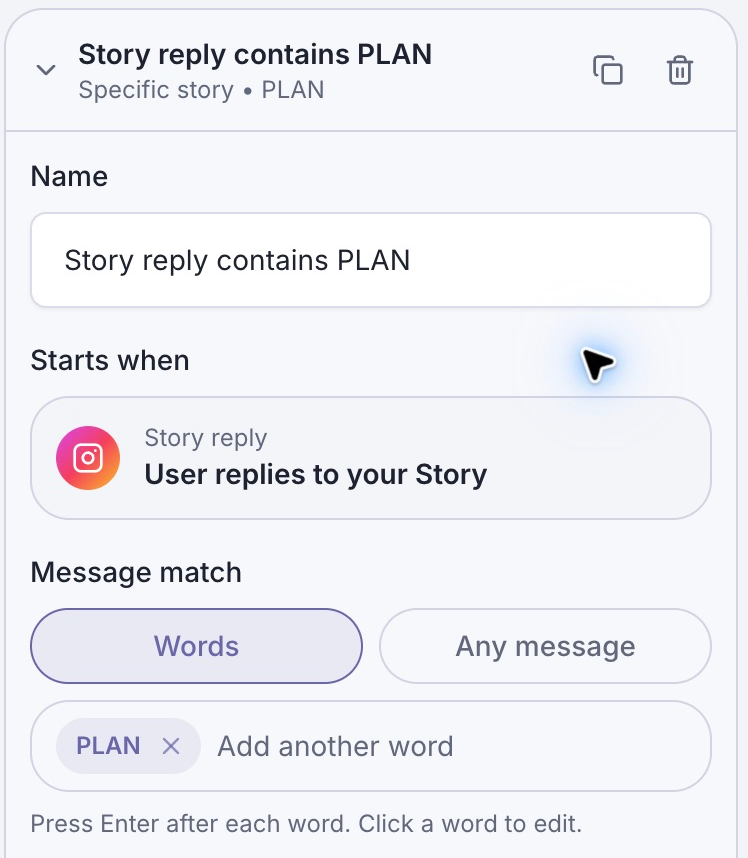
Words limits this offer to matching replies. Any message would include unrelated replies to a Story within the chosen scope.
Start with a keyword tied to the resource. If you also use PLAN for meal plans or business planning, review those workflows before reusing it. Scope and keyword need to identify the same offer.
Choose the Story that contains the offer
Select Specific story and choose the active Story showing the workout planner. Check the selected frame, not just the fact that a Story is selected.
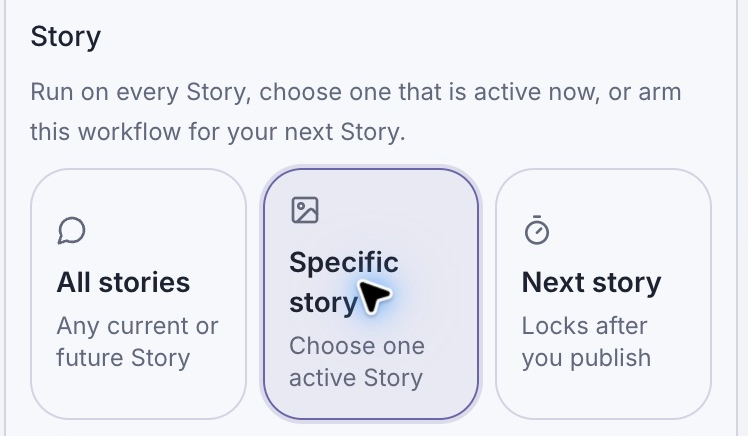
Specific story is the clearest choice when the planner Story is already active.
If the Story is not live yet, Next story can target the next Story you publish after the workflow is active. Finish the automation before posting, and make sure the next Story is the offer you intend. A casual update posted first can bind the workflow to the wrong frame.
All stories makes sense only when PLAN should mean this same planner across your Stories. Revisit that choice when you change the resource or start a different offer. The scope options in the help guide describe the supported choices.
Send one message with the planner button
Add a Send Message step after the trigger. In its Text block, write:
Here’s the weekly workout planner from my Story. Tap below to plan your week.
Add a button labeled Get the workout planner. In Edit button, choose Open Link and select Weekly workout planner. Click Done and wait for the draft to save.
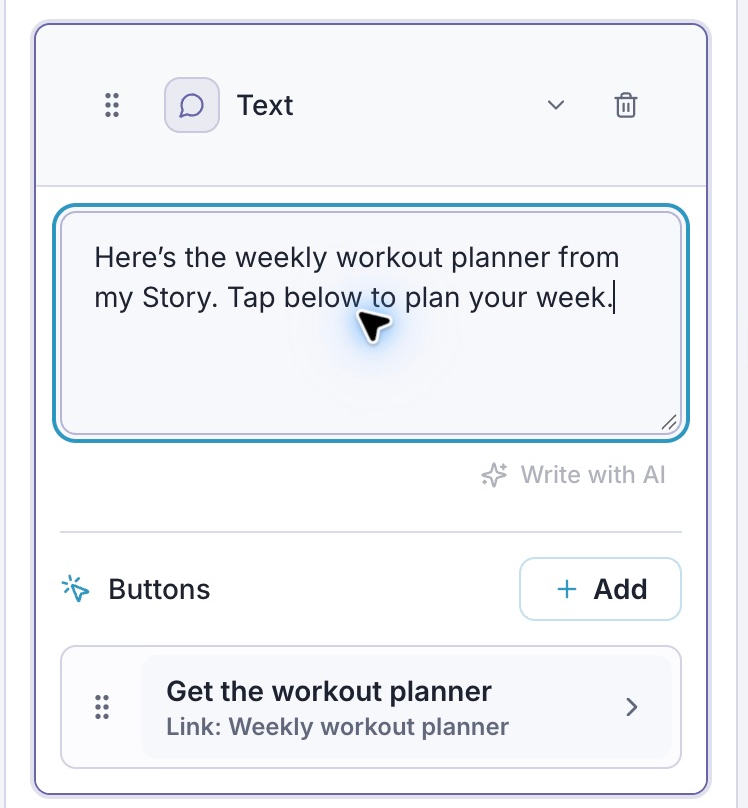
The message, button label, and saved Link all refer to the same planner. This is the editor’s sample configuration, not a delivered Instagram DM.
There is no need to ask for an email to deliver this offer. If you later add an email subscription, explain that offer before asking for the address and follow the email collection guide.
Test a matching reply and an unrelated reply
Run Check and inspect the DM in Preview. “Workflow looks good” means the editor found no graph issues. It does not verify that Instagram delivered the message. Preview buttons also do not prove that the resource URL works, so inspect the selected Link separately.
With a connected account, use the draft Test to check the message path. Live tests send real messages. When the draft is ready, publish it and use another Instagram account to reply to the intended Story.
| Reply or action | Expected result |
|---|---|
| PLAN on the selected Story | The planner DM arrives. |
| A reply without PLAN | This planner workflow does not start. |
| PLAN on an unrelated Story | A workflow limited to Specific story does not start. |
| Tap Get the workout planner | The correct resource opens with usable sharing permissions. |
Inspect Activity if a reply does not arrive. Confirm that the automation is published, the intended Instagram account is connected, and both the word and Story match. A draft will not respond to ordinary Story replies.
Keep any later Instagram follow-up within the supported messaging window, and check the Inbox so manual replies and automated messages do not talk over each other.