
How to use AI Reply and Assign AI Agent
Generate one reply using the conversation, or assign a published agent to keep replying. Add instructions and review replies before sending if needed.
4 min read
In this article
Draft a reply with the composer
- Open a conversation and choose the sparkle button in the reply composer. Enter an instruction, such as Ask for their email instead, then choose Create.
- Review the suggestion, revise it if needed, and insert it into your reply. Send when ready; generating a draft does not send it.
- If generation times out or cannot finish the reply, choose Create again, or Recreate if a suggestion is already shown. Your prompt and current draft stay in place.
Queue agents for a bulk selection
- Select conversations in Inbox with the row checkboxes or the header checkbox for all loaded conversations. You can also select contacts across Audience pages, where Select all matching captures the current filtered IDs; new arrivals are not added.
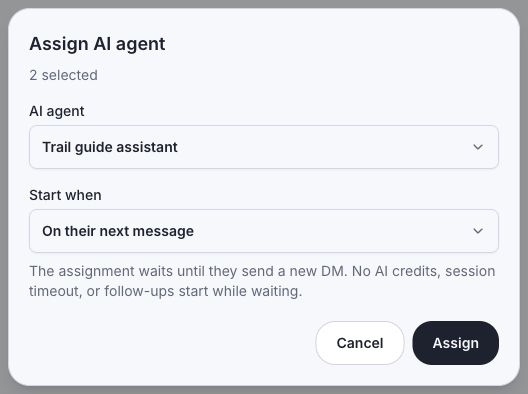
- Choose Assign AI agent and a published active agent. Keep On their next message to wait for a new incoming DM, or choose Immediately to start the session now.
- Confirm the selection. Follow batch progress and open individual results. Use Retry failed items in the same dialog to safely finish a partial request.
- Captured ID-only Instagram DMs show as Instagram Contact, with the message preview, timestamp, and Waiting for reply. Missing profile details do not prevent assignment.
- Queued agents use no AI credits and start no session timeout or follow-ups until activation. The reply uses the existing conversation history and preserves labels and notes.
- Take over, remove the assignment, or choose Send & turn off when replying manually to cancel queued activation. Send & keep agent preserves it. Future eligible workflow triggers can run unless Pause automations is active. A manual reply still uses your configured cooldown for workflows. Automation pauses do not block AI-agent assignment or replies. Use Resume automations to clear a pause, or assign an agent again to restart AI control. Cancelled work is not replayed.
Reply manually and choose whether to keep the agent
- Write your reply in an AI-assigned chat in Inbox and choose Send.
- Choose Send & keep agent to leave the agent assigned, or Send & turn off to end its session and pending work for this chat. Both send your reply. Keep editing cancels without sending.
- Check Remember my choice to apply that behavior to future manual replies across your account. Leave it unchecked to keep being asked.
- On the web, open Settings → Inbox → Manual replies to change the preference or select Ask every time. This does not change your AI reply rejection preference or the separate automation cooldown.
Request a reply in Inbox
- Open an Instagram DM conversation in Inbox and choose an active, published Chat agent.
- When the latest message is incoming text from the contact, click AI Reply beneath it. You can also retry a failed generation, including a saved model error, if no reply or actions were prepared.
- Review and approve the draft if the agent requires review. Automatic replies keep the agent’s confidence checks, permissions, and reply timing.
- If you reject all pending drafts, choose Keep assigned, then click AI Reply again for a fresh response. Drafts that already started sending or applying actions cannot be retried.
- Wait for the request to finish. Existing pending or completed replies are not generated again. The messaging window must still be open.
- If you have taken over or turned off the agent while replying manually, explicitly reassign it before asking it to respond. Keeping the agent assigned does not require reassignment.
Choose one reply or an ongoing conversation
- On the workflow canvas, click the + button.
- Choose AI Reply for one message, or Assign AI Agent for an ongoing conversation.
- For a contact-event workflow, Assign AI Agent finds the owned chat using the saved contact ID. Missing profile details are fine. If multiple chats match, assign from Inbox or use a workflow connected to the intended account. Assignment is saved even when the window is closed, the contact has not messaged, or the agent cannot run yet. A new assignment replaces the previous agent or takeover. Automation pauses do not block the assigned agent. Reply checks only decide whether to generate an initial message. Otherwise the agent stays assigned and waits for an eligible incoming message. Only answer questions also keeps the assignment for non-questions. AI Reply needs an eligible open window; adding a tag does not count as an incoming DM.
- Pick an existing agent, or click New to create one.
- Use an active, published agent. It supplies its Instructions, knowledge, and review policy.
- Instructions are optional. Leave them blank to use the conversation and agent defaults, or add guidance for this step. Specific goals are optional for ongoing agents.
- Leave Time limit set to Off for an ongoing conversation with no automatic timeout. To end it after a fixed duration, choose a duration or Custom duration, then enter minutes, hours, or days. There is no 24-hour cap; enabled limits must be at least five minutes. The timer starts when the agent session activates. Pending assignments use no generation credits and start no timer or follow-ups. Replies do not reset the timer. The step's limit overrides the agent-level limit, including Off. Changes apply to new sessions; saved explicit limits are preserved.
- When a session expires, its pending replies and follow-ups stop and the agent is released. Takeover, removal, or choosing Send & turn off on a manual reply cancels the assignment. Send & keep agent preserves it. Automation pauses do not stop the agent. Use the agent’s own controls to stop its replies. A completed workflow must be triggered again; clearing a hold does not replay it.
- Choose the one Next step. AI Reply continues after its reply is sent or declined; Assign AI Agent waits until the conversation finishes or times out. Owner takeover stops the workflow.
- Save, validate, and test the workflow.
Watch-outs
- Use an active agent before expecting a live automation to run it.
- Put permanent rules in the agent's Instructions too, so they apply outside this workflow step.
- Choose review for every reply or automatic replies with confidence thresholds, then test that policy.
- Review Queue catches AI Step drafts that need approval.
Related articles
Still need help?
Support & feedback