
Where to sell digital products for free: compare the fees
You can start selling without a monthly subscription. Compare LinkStack, Payhip, and Gumroad fees, then prepare a download people can buy and use.
LinkStack, Payhip, and Gumroad have options with no monthly subscription. Selling fees still apply. Before you choose one, work out what a sale will cost and check how buyers receive their files.
For LinkStack, digital-product selling has Free plan access, subject to product availability on your account. You can start with a single download and add it to your bio page when you are ready.
What does "free" cost when you sell something?
These are the published platform fees for each option:
| Platform | Monthly subscription to start | Platform fee on a paid sale |
|---|---|---|
| LinkStack Free | $0 | 10% |
| Payhip Free Forever | $0 | 5% |
| Gumroad | $0 | 10% plus $0.50 for profile or direct-link sales; 30% for Discover marketplace sales |
LinkStack and Payhip charge payment-processing fees separately from their platform fees. Check the provider's current payment terms when calculating what you will receive.
On a $10 sale, LinkStack Free's platform fee is $1 and Payhip Free Forever's is $0.50, before payment processing. Those numbers are only the platform-fee portion of the sale.
LinkStack Starter has a 5% platform fee, and Growth has 0%. Those are paid plans; use current pricing to compare their subscription cost with the fees you expect to pay. Stripe processing remains separate on every LinkStack plan.
Choose around the work you need to do
If your immediate goal is selling one PDF with the lower published percentage fee among these free options, Payhip deserves a look. Gumroad is another option if you want to investigate its direct sales and Discover marketplace, whose fees differ.
LinkStack is useful when the product belongs alongside your creator links and bio page. A download can have its own public product link, so you can share one offer directly without first building a complete storefront.
Open each platform's sample product page on your phone before deciding. Look at the product description, what the checkout asks for, and how clearly it explains delivery.
Start with one useful file
Choose a question your audience already asks. A family-outdoors creator might make a printable packing list for a day out with a toddler. A video creator might sell an editing checklist. Pick a result you can explain in one sentence.
Write down what the buyer gets: the file format, what is inside, and any software they need. If a worksheet is printable but cannot be filled in digitally, say so. Show a page from the actual download.
You can explore a real packing-list PDF in the LinkStack example store guide. The example store also shows an optional paid add-on. Its demo controls do not place an order or charge you.
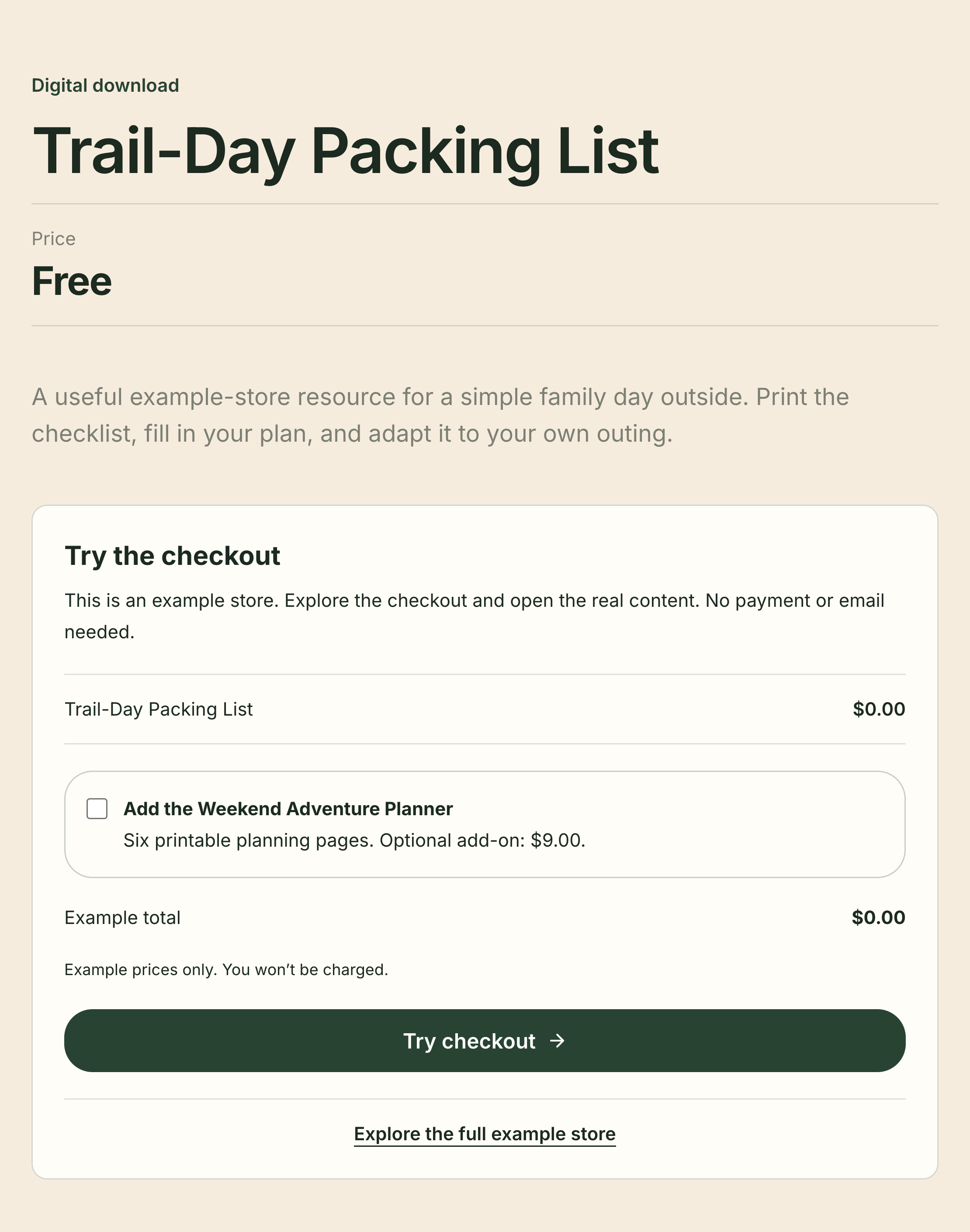
The example checkout separates the free download from the optional planner. Its prices are examples, and trying it does not create a purchase.
Build the product page
The digital-product publishing guide covers the full editor. For your first download:
- Choose Add a product on Home, then Digital Product or Free Resource from the types available to your account.
- Enter a clear title and describe what the file contains.
- Set the price and attach the finished file in Delivery.
- Choose Save as Draft, then preview the saved page.
- For a paid product, connect Stripe and wait until LinkStack shows Payments ready.
- Choose Publish when the page and delivery file are ready.
Digital products support files up to 5 GB each. For a short PDF, keep the download small enough to open comfortably on a phone. If the product choice is missing, check account availability before committing to a launch date.
A free resource with no paid add-on can complete without Stripe. Review the product's purchase confirmation settings: enabled confirmations provide secure download access after a completed paid order or free resource claim. Marketing follow-up emails use separate Growth features.
Give the product a clear place to live
Share the public product link for a single offer, or add a product card to your bio page when readers need to choose between several things.
Open the published page on your phone and check the title, price, and file description. If someone has just watched your packing video, they should be able to identify the matching packing list immediately.
Open Products to prepare your first download.