Linktree not working? Find where your bio link breaks
A blank page, missing button, and login error need different checks. Trace a consultation link from your social profile to its destination and record what fails.
 LinkStack
If Linktree isn't working, test the public page and the link behind the failing button separately. Open your bio URL in a regular browser, then open the destination directly. Record where the error appears and check Linktree's status page for a reported incident. If you reach a security warning, stop there and save its wording.
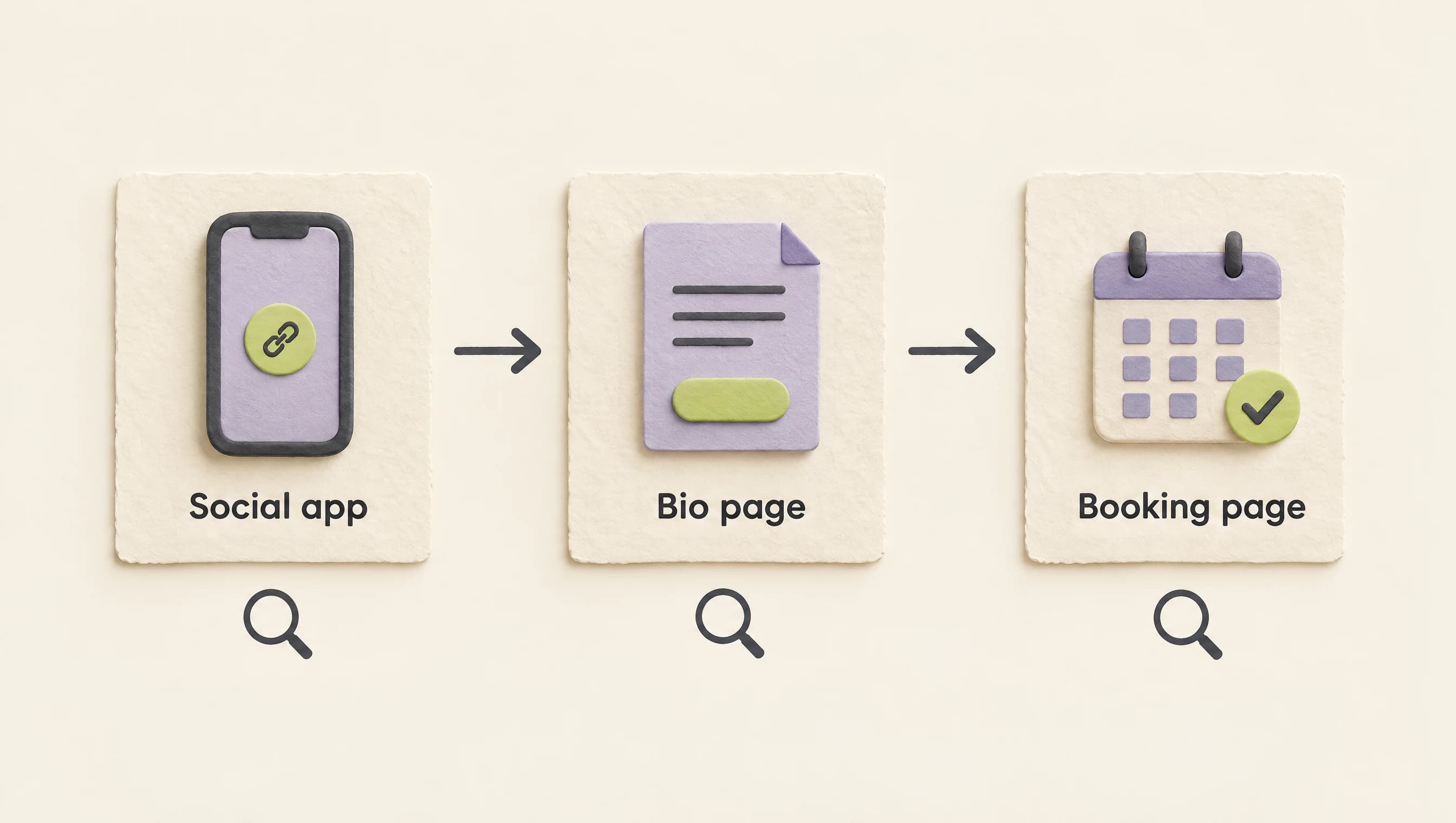
For a business coach, the visitor's route might run from an Instagram profile to Linktree, then through a "Book a consultation" button to a booking page. Each step can fail separately. A working Linktree page doesn't tell you whether someone can reach the consultation.
Check the route your visitor took
Save the failing URL before editing anything. Then make one pass through the route:
- Open the link saved on your social profile. Compare it with your current public Linktree address, including the username. An admin or editing URL is the wrong destination for visitors.
- Copy that public address into a regular browser where you aren't signed in to Linktree. Note whether the page loads and whether the consultation button appears.
- Open the consultation's public booking URL directly. Use the address intended for customers, not your booking tool's admin screen.
- Return to the social app and check where its route differs. Note the last page that worked and the URL showing when the error appeared.
Change one thing at a time. Correcting a saved URL and clearing browser data together makes it harder to know which change helped.
Match the symptom to the next test
| What you see | Test next | What to do with the result |
|---|---|---|
| The public Linktree page won't load | Check the address and official status, then try the same address in another browser. | If it still fails, report the public URL and error to Linktree. Include any reported incident. |
| The page opens, but a button is missing | Inspect that link's saved title and full URL. | Correct incomplete fields, then check the public page again. |
| One button opens an error or the wrong offer | Open its intended destination directly. | If that also fails, check the booking site. If it works, compare it with the URL saved behind the button. |
| A warning appears from Instagram or TikTok | Record the warning and compare the browser route without bypassing it. | Use the social platform's help path if the warning persists. |
| An HTTP 429 error appears | Record the exact URL and any wait instruction. | Pause repeated attempts. Check status and report a persistent failure. |
| Visitors can open the page, but you can't log in | Check your account email and the official login page. | Follow Linktree's login recovery steps. |
| You see an account ban or content-removal notice | Read the notice attached to your account. | The account owner can appeal a decision they believe is mistaken. |
These tests narrow the problem. A successful browser check doesn't establish that every visitor, app, or destination works.
Check for a reported incident
Read the status dashboard and, if the failure happened earlier, the incident history. Compare the incident's timing and affected service with your own test. Follow the update for that incident when it matches.
A normal status page can coexist with a problem affecting one account, browser, or destination. Keep your test record if the failure continues. Search results for "Linktree down" also don't establish the cause of your error; the failing URL and exact message are more useful in a support report.
Fix a missing button or wrong destination
Linktree's missing-link guide says a link needs both a title and a valid URL to be active. Check for spaces, spelling errors, and an incomplete address. If you see "Unsafe URL," use the appeal option described in that guide when you believe the flag is mistaken.
For the coach's consultation button, compare the saved address with the current public booking link supplied by the booking tool. A renamed offer or an old booking page needs a destination check even when the bio page loads normally.
After a correction, open the public Linktree page and follow the button again. Confirm that it reaches the consultation you advertise and shows the expected booking options. You don't need to submit a booking to check the destination.
What an HTTP 429 error tells you
HTTP 429 means the server is rate limiting requests. The HTTP standard allows a response to include a Retry-After instruction, but does not require one. It also leaves request counting and user identification to the service.
Pause repeated attempts and follow any wait instruction supplied. There is no universal retry interval you can infer from the number 429.
Record where it appeared: on the public Linktree page, at login, or after the consultation button opened another site. The same error code can appear at different stages. It doesn't tell you that Linktree is down for everyone or which service rule caused your request to be limited.
When Instagram or TikTok shows a warning
Linktree says the warning messages covered by its Instagram and TikTok support guide come from the social platform. The guide recommends checking the public route in a browser and asking another person to test it.
Save the warning's exact text and the address you were opening. A browser comparison can show where the routes differ, but it doesn't prove a warned destination is safe. Leave security protections on and use the relevant platform's support process for a persistent warning. If the warning concerns the booking site's security, have that site's owner investigate before sharing it again.
Separate login trouble from a public-page failure
If the public page and consultation link work while you can't reach the editor, focus on account access. Linktree's login guide explains checking your account email, using its official login page, and recovering access. Google or Apple sign-in needs the email address associated with the Linktree account.
A ban or removal notice needs its own response. Linktree's account-ban guidance directs owners to its appeal form when they believe a decision is mistaken, and says it responds only to appeals from the account owner.
Keep a test log you can send to support
Copy this blank log into a note. Use a separate entry for each route you test so the results remain comparable.
Date, time, and time zone:
Public Linktree URL:
Starting point (social app or browser):
Device and browser/app:
Signed in to Linktree? Yes / No:
Last page that loaded:
URL showing at the failure:
Exact error or warning:
Consultation URL opened directly? Result:
Wait instruction, if any:
Relevant status incident, if any:
One change made:
Result after that change:
Attach a screenshot of the error, with private details removed. Linktree's support instructions ask for a description, error messages, and screenshots or a recording where possible. Leave passwords and sign-in codes out of the report.
Once the issue is resolved, check the original route again from the social profile through to the consultation page. A successful login alone doesn't verify the visitor's path.
Keep the consultation reachable
For a confirmed technical fault in your bio page, a working public consultation URL can be a temporary profile destination. Test it as a visitor first and keep the previous bio URL in your notes. The Instagram and TikTok profile-link guide covers where to update the saved address and the platform requirements.
After you understand the fault, decide whether you want a backup bio page. Keep a small record of your button labels and current destinations so you can rebuild the consultation route without relying on access to one editor.
If you choose LinkStack for that backup, the bio-page setup guide explains how to create a draft and publish separately when ready. Start with the consultation link you already verified. A second bio page will still need a working booking destination.