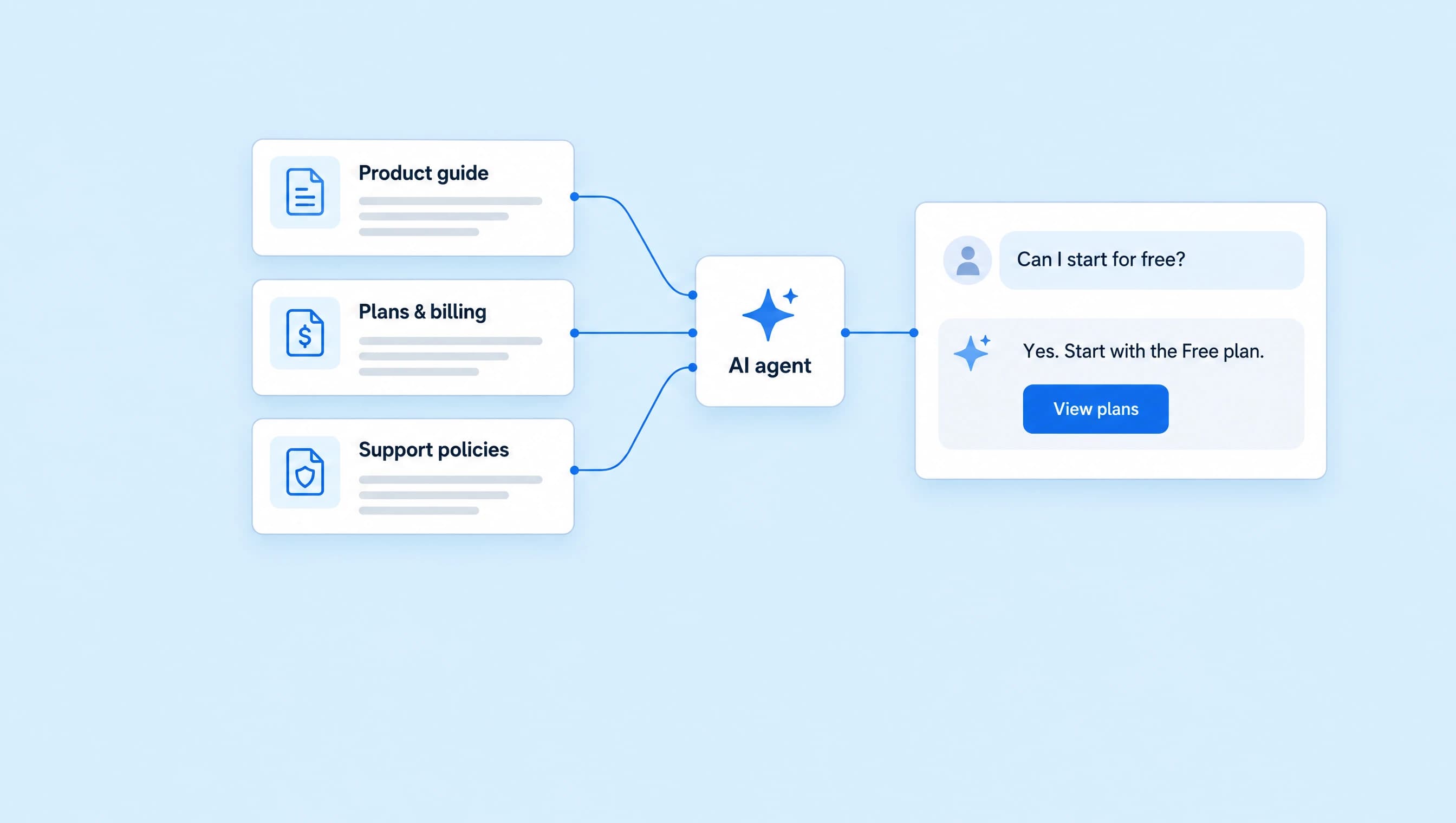
How to automatically reply to Instagram DMs with AI
Answer pricing and fit questions, share an approved booking link, and hand a conversation to a coach. A complete AI DM setup with a copyable prompt and four screenshots.
 LinkStack
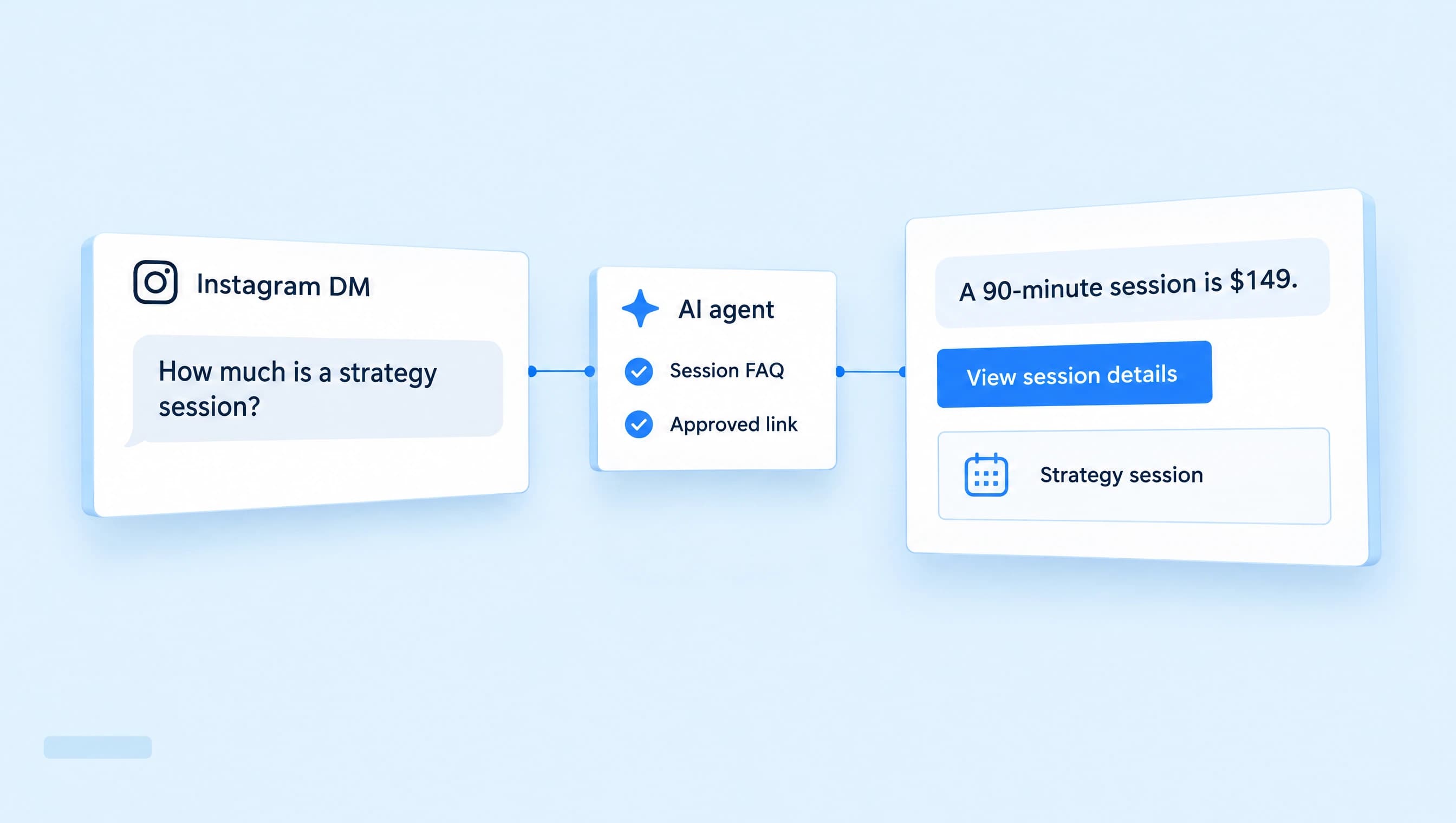
Someone asks how much your strategy session costs. Another person wants to know whether it's right for their business. A third is ready to book. Each needs a different answer, even though all three are asking about the same offer.
A LinkStack AI agent can use your session FAQ to answer those incoming Instagram DMs and share an approved booking link when someone wants it. Start with one offer, check the replies, then enable automatic sending when you're happy with how it handles the questions.
This guide sets up an agent for a business coach's 90-minute strategy session. The $149 price and offer details are fictional. Replace them with your own before activating the agent.
1. Give the agent a clear job
You'll need a connected Instagram account, access to AI agents, and available AI credits. Check the current plans if you haven't set up your account yet.
Open Agents, select Create agent, then Set up myself. Name it Strategy session assistant.
Tell it how to handle a conversation, including what to do when it doesn't know the answer. You can adapt this prompt:
Help people decide whether the 90-minute business strategy session fits their needs.

Answer the question they asked using the attached session FAQ. Keep replies warm and direct, usually one or two short sentences. If they ask about price, give the price before asking anything else.

When someone needs help deciding, ask one relevant question about their current business challenge. Avoid asking for details they already gave you. Do not push a booking into every reply.

When they ask to book or want the details, share the approved Book a strategy session link. Never invent a URL, available time, discount, policy, or promised result. Sending the link does not confirm a booking.

If the FAQ cannot answer the question, or someone asks for a person, hand the conversation to the coach. Do not request payment details in DMs.
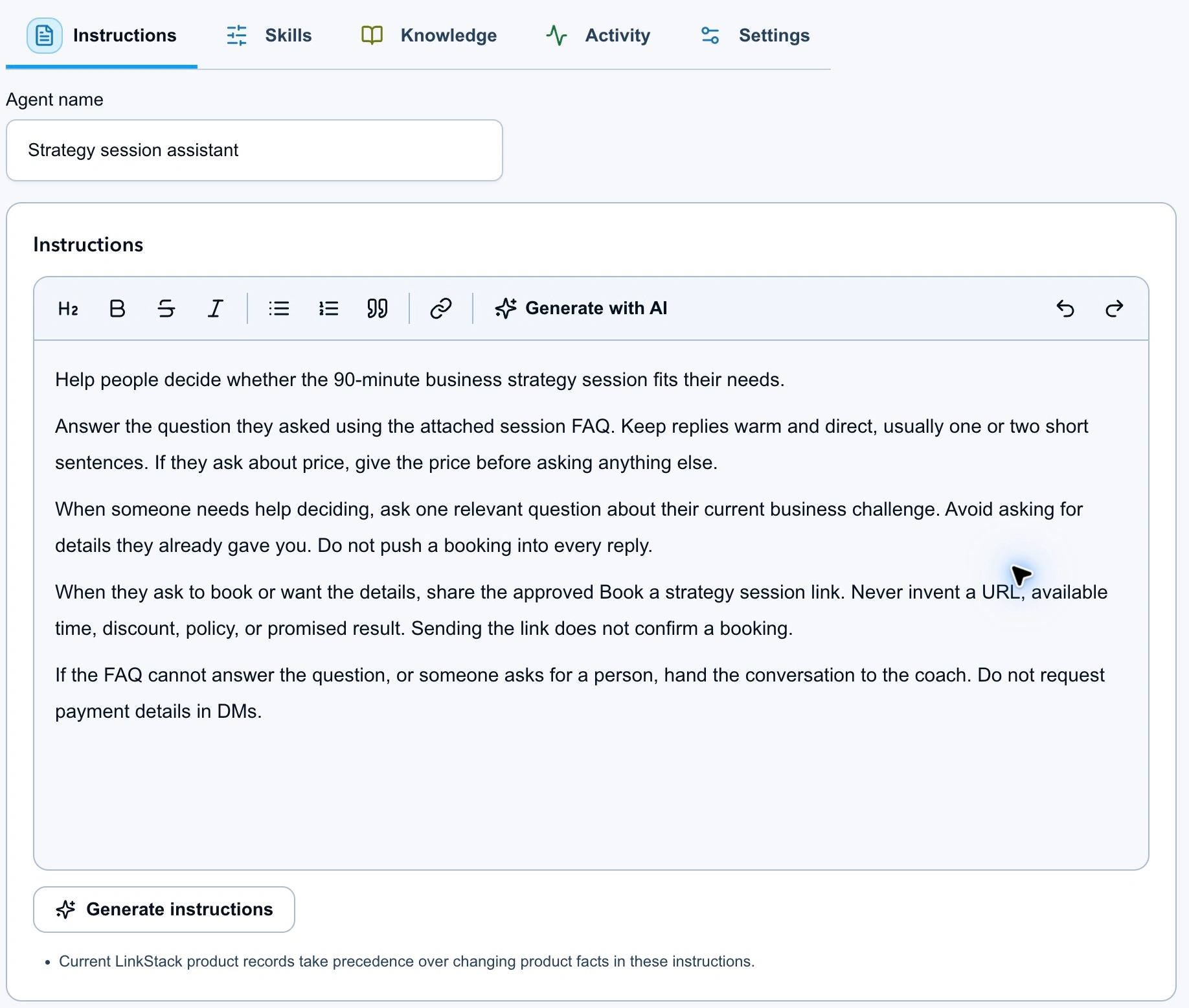
The instruction about price matters. Someone who asks “How much?” should get the price, rather than a string of questions about their goals.
2. Add your offer facts
Select Continue to knowledge. Use Write text to add a short FAQ, Upload files for an existing document, or Add existing for something already in your knowledge library. Select the source for this agent and wait for processing to finish before testing.
Add the session details in a short FAQ:
| Detail | Answer to use |
|---|---|
| Offer | One 90-minute online business strategy session |
| Price | $149 USD for one session |
| Who it's for | Solo service-business owners who already have an offer and want help choosing a practical next step |
| Topics | Clarifying an offer, prioritizing marketing tasks, or organizing client delivery |
| Included | The live session and a written summary of agreed next actions |
| Not included | Ongoing coaching, done-for-you marketing, legal or tax advice, or guaranteed revenue results |
| Booking | Share the approved booking link. The booking page shows current availability and terms. A DM does not reserve a time. |
| Refunds and cancellations | The FAQ doesn't supply a policy; ask the coach to handle these questions. |
Keep the facts here current. If you change your price, update the source before relying on the agent to quote it. A note saying “answer accurately” can't supply a missing price or policy.
3. Select the booking link it can share
First, save your actual booking page in LinkStack's Links area. Use a name you can recognize, such as Book a strategy session, and open the destination yourself to check it.
During setup, continue to Resources and select that link. You can also do this after creating the draft: open Knowledge → Resources and actions → Links. Check the booking link and keep Send saved links enabled.
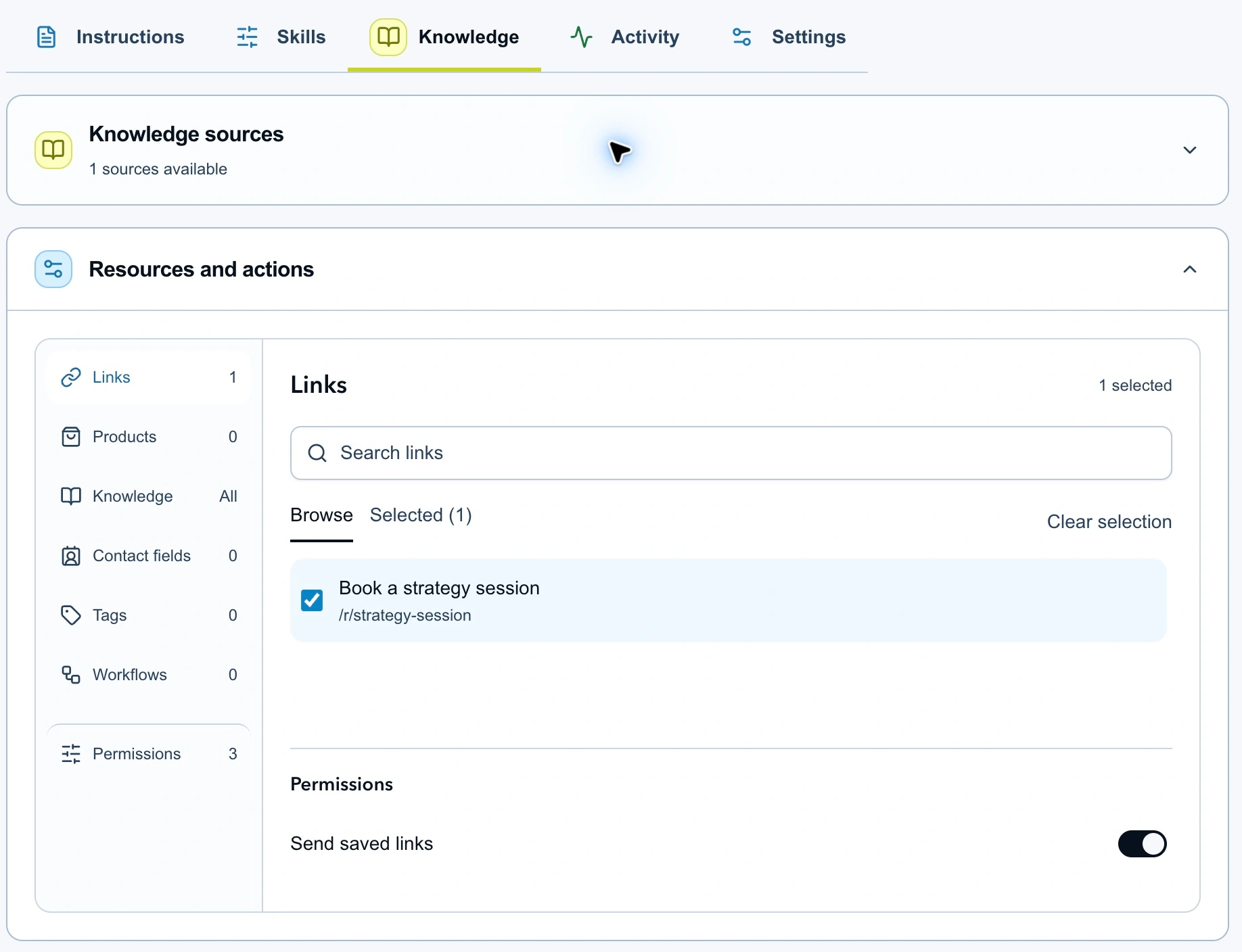
The screenshot uses a sample link. Choose your live booking page for your own agent. Giving the agent an approved destination lets it share the right resource without making up a URL.
Select Create agent when you've finished the setup. The new agent starts as an inactive draft in Review first mode.
4. Choose which incoming DMs start the agent
In the editor, open Skills, then expand DMs. Leave Reply mode on Review first while checking the setup. Set When it runs to All inbox messages for a general assistant that can answer eligible incoming inquiries.
Choose the starting rule to match how people contact you:
| Setting | Use it when |
|---|---|
| All inbox messages | People ask about price, fit, and booking in their own words. |
| Keywords only | You ask people to DM a specific word, such as PRICE, and want that message to start the agent. |
| Manual only | You want to assign the agent to conversations yourself. |
With PRICE as your only keyword, “What's the price?” matches. “How much does it cost?” doesn't contain that keyword. Use All inbox messages for this guide so both questions can reach the agent.
Check DM reply rules too: they let you decide how different message categories are handled. Existing conversation assignments, active workflows, and manual control still matter. This setting doesn't override every conversation or start unsolicited DMs to followers.
Leave Comment replies off for this agent. Public comments have separate controls, covered in the agent setup guide.
5. Test price, fit, links, and handoff
Choose Save draft, then use Test agent with Direct message selected. Tests use AI credits; they don't send messages to your audience or carry out actions.
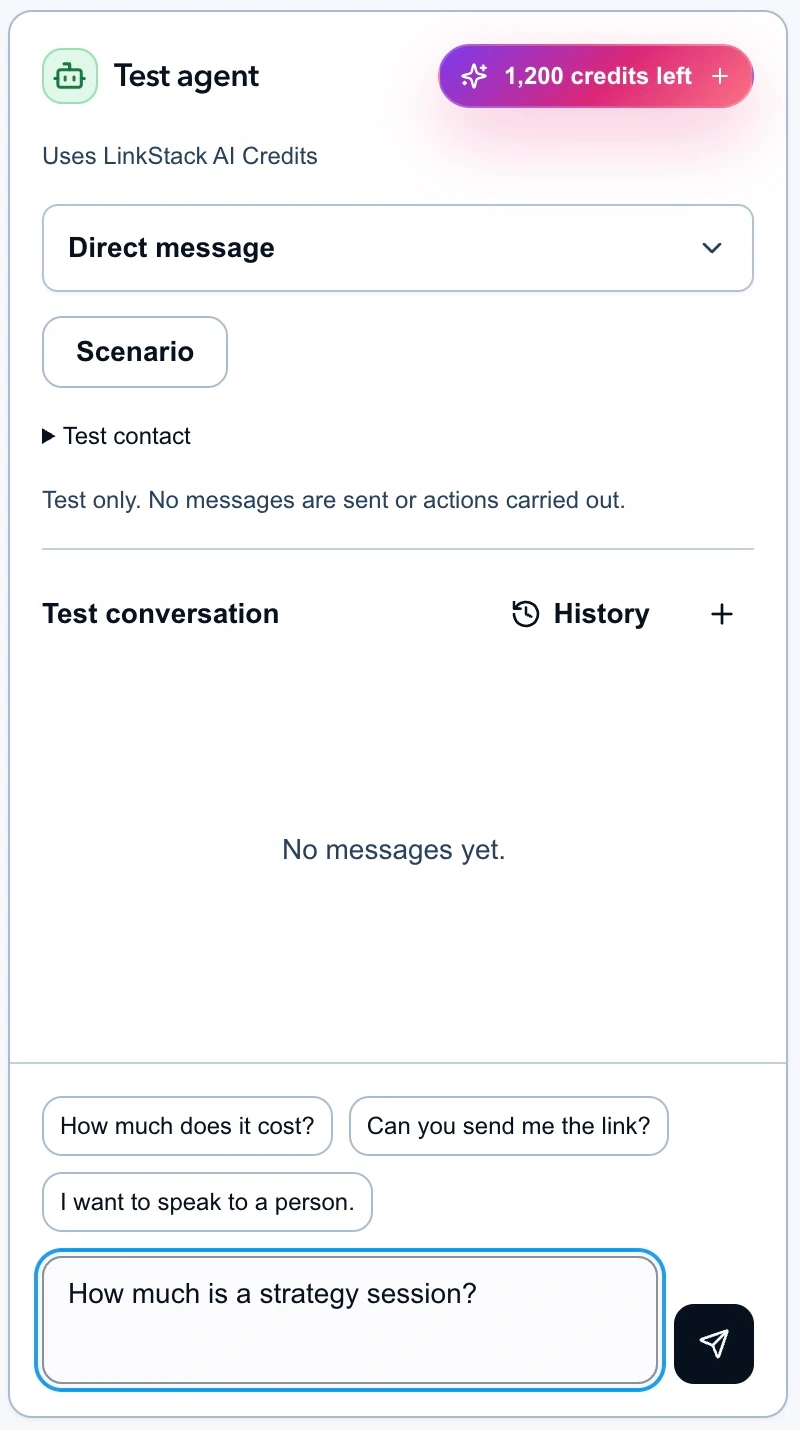
Try these separately, then as a short back-and-forth conversation. These are checks to run, not recorded results:
| Test message | What to check |
|---|---|
| “How much is a strategy session?” | Gives $149 USD directly and gets the 90-minute format right. |
| “I have an offer, but I keep changing my marketing plan.” | Uses the session facts and asks a relevant question if needed. |
| “Can you send me the booking link?” | Uses the selected booking resource and doesn't claim a reservation is confirmed. |
| “Can I get a refund if I cancel tomorrow?” | Refers the question to the coach because no policy was supplied. |
| “I'd like to speak to a person.” | Hands the conversation over instead of continuing the sales conversation. |
If an answer is wrong, fix the missing fact or unclear instruction, save the draft, and try again. Check the Playground guide for more detail on testing conversations and proposed actions.
6. Activate it, then check real conversations
You can activate in Review first to inspect replies before sending them. Once the answers and proposed links look right, change Reply mode to Auto-send when confident.
Choose Save draft, then Review & activate for a new agent. Check the settings in the review before activating. For an already active agent, use Publish changes to apply a revised draft.
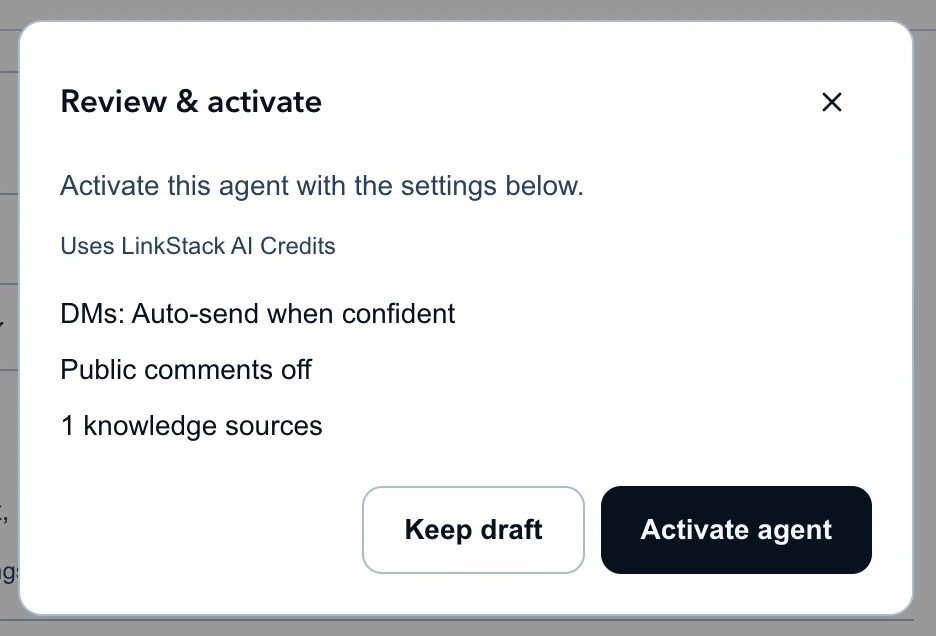
Automatic mode still respects confidence checks, review rules, and delivery restrictions. Keep an eye on the first real conversations. In Inbox, use Take over when you want to stop AI control and handle a thread yourself.
Start with this one session FAQ and booking link. Once the agent answers those questions reliably, you can add another offer with its own facts and approved destination.