
QR code generator for links you can update after printing
Create a QR code for an event sign or packaging insert, choose PNG or SVG, and update its destination after printing.
A QR code on a package or event table should still work after you update the page behind it. LinkStack generates a QR code for a saved Link, so you can change that Link's destination while keeping the printed code.
The same saved Link also gives you a short URL to share in a message or type beneath the code.
Choose what someone gets after scanning
Write the invitation before downloading the code. "Get the trail packing list" tells a visitor what to expect. A bare code leaves them to guess.
At an event table, that code could open a page with the gear or download you're discussing. On a packaging insert, it could open a setup guide for the product inside. Keep the destination close to the promise printed beside the code.
Use separate Links when you want to compare placements. A table sign and a packaging insert can lead to the same page through different saved Links. Give each Link an internal title that identifies its placement so you can find the right one later.
Create the Link, then download its QR code
Open Links, create a Link with the web destination you want, and save it. Open the saved Link and find Quick access. Choose Download PNG or Download SVG.
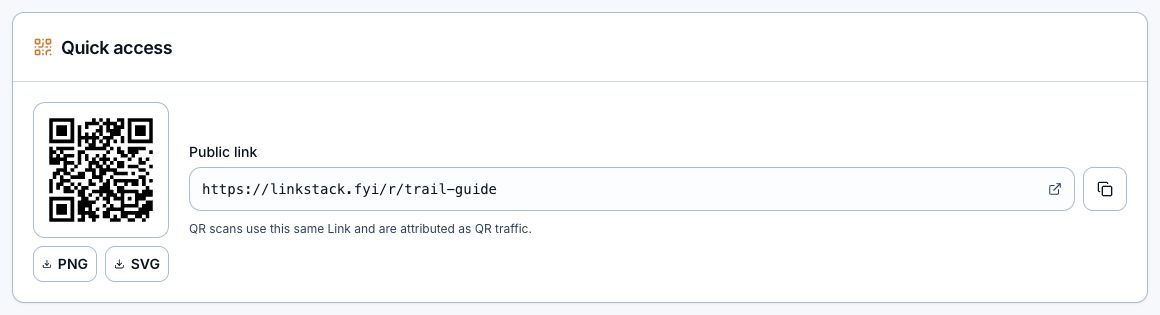
Download your code from Quick access. This example uses a sample Link, so use your own download in the finished design.
The QR code setup guide covers the full workflow. If you also need a short URL for a caption or handout, copy the public Link from the same panel. The short Link guide explains destination and tracking options.
LinkStack's generated QR code has no color, logo, frame, or style controls. Add your surrounding headline and layout in the tool you use to design the sign or insert.
Choose PNG or SVG for the design
PNG works for documents, slides, and everyday image placement. SVG suits a printer or designer who needs to resize the code without blurring it. Both point to the same Link.
Ask the printer which format they accept. Keep clear space around the code and avoid placing text or artwork over it. Test the finished layout after exporting it; a file that looks fine in the editor can be hard to scan at its final size.
Test the actual print
Print a proof at the size you intend to use. Scan it from the distance someone will stand or hold the package. Try more than one phone if the placement matters.
Check the page that opens, including any app handoff. Reading the code successfully is only part of the test. The destination also needs to load and make the promised action easy to find.
For a table sign, test it on the table. For an insert, test the finished card. Keep the short URL readable nearby for someone who prefers to type it.
Update the destination without reprinting
Edit the destination on the existing Link and save. Keep that public Link active. Creating a different Link gives you a different address; it will not update a code you already printed.
Pausing, expiring, or archiving the original Link stops its normal redirect. For packaging that may stay in circulation, choose a destination you can keep useful over time.
After a change, scan the printed code again. Keep its promise intact: a code labeled "Setup instructions" should continue to open instructions for that product.
Read QR traffic as clicks
LinkStack's generated code marks its URL with src=qr so Link analytics can attribute that traffic to QR. Use it to check activity for each saved Link and compare the placements you created separately.
Those figures count QR-attributed clicks. They do not prove how many different people scanned the code or how many made a purchase. Copying and sharing a QR-marked URL can carry the same attribution.
Create a Link, download its QR code, and scan one printed proof before ordering the full batch.