
How to create a short Link
Create and test a Link, then share its public URL and track clicks in LinkStack.
8 min read
In this article
Start with one destination
Every Link can start with one web destination. You get a short LinkStack URL, optional campaign tags and expiration, a QR code, and click analytics; add app, device, country, or affiliate routing when you need it.
- Use one for QR codes, email, SMS, ads, printed material, downloads, and one-off shares.
- Use separate Links to compare different campaign placements.
- Turn on routing when the destination should change by country, device, app, or affiliate storefront.
- All new links use the same Link creator and plan limits.
Create the Link
- Open Dashboard, then choose Links.
- Click Create link.
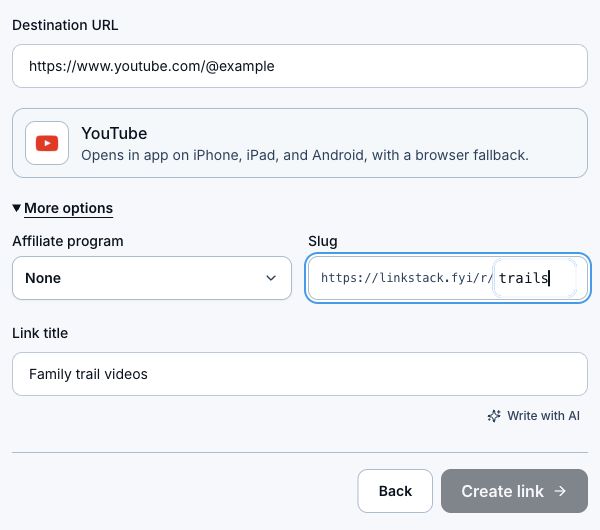
- Paste the complete http or https destination every visitor should reach.
- Add a clear internal title and review the generated LinkStack URL.
- Keep the generated ending, or choose an available custom ending on Growth.
- Create the Link, then test its public URL before sharing it.
Add campaign details only when useful
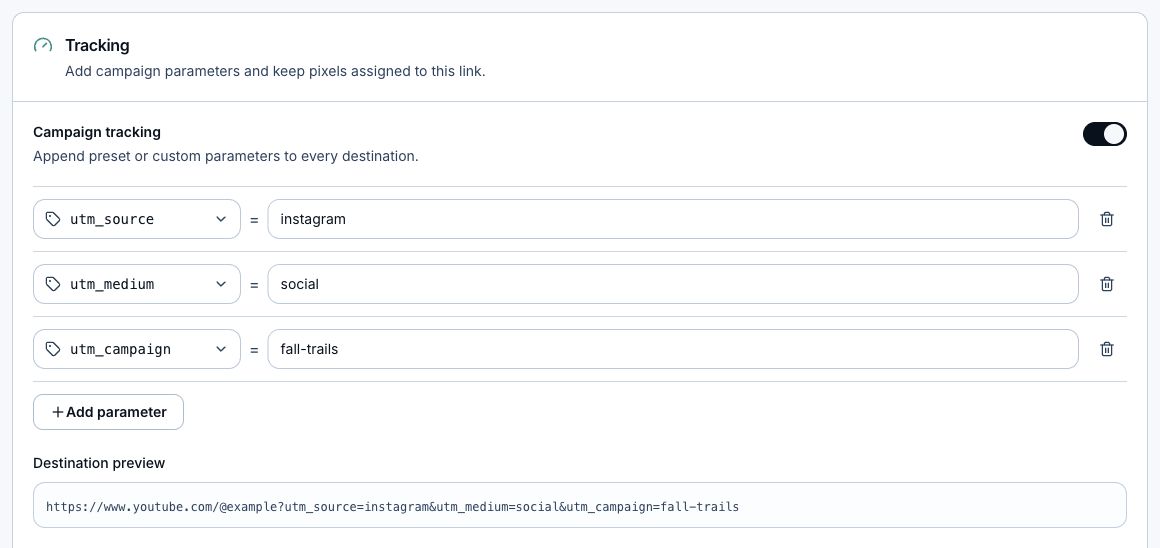
- Add UTM source, medium, and campaign when the destination analytics need campaign attribution.
- Use UTM content for placements or creative variations and UTM term mainly for paid keywords.
- Set an expiration date for a time-limited offer, event, or handout. Without one, the link stays live until you pause or archive it.
- The public ending cannot be changed after creation. The title, description, destination, status, expiration, and UTM values can be edited later.
- Check the final destination preview before saving so existing query parameters and new campaign tags look right together.
Use the QR code
- Open the saved Link.
- Find the QR code section.
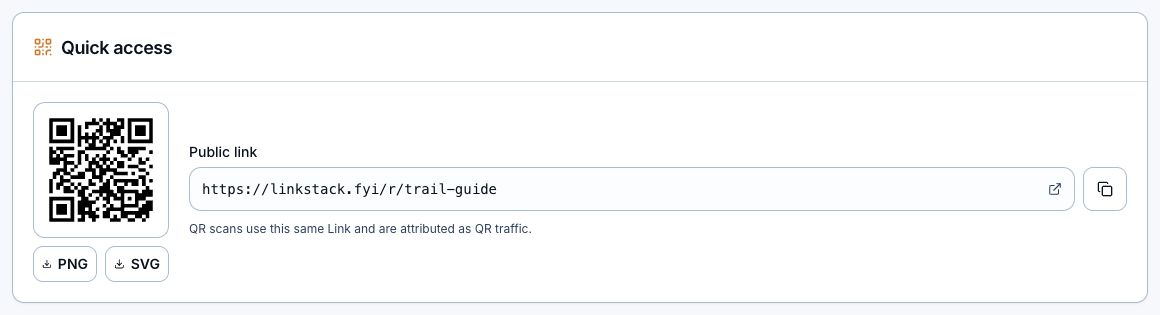
- Open the QR preview or copy the QR image.
- Download PNG for everyday graphics or SVG when a designer or printer needs a scalable file.
- Scan the finished QR code from another device before publishing or printing it.
- Keep using the LinkStack-generated QR code so scans carry QR attribution into Link analytics.
Test before sharing
- Click Test link from the edit view.
- Confirm the browser reaches the exact destination you expected.
- Check the final URL for the intended UTM values and existing affiliate or destination parameters.
- Test once on mobile if the link will mostly be tapped from a phone.
- Scan the QR code separately when you plan to use it; a copied link test does not verify the printed QR path.
- Fix the destination before distributing the link widely. The destination can change later, but already-printed context cannot.
Read the Link analytics
- Open the Link and view its analytics.
- Clicks over time shows traffic for the selected range.
- QR clicks separate scans carrying QR attribution from normal taps.
- Country, city, device, platform, browser, referrer, and campaign breakdowns show who used the link and where the traffic came from when that data is available.
- Use separate links to compare traffic from email, SMS, ads, social posts, or print.
Edit, pause, or archive it
- Edit the destination when the same shared Link should lead somewhere new.
- Turn Link is live off when you need a temporary pause.
- Archive old campaigns to remove them from the active list while keeping their analytics.
- Expired, paused, or archived Links show a status page instead of redirecting.
- Never archive or repoint a link without checking where it is still published.
Related articles
Still need help?
Support & feedback