
How to create, download, and test a Link QR code
Download a Link's QR code as PNG or SVG, then test it in print before sharing.
6 min read
In this article
Create the QR code
- Create a Link with the final web destination.
- Open the saved Link.
- Find the QR code section.
- Open the preview or copy the QR image.
- Download PNG or SVG.
- Scan the code from another device before publishing it.
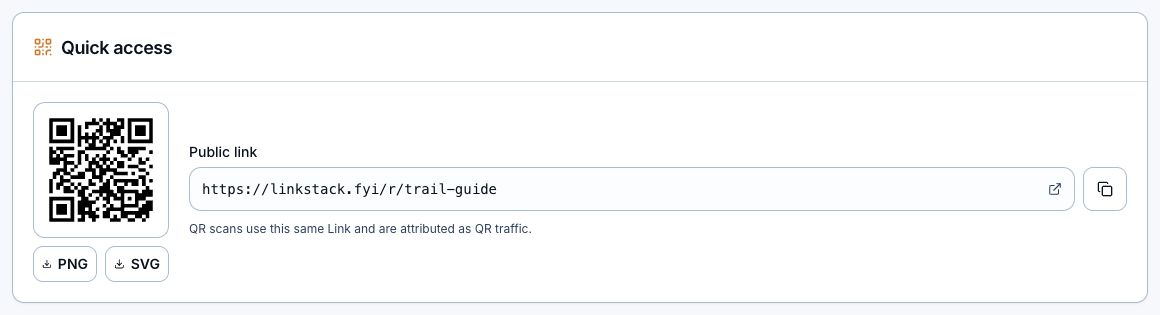
PNG versus SVG
- Use PNG for documents, social graphics, slides, and everyday image workflows.
- Use SVG for print or design work that needs to scale without becoming blurry.
- Give printers the SVG when they can accept it, then test a physical proof.
- LinkStack currently provides the generated QR code without color, logo, frame, or style controls.
Edit after printing
The QR code points to the stable Link, not directly to its destination. You can update the destination later and the existing printed code will follow it. The public ending does not change, and pausing, expiring, or archiving the Link stops the normal redirect.
Print and placement checklist
- Leave clear space around the code.
- Keep enough contrast between the code and its background.
- Test at the final printed size and expected scanning distance.
- Scan with more than one phone when the placement matters.
- After changing the destination, scan the printed code again.
- Use Link analytics to separate QR-attributed clicks marked with src=qr.
Related articles
Still need help?
Support & feedback