How to reply to every Instagram comment with AI
Set up an AI agent for every Instagram comment category. Includes a fitness-coach prompt, program knowledge, four setup screenshots, and the settings for automatic replies.
 LinkStack
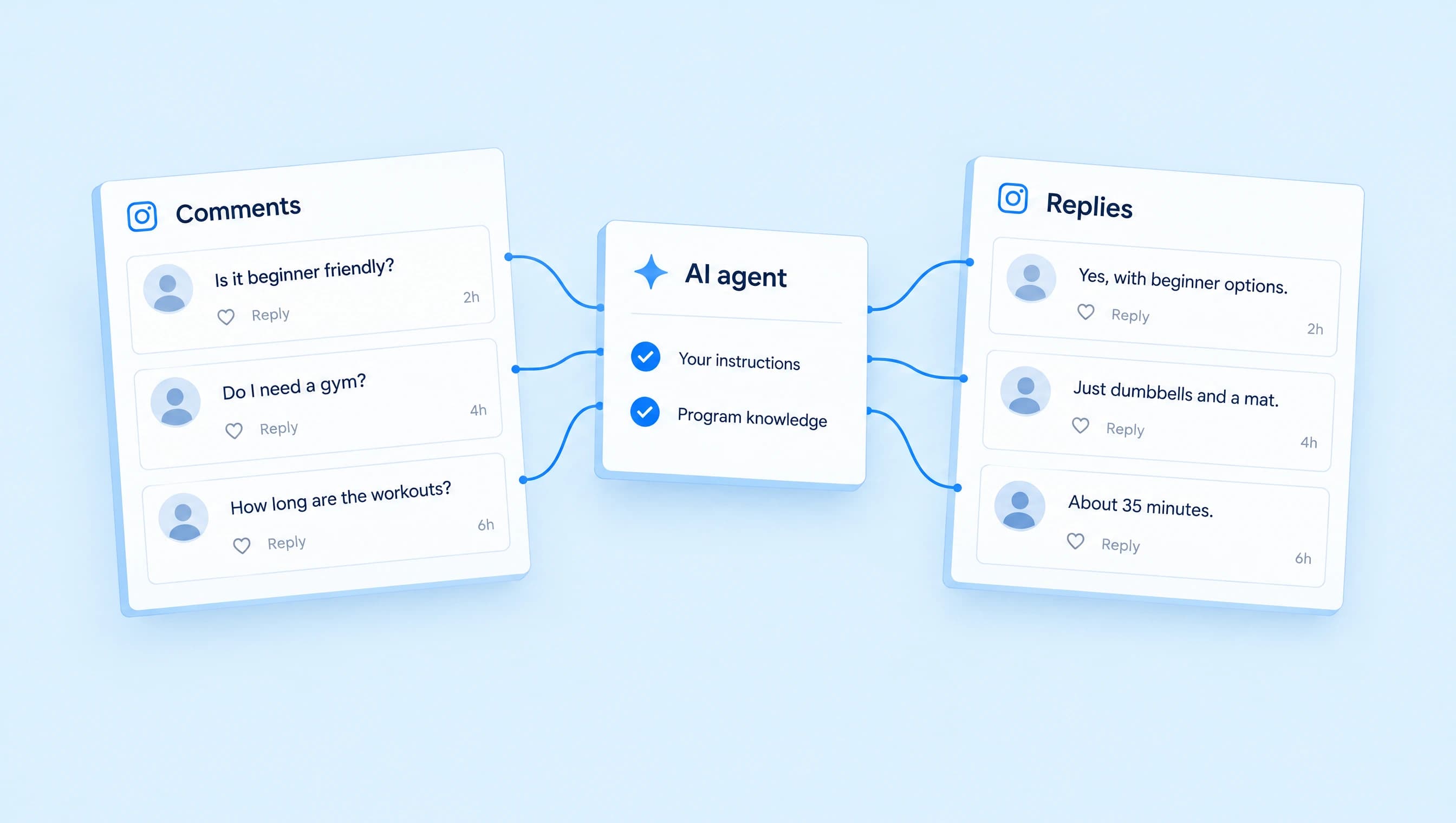
“Is this beginner friendly?” “Do I need a gym?” “How long are the workouts?”
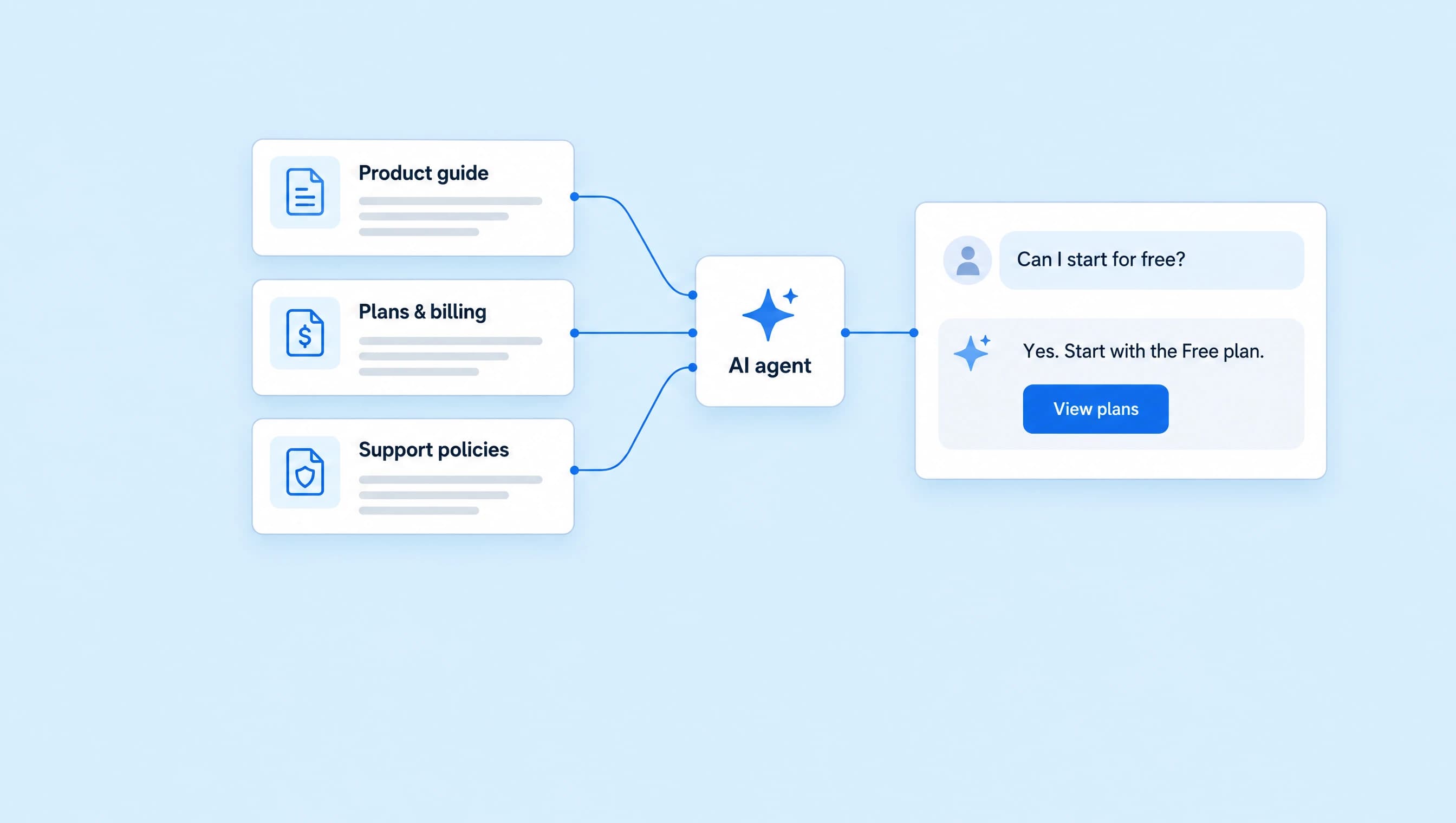
A fitness coach can answer all three with the same LinkStack AI agent. Each person gets a reply based on their question and the program details you provide. They don't need to comment a particular keyword.
To cover every comment category, turn on public comments and set all seven comment rules to Reply. Then choose whether to review the replies or automatically send confident ones. This guide walks through that setup with a six-week strength program.
“Every” describes the categories you've included. It doesn't guarantee that every incoming comment will receive an automatic reply. Missing information, uncertain intent, existing comment automations, and your review settings still affect what happens.
1. Create an agent for your comment section
You'll need a connected Instagram account, a plan that includes agents, and available AI credits. You can see the current options on the LinkStack pricing page.
Open Agents, select Create agent, then choose Set up myself. Name it Strength program comments so you can recognize it when checking replies later.
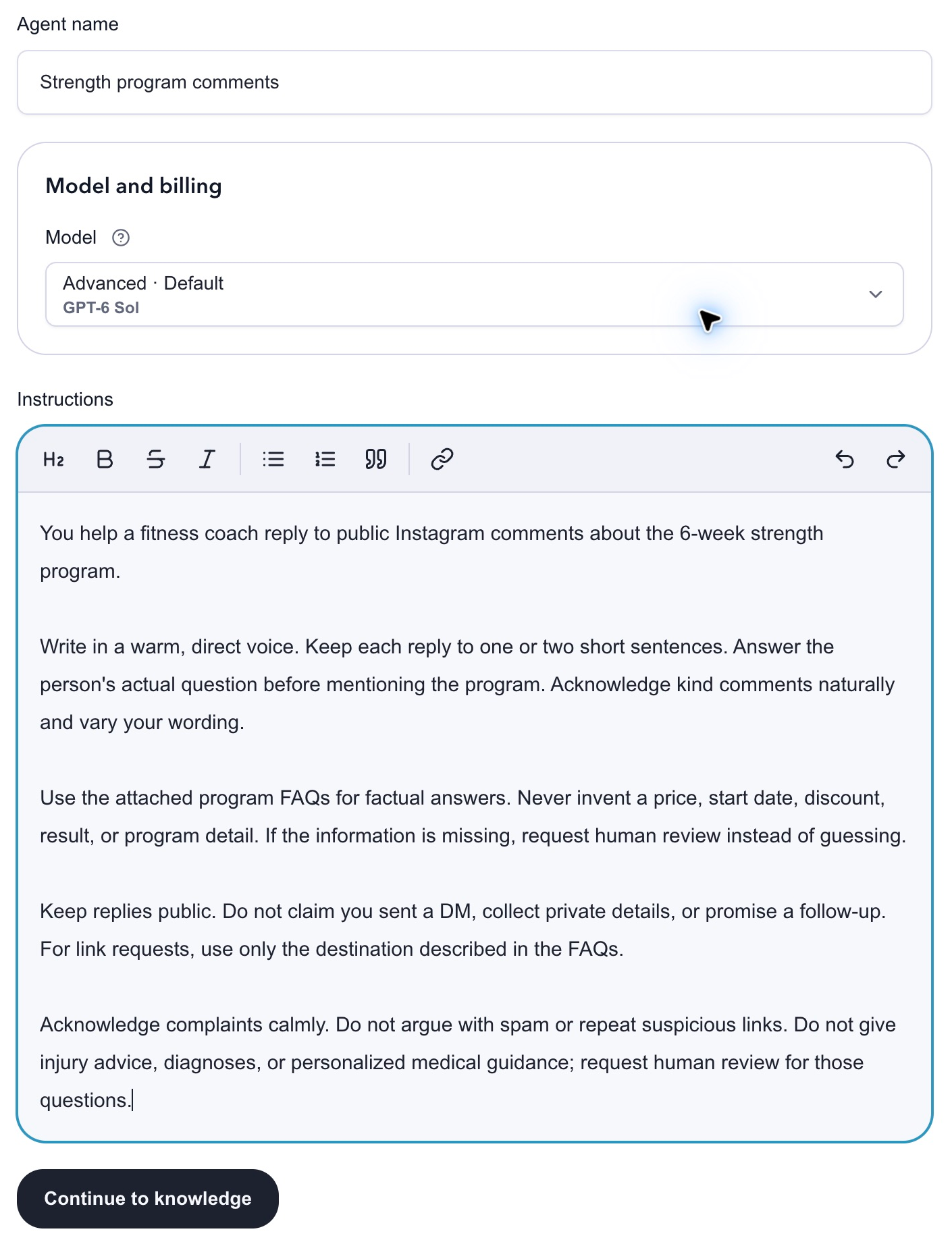
Paste these instructions, then replace the program name and voice with your own:
You help a fitness coach reply to public Instagram comments about the 6-week strength program.

Write in a warm, direct voice. Keep each reply to one or two short sentences. Answer the person's actual question before mentioning the program. Acknowledge kind comments naturally and vary your wording.

Use the attached program FAQs for factual answers. Never invent a price, start date, discount, result, or program detail. If the information is missing, request human review instead of guessing.

Keep replies public. Do not claim you sent a DM, collect private details, or promise a follow-up. For link requests, use only the destination described in the FAQs.

Acknowledge complaints calmly. Do not argue with spam or repeat suspicious links. Do not give injury advice, diagnoses, or personalized medical guidance; request human review for those questions.
Select Continue to knowledge. The instructions tell the agent how to write; the next step gives it facts it can use.
2. Add the answers your audience needs
In Knowledge, use Write text for a short FAQ, Upload files for an existing document, or Add existing for a source already in your library. Make sure the source is selected for this agent.
Use a short FAQ like this one. Replace these fictional program details before using the setup for your business.
| Detail | Program facts |
|---|---|
| Program | 6-week strength program |
| Who it's for | Adults new to strength training or returning after a break |
| Schedule | Three workouts each week for six weeks |
| Workout length | About 35 minutes |
| Equipment | Dumbbells and an exercise mat; no gym membership required |
| Included | Exercise video demos, a weekly schedule, and beginner exercise options |
| Not included | Individual coaching or a personalized training plan |
| Where to find it | The coach's Instagram bio link, under “6-week strength program” |
| Unconfirmed details | Price, discounts, and next start date; refer these questions for review |
| Health questions | The FAQ cannot determine whether the program suits someone's injury or medical condition; refer for review |
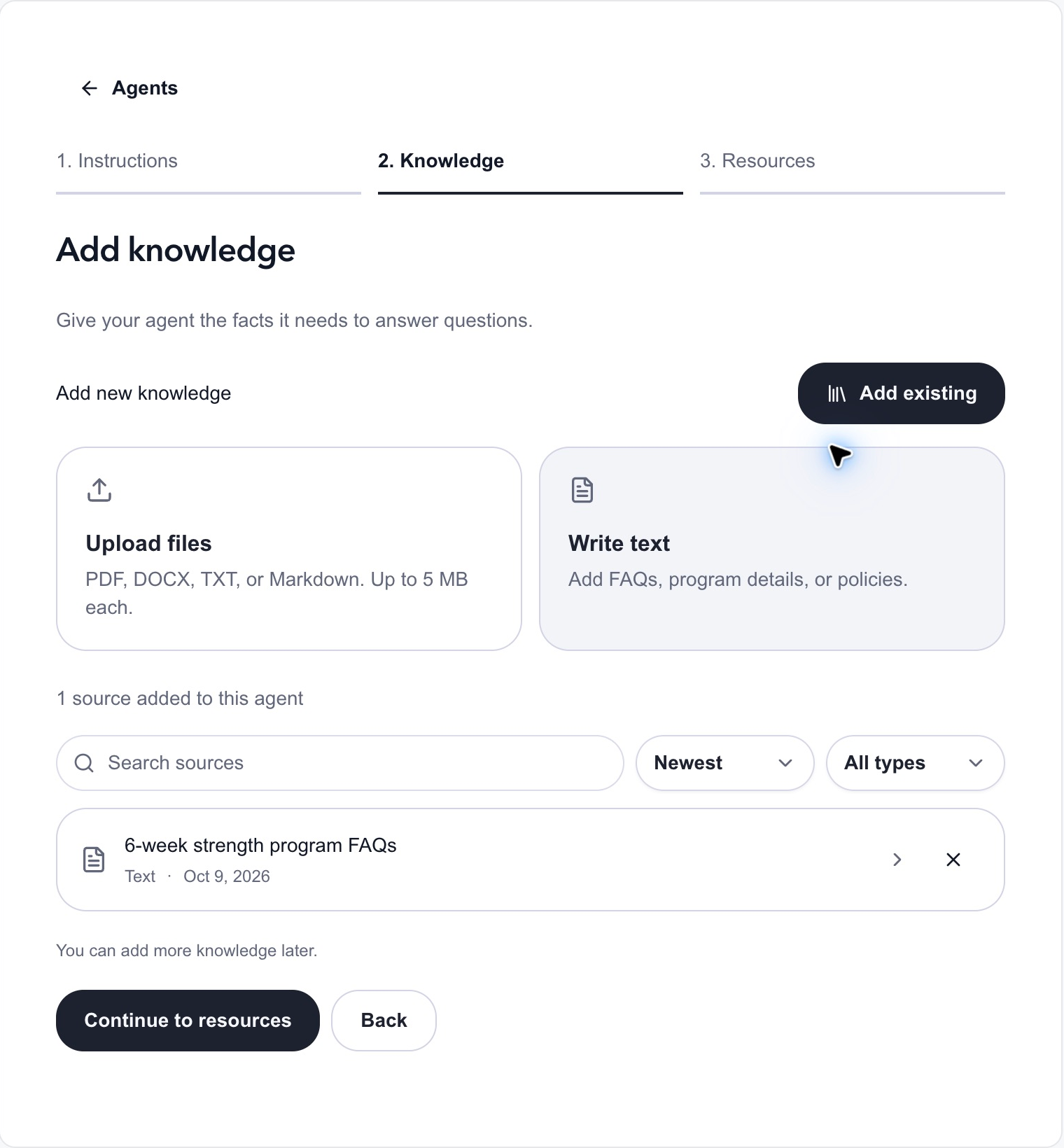
Select Continue to resources, then Create agent. You can leave additional resources unselected for this public-comment agent. Public replies are text only; they don't start a DM or collect someone's email address.
The new agent starts as an inactive draft in Review first mode. Creating it doesn't begin replying to your audience.
3. Turn on public comments and include every category
In the agent editor, open Skills, expand Comment replies, and enable Reply to public comments.
Choose Review every comment reply while checking the setup. This gives you a chance to read the drafted responses before they go out.
Next to Comment reply rules, select Edit. Set each row to Reply:
| Comment category | Setting for full category coverage |
|---|---|
| Nice comment | Reply |
| Question | Reply |
| Buying interest | Reply |
| Link request | Reply |
| Complaint | Reply |
| Spam | Reply |
| Something else | Reply |
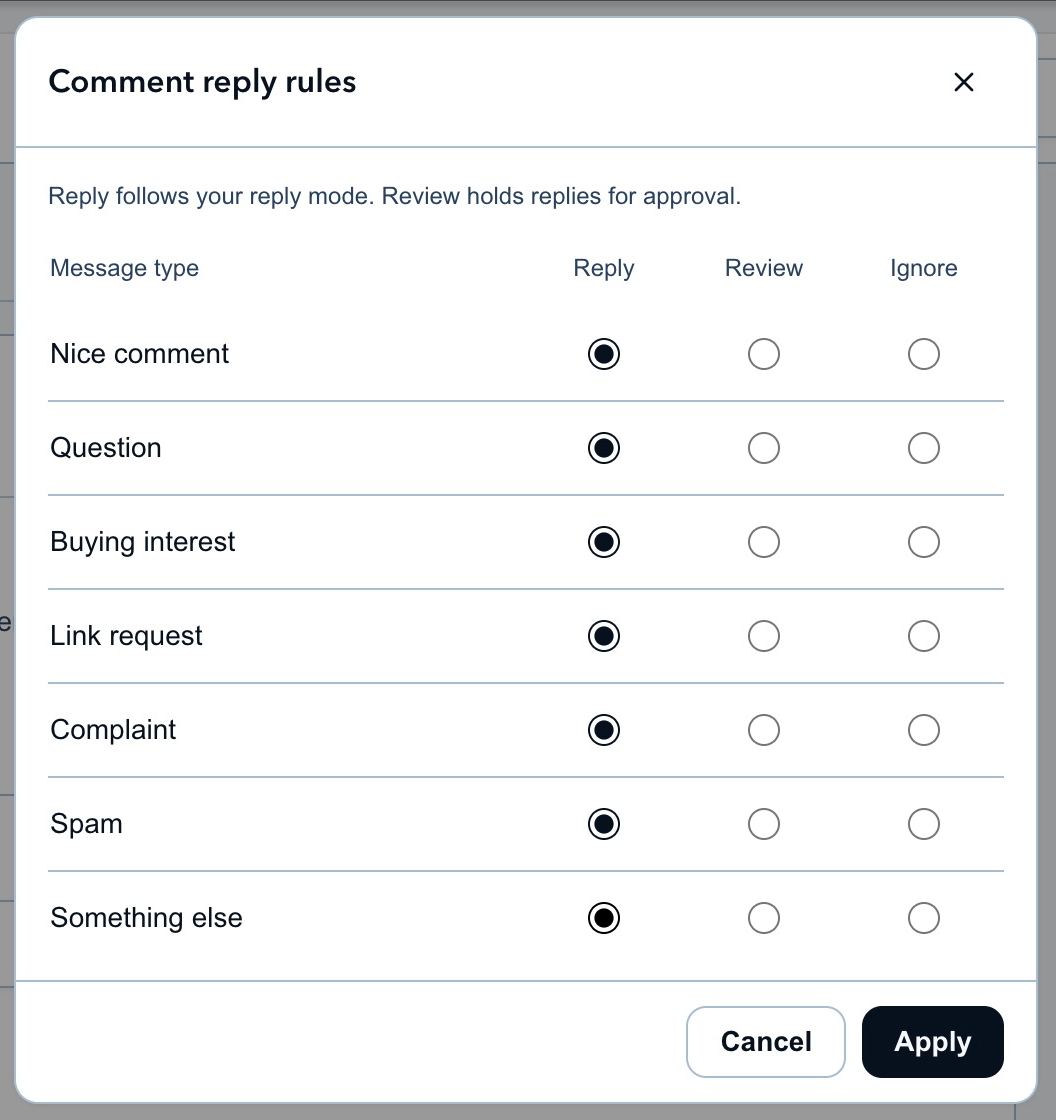
Select Apply. This is the setting that removes category-based exclusions. Writing “reply to everyone” in the instructions won't override a category you've left on Ignore.
The choices have different jobs: Reply follows your selected reply mode, Review always holds the reply for approval, and Ignore skips that category. If you later decide spam doesn't deserve a response, change that row to Ignore. You can also put complaints on Review while allowing routine questions to send automatically.
For an agent dedicated to comments, open the DMs section and set When it runs to Manual only. That keeps automatic DM routing separate from the public-comment setup.
4. Test several kinds of comment
Open Test agent and change Test channel to Public comment. Enter a sample comment in the test box. Tests use AI credits but don't send messages to your audience.
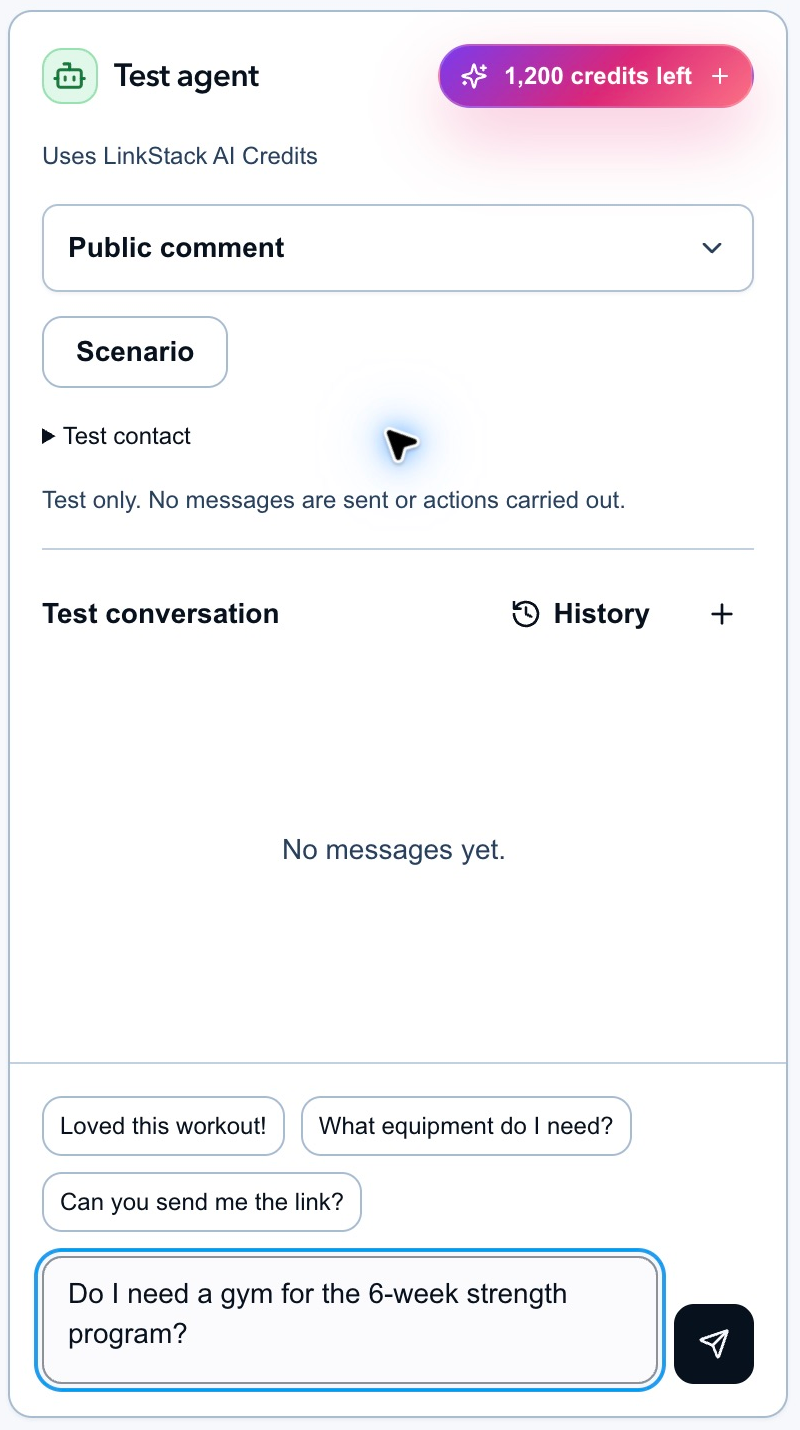
Try a mix of comments, including one the FAQ cannot answer:
| Test comment | What to check |
|---|---|
| “Loved today's workout!” | A short acknowledgment that doesn't turn into a sales pitch |
| “Do I need a gym?” | Uses the dumbbells-and-mat detail from the FAQ |
| “I'm new to lifting. Is this for me?” | Mentions the beginner options without promising results |
| “Where can I find the program?” | Points to the specified bio destination; doesn't claim a DM was sent |
| “What does it cost?” | Doesn't invent a price when the knowledge sheet has none |
| “Can I do this with a knee injury?” | Requests human review instead of giving personalized injury advice |
Use these checks to assess the actual answer and detected category in your test results. If an answer is wrong, fix the instructions or knowledge source, save the draft, and test again.
5. Choose automatic replies and activate
When the test replies look right, return to Skills → Comment replies and choose Auto-send confident replies. Keep all seven categories on Reply if you want the agent to consider them all.
Select Save draft, then Review & activate. Check the setup in the review before confirming activation. For an already active agent, use Publish changes to put the updated settings into use.
Automatic mode still checks whether an answer is sufficiently confident and supported by the available information. A rule set to Reply doesn't force the agent to publish an unsupported answer. Uncertain intent goes to review, and the agent can produce no reply when it has nothing appropriate to send.
After activation, check Agents → Replies for held responses. Use those early comments to find missing facts in your FAQ, such as whether sessions are live or whether the program includes individual feedback.
Why a comment might not get an automatic reply
Start with these checks if a new comment is unanswered:
- The changes are still a draft. Save and activate the agent, or publish changes to an active one.
- The category is on Review or Ignore. Check the seven rules, including Something else.
- The reply needs review. Uncertain intent or an answer that lacks enough support can prevent automatic sending.
- An existing comment automation handled it first. LinkStack gives existing comment automations priority, so the agent doesn't add a competing response.
- The account or AI credits need attention. Confirm that Instagram is connected and your account can run the agent.
This setup handles new eligible comment events. It doesn't go back through your old posts and answer every historical comment. If you already have other agents handling comments, check their scope as well before activating an overlapping setup.
Keep the FAQ current as your offer changes. A short, accurate answer about today's program is more useful than a confident reply about an old one.