
How to connect integrations to LinkStack
Connect social analytics, messaging, commerce, scheduling, and Google Sheets from one settings tab.
In this article
Connect from Inbox or Automations
- Choose Connect account or Connect Instagram in Inbox, Automations, or a workflow connection prompt.
- Select Instagram.
- Sign in and approve the requested access.
- Return to LinkStack to confirm the connection. Guided Instagram setup keeps its existing connection and draft-return steps.
Connect from Settings
- Open Settings.
- Choose Integrations.
- Find the service you want to connect.
- Click its Connect button, sign in to that service, and approve the requested access.
- Return to LinkStack and confirm that the service shows Connected.
Google Sheets
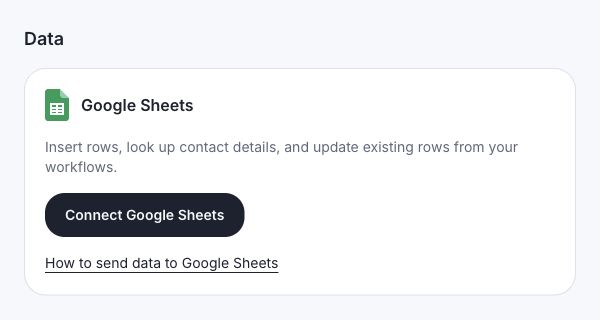
Under Data, choose Connect Google Sheets and approve access to an account that can edit your spreadsheet. You can also open Integrations in the workflow action picker, browse Google Sheets, and select an action to connect. Choose Insert row to add contact data, Get row by value to import a matching row into contact fields, or Update row to change mapped cells in an existing row. Load a spreadsheet URL, choose a worksheet, and configure its row-1 column mappings. Workflow tests skip Sheets actions; publish and use a real trigger to verify them. Google Sheets connects separately from Google Calendar.
Use a professional Instagram account. Media Kit access covers profile, content, and insights. When Automations are available, LinkStack may also ask for comment and message access. If you disconnected it, reconnect the same Instagram account here. LinkStack refreshes the existing connection and keeps your conversations and history attached. Old revoked duplicates are consolidated into the active connection. Review any paused conversations or automations afterward; reconnecting does not clear their pauses or automatically resend failed messages.
Move Instagram or Facebook to another LinkStack account
Each Instagram account or Facebook Page can connect to only one LinkStack account at a time, including analytics-only connections. An expired token or connection error does not release it; disconnect it first. Reconnecting in the same LinkStack account updates the existing connection. Saved conversations and automation history stay in the original LinkStack account. If any selected Facebook Page is already connected elsewhere, none of the selected Pages are connected by that attempt.
- Sign in to the LinkStack account where the Instagram account or Facebook Page is connected.
- Open Settings → Integrations and disconnect it. Wait for the disconnect to finish.
- Switch to the other LinkStack account, open Settings → Integrations, and connect the same Instagram account or Facebook Page.
Use a Facebook profile with full control of the Page you want. Choose Analytics only to connect the Page profile, content, and Insights to your media kit.
TikTok
Use an eligible TikTok One creator account and approve read-only creator and video insights. The same TikTok Business connection powers automatic Media Kit analytics and TikTok feed blocks on your bio page, so you do not need to connect the profile twice.
YouTube
Use the Google account that owns the channel or manages its Brand Account, then approve read-only YouTube Data and Analytics access. If that account has multiple channels, switch to the intended channel and make it the default under YouTube Settings > Advanced settings before connecting. Access granted only through YouTube Studio channel permissions does not work with YouTube APIs. LinkStack uses offline access to refresh Media Kit metrics without posting or changing channel content.
Snapchat
Use an eligible Public Profile. Before OAuth starts, enable Brand Partnerships under Public Profile Settings > Manage Monetization, then confirm that setup in LinkStack.
Twitch
Sign in as the channel owner and approve read-only channel access. Subscription totals are available only to eligible Affiliate or Partner channels.
Connect the member profile you manage and approve read-only profile and member analytics access. LinkedIn does not provide audience demographics or automatic post discovery through this connection.
Connect the account you manage and approve read-only profile, Pin, and board access. A Business account is required for automatic account analytics and ranked Pin performance.
Stripe
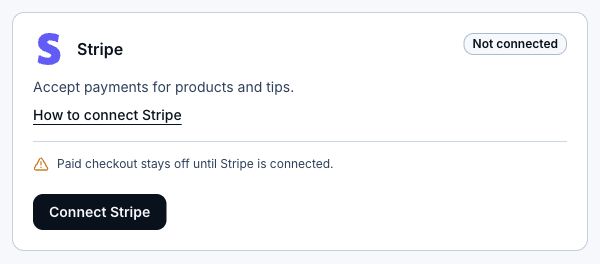
Stripe has its own setup guide because onboarding and payment readiness happen inside Stripe.
Zoom
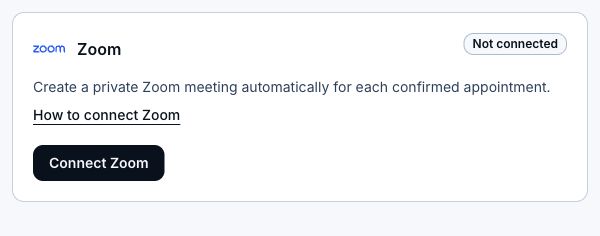
When Appointments are available for your account, connect Zoom under Scheduling. LinkStack can then create a private Zoom meeting for each confirmed appointment.
Google Calendar
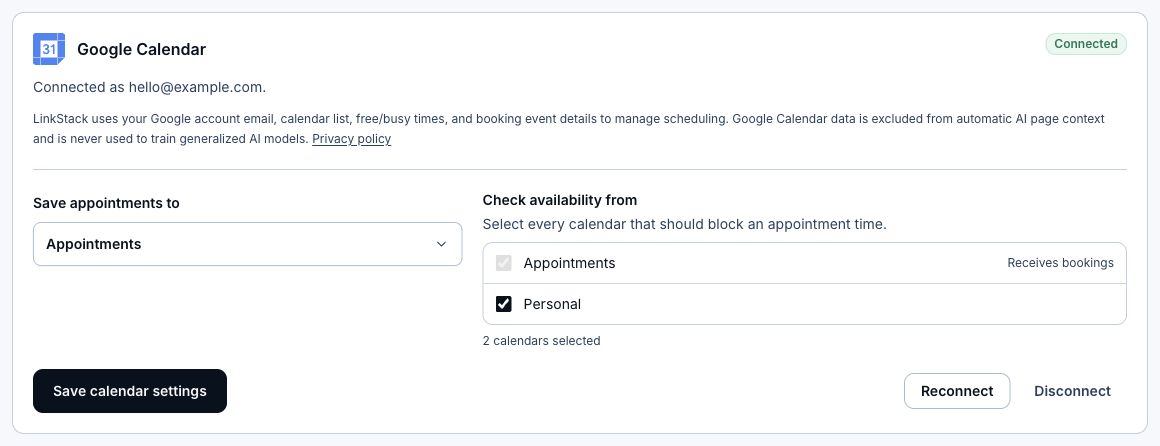
- Open Settings, choose Integrations, and find Google Calendar under Scheduling.
- Click Connect Google Calendar and approve the requested access.
- Choose the calendar that should receive confirmed appointments.
- Select every Google calendar that should block conflicting appointment times.
- Save the calendar settings.
- Confirmed appointments are added automatically, reschedules update the event, and cancellations remove it.
- Appointments using Google Meet receive a private meeting link after confirmation.
- If Google Calendar disconnects, published Google Meet appointments move back to Draft. Other appointments continue on LinkStack's internal calendar.
- Calendar data is excluded from automatic AI page context and is never used to train generalized AI models. Disconnect under Scheduling to remove the saved connection and refresh credential.
If the connection fails
- Reconnect and approve every requested permission.
- Make sure you signed in to the account that owns or manages the service.
- Return to Settings > Integrations and check the status message.
Related articles
Still need help?
Support & feedback