
How to start follow-ups from AI contact changes
Let an assigned agent save an approved field or tag, then start a contact-triggered follow-up after the change is approved.
4 min read
In this article
Choose what the agent can change
- Create the tag or custom contact field in Audience.
- Open the agent and approve the save-field or add/remove-tag action, plus the exact field or tag it can use.
- Explain when to save that value or tag in the agent instructions. Publish the agent and test it.
- Use Assign AI Agent in an Instagram conversation workflow or assign it in Inbox. The workflow’s AI Reply step sends one message and does not change contact data.
Add a contact trigger
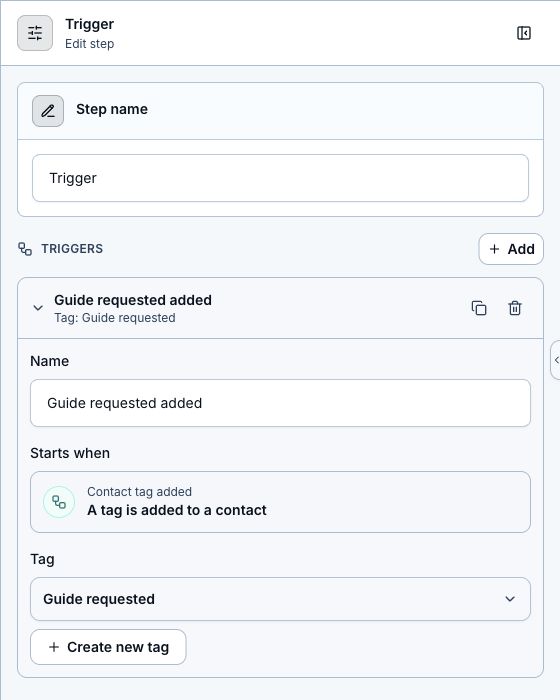
- Open New automation and choose Custom Automation beside Generate with AI, or edit an existing workflow. Choose Add trigger, then Contact events.
- Choose Tag added, Tag removed, or Custom field set, then select the same tag or field. Keep a specific filter so unrelated changes do not start the workflow.
- For tags, search your saved tags in the Tag dropdown. Create new tag saves a tag in the chosen folder and selects it for the trigger; approve that tag in the agent before using it. Choose Any tag only when every tag change of that kind should start the workflow.
- Add the follow-up steps. For example, wait 1 hour and send an email. The contact needs a primary email, valid email subscription, and an eligible sending account.
- Instagram, contact, and product triggers can share a workflow. Any matching trigger starts the same steps. A workflow does not restart itself when its own steps change a contact; use a separate follow-up workflow to respond to those changes.
- You can also describe a new follow-up in Generate with AI. Review the draft, validate it, test it, then publish.
Review and delivery
- Review mode proposes the contact change for your approval. Automatic mode applies it only when the agent is permitted to act.
- The follow-up starts after the contact change is saved, not when AI merely suggests it. Background processing can add a short delay.
- Retries do not repeat the same event. Saving the same value, adding an existing tag, or removing a missing tag does not start another follow-up.
- A custom field containing an email address does not update the primary email or subscribe the person. Use the existing email collection step for that; existing opt-outs still apply.
Related articles
Still need help?
Support & feedback