
How to set up email sender details
Add the identity and mailing address LinkStack needs before a broadcast or automation email can be sent.
In this article
Where to find it
Open Settings and choose the Email tab for your sending and mailing addresses. Subscriber alerts and emails from LinkStack are in the Notifications tab. Sender setup is available on Growth.
Connect your own sending address
Custom marketing senders are included in Growth. To send from an address on your own domain, follow the email-domain guide below. It covers DNS records, handing setup to your domain manager, activation, and the LinkStack sending option for Gmail or Yahoo. Your domain connection is separate from the mailing-address details in this guide.
Why the address appears in the footer
The footer shows your sender identity, contact details, mailing address, and unsubscribe link. LinkStack requires these details before testing or sending a broadcast and before publishing a workflow that contains Send Email.
- Transparency: recipients can see which person or business is responsible for the message.
- Identification: a real postal address helps recipients distinguish a legitimate sender from anonymous spam or fraud.
- Contact and accountability: recipients have a physical contact point in addition to the reply-to email and unsubscribe link.
- Marketing-email compliance: the United States CAN-SPAM Act requires commercial messages to include a valid physical postal address and a clear way to opt out.
- Consistency: LinkStack adds the same footer to broadcasts and Send Email automation steps so required sender details are not accidentally left out of a message.
Rules vary by location
CAN-SPAM is a United States rule, and other countries or regions can require consent, sender identification, unsubscribe handling, or other disclosures. The primary purpose of a message can also affect which rules apply. LinkStack's sender-details requirement is a product safeguard, not legal advice, so check the requirements that apply to you and your recipients.
What address to use
- Use a current business street address, a registered post office box, or a registered private mailbox.
- Do not use a fake, temporary, or unregistered address.
- The address and contact email are visible to recipients in the email footer.
- If you do not want to publish a home address, arrange a valid business mailbox before sending.
Save your sender details
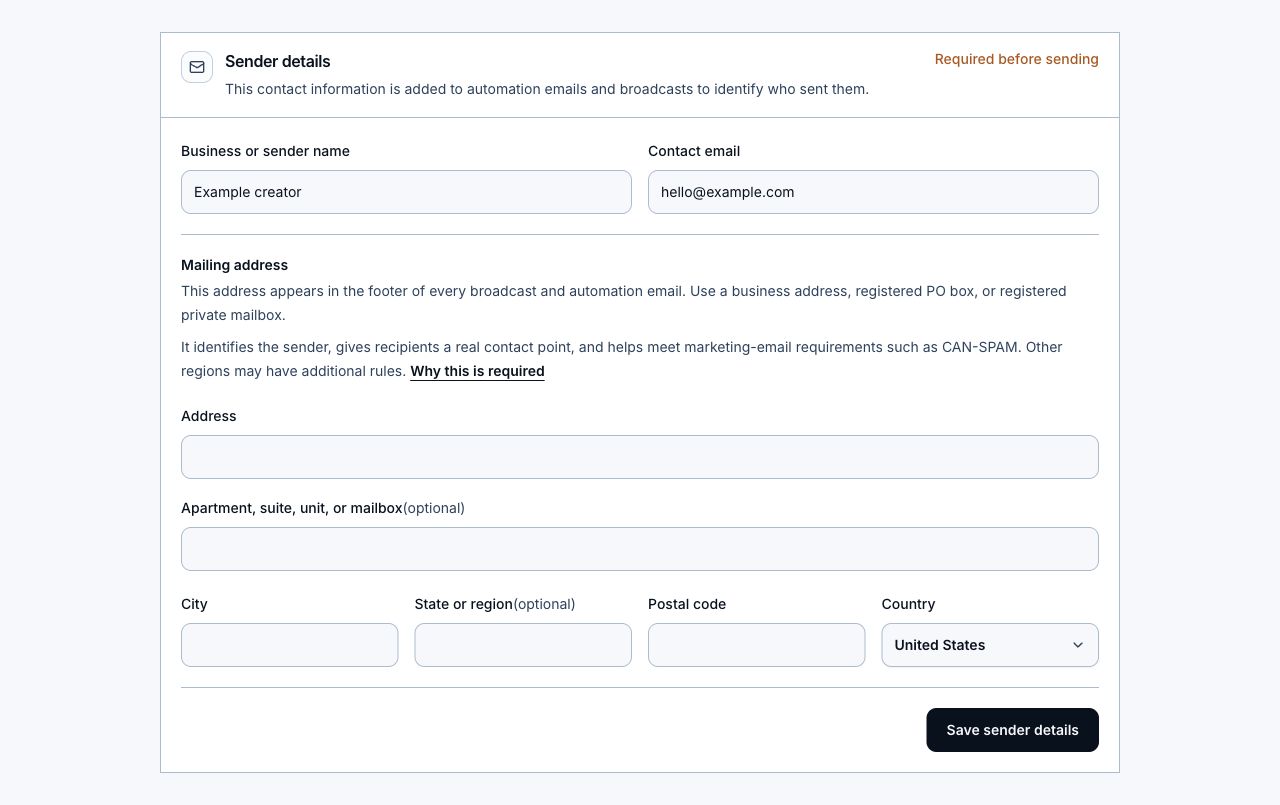
- Open Settings, then Email.
- Enter the business or sender name recipients should recognize.
- Enter a monitored contact email.
- Enter the address, optional apartment, suite, unit, or mailbox, city, optional state or region, postal code, and country.
- Click Save sender details.
- Wait for Email sender details saved and Ready to send, then return to Broadcasts or your automation.
- If you try to test a sender, test or send a broadcast, or publish an email workflow first, you can add missing details in the popup instead. Saving resumes a test or workflow publishing, or returns you to broadcast send review. A failed save keeps the form open so you can fix it; Cancel or Keep editing sends nothing.
What LinkStack adds to email
- Broadcasts include the saved sender name, mailing address, contact email, a subscription notice, and an unsubscribe link in HTML and plain text.
- Automation emails include the saved sender details and an unsubscribe link in HTML and plain text.
- Test broadcasts include the complete sender footer and a safe test Unsubscribe link. Opening it confirms the link works without changing a subscription.
- Bounces, complaints, blocks, and unsubscribes suppress future marketing delivery to that address.
Changes after scheduling
A broadcast copies the footer details when it is scheduled. Newly scheduled broadcasts and newly created automation deliveries also save the active From and Reply-to. Changing the active sender does not rewrite existing scheduled senders, even when rescheduling. If their original domain disconnects or loses verification, affected sends stop with an error instead of switching to LinkStack. Reconnect and verify that domain before reviewing a retry. Rescheduling refreshes mailing-address details; it does not change the saved sending address.
Delete your mailing address
- Open Settings, then Email.
- Click Delete mailing address and confirm the warning.
- LinkStack deletes the saved sender details and removes stored address snapshots from your broadcasts.
- Scheduled broadcasts return to drafts, and new broadcast tests, sends, and automation emails are blocked.
- Add and save complete sender details again before rescheduling or sending email.
Official guidance
For United States recipients, review the FTC guide before sending commercial email. Check the rules that apply in every country or region where you and your recipients are located.
Related articles
Still need help?
Support & feedback