
How to send product purchase emails
Use a Growth email workflow for purchase follow-ups and customer tagging, alongside the product's own confirmation email.
In this article
Choose the right email
A product's enabled purchase confirmation already gives customers secure download access after a completed paid order or free resource claim. Use this separate Growth workflow when you want marketing follow-up or customer tagging. Email follow-ups require an active email subscription and eligible sender details. A workflow with a product or supported contact trigger can include Send Email, even when it also has Instagram triggers.
Before you publish
- Open Settings, then Email.
- Add the business or sender name and contact email recipients should see.
- Add a valid business address, registered PO box, or registered private mailbox.
- Click Save sender details. LinkStack will block an email workflow from publishing until these details are complete.
What triggers it
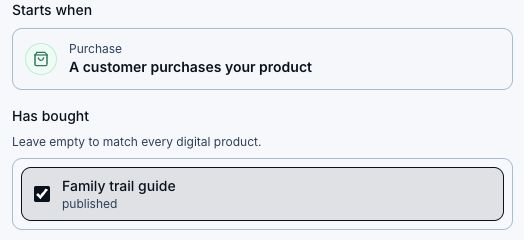
The Digital product purchase trigger fires after a paid order is marked paid. It includes product, order, buyer email, attribution, source, product URL, and download URL context for the workflow.
Use the template
- Open Dashboard, then Automations.
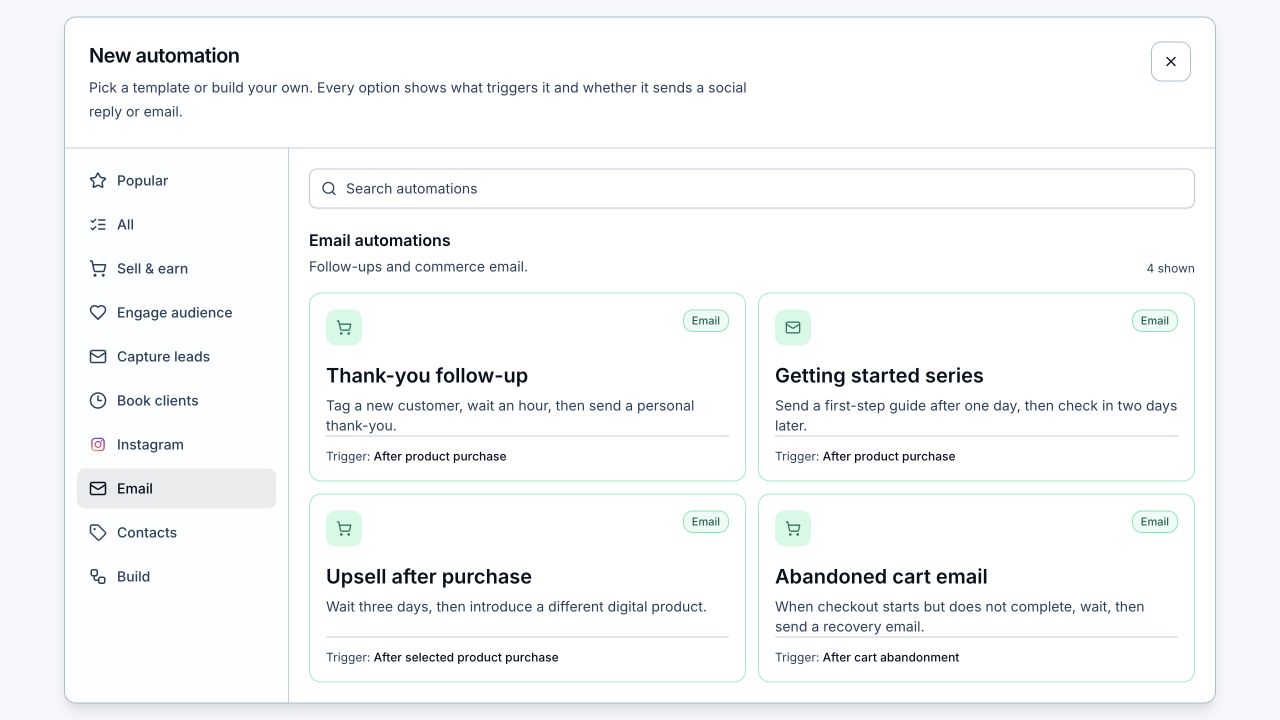
- Click New automation.
- Choose the Email category, then pick Thank-you follow-up.
- Open the trigger and decide whether it should run for any product or selected products.
- Open the Send Email step and choose an email template. Use Edit to change it, or New to create one.
- Edit the subject, preview text, and body.
- Keep the download link token in the email when the email should deliver the product.
- Optionally keep or edit the Customer tag step.
- Save, test, and publish the workflow.
Useful email tokens
- {{product_title}} inserts the product title.
- {{download_url}} inserts the secure download link when the purchase event has one.
- {{product_url}} links back to the public product page.
- {{order_id}} inserts the order ID.
- {{first_name}} personalizes when the buyer contact has a name.
Helpful tips
- Keep purchase emails short. The buyer mostly needs the download and confidence that the order worked.
- Use tags like Customer or Bought guide when you want future workflows to branch by purchase history.
- Send Email uses LinkStack email delivery with the creator profile email as the default reply-to.
- LinkStack adds your saved sender details and an unsubscribe link to the email automatically.
- Test with a real-looking buyer email before a launch.
Related articles
Still need help?
Support & feedback