
How to interpret the Clicks over Time chart
Read spikes, quiet days, and trend changes without overreacting to normal traffic noise.
4 min read
In this article
What it shows
Traffic over time on the dashboard can show all traffic, Links, bio views, or bio taps. On a link detail page, Link clicks over time focuses on that one link. The bucket size follows the range, and your account timezone affects where daily traffic lands.
How to read it
- Spikes usually match posts, stories, emails, launches, or paid traffic.
- Flat lines can mean no traffic, an expired campaign, or links shared somewhere people are not tapping.
- A drop after a spike is normal after timely content fades.
- Today and Yesterday use hourly buckets. Most shorter ranges use daily buckets. Long ranges roll up monthly.
- Compare the chart with top links, referrers, devices, countries, and route outcomes before changing routing.
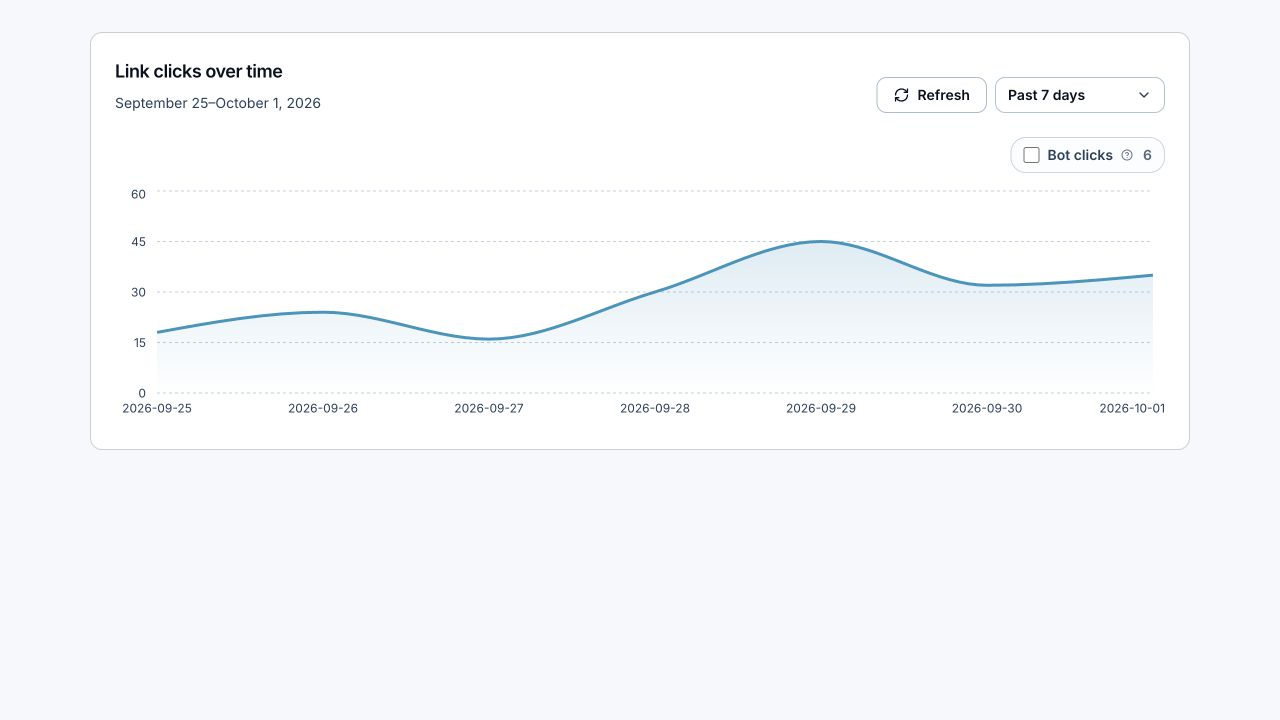
Refresh chart data
- Find Refresh beside the date controls on the dashboard, a Link or collection report, or Bio analytics.
- Click Refresh to reload the latest available data. The date range and filters stay the same.
- Wait for Refreshing to finish. The button has a 15-second cooldown between requests.
- If recent activity is still missing, allow a few seconds for reporting to catch up, then refresh again.
What to do next
- Change the date range to compare the spike against normal traffic.
- Check top links to see which Link caused the movement.
- Check referrers or platforms to see where the traffic came from.
- Check fallback rate if the traffic did not perform the way you expected.
- Add UTM tags next time if you need cleaner campaign attribution.
Related articles
Still need help?
Support & feedback