
How to use bio section rules
Hide or show cards and change link details based on location, device, or platform, then test the result with View as.
6 min read
In this article
What rules can do
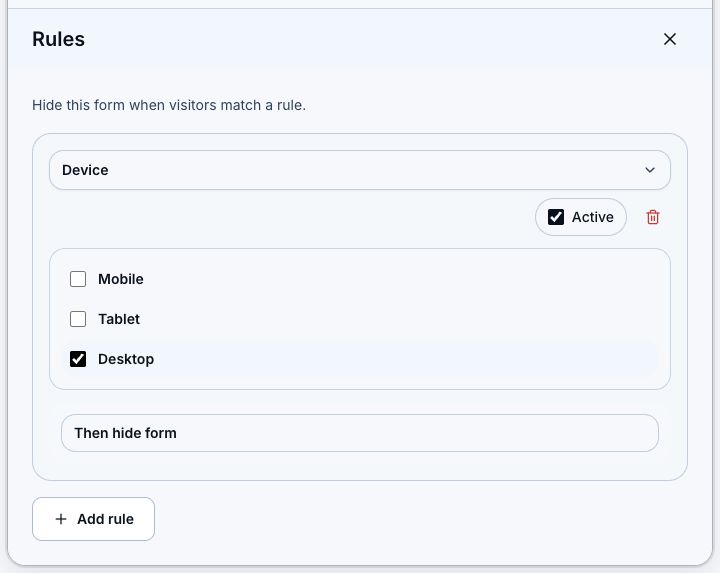
Rules can hide or show supported cards for matching visitors. Link-style cards can also swap title and URL details. Form cards are hide-only.
Steps
- Open Dashboard, then Bio.
- Choose the page you want to edit.
- Select a supported card.
- Click Rules in the card toolbar.
- Click Add rule.
- Choose Location, Device, or Platform.
- Select the matching values.
- Choose Hide content, Show content here, or Change content details.
- Keep the rule Active and save the page.
Test with View as
- Find View as above the preview.
- Choose a Location, Platform, Device, or a mix of filters.
- Click Apply filters.
- Confirm the preview hides, shows, or changes the card as expected.
- Click Reset to return to All visitors.
Related articles
Still need help?
Support & feedback