
How to schedule a link in bio card
Show a card later, hide it after a deadline, or do both without babysitting your bio page.
4 min read
In this article
When to use it
Use scheduling for launches, limited drops, event links, seasonal promos, or anything that should not sit on your page forever.
Steps
- Open Dashboard, then Bio.
- Choose the page you want to edit.
- Select the card you want to schedule.
- Click Schedule in the card toolbar.
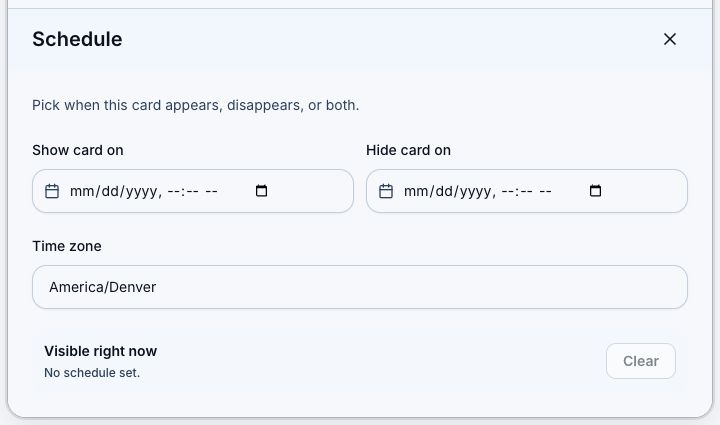
- Set Show card on, Hide card on, or both.
- Confirm the Time zone.
- Save the page and check the preview.
Helpful tips
- Leave Show card on blank when the card should stay visible until the hide date.
- Leave Hide card on blank when the card should appear later and stay up.
- Use Clear when the card should go back to normal.
- The schedule panel tells you whether the card is visible right now.
Related articles
Still need help?
Support & feedback