
How to test Link pixels
Confirm the saved ID and assignment, test the public redirect, and separate the visit signal from destination events.
6 min read
In this article
Check the setup first
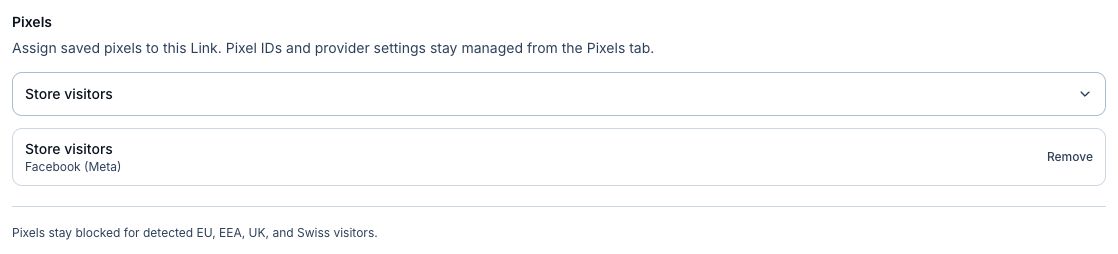
- Confirm the pixel is saved and assigned to the Link you are testing.
- Confirm the Link is active.
- Open the public LinkStack URL rather than the final destination.
- Test outside the EU, EEA, UK, and Switzerland because LinkStack blocks pixel delivery there.
- Temporarily disable browser extensions or privacy modes that block third-party advertising scripts.
Test a public Link
- Open the provider's event testing or diagnostics view.
- Open the assigned Link in a fresh browser tab.
- Let the redirect finish.
- Look for the provider's standard visit signal.
- Repeat once on the device or social placement you plan to use for the campaign.
- Wait for normal provider reporting delay before treating the test as failed.
Visit signal versus conversion
- Meta and TikTok receive a page-view style signal.
- Google Analytics receives a page_view configuration.
- Google Ads receives the base tag for audience building.
- Other providers receive their standard base visit signal.
- Purchases, leads, signups, revenue, and product actions require tracking on the destination site.
If the visit does not appear
- Recheck the provider and ID format.
- Confirm the saved pixel is assigned to this exact Link.
- Try a normal browser with blocking extensions off.
- Check whether the test IP is in a restricted region.
- Remove duplicate configurations before testing again.
Related articles
Still need help?
Support & feedback