
How to set up a Meta pixel for Links
Save a Meta Pixel ID and assign it to Links to send a PageView signal before redirecting.
5 min read
In this article
Find the Pixel ID
- Open Meta Events Manager and choose the pixel you want to use.
- Copy the numeric Pixel ID. Do not paste a full script or an event name.
- Use a separate saved pixel in LinkStack when different brands or ad accounts need different audiences.
Save and assign it
- Open Links, then choose the Pixels tab.
- Click Add pixel and choose Facebook (Meta).
- Add a name you will recognize and paste the numeric Pixel ID.
- Click Add pixel.
- Open the Links tab and select one or more links.
- Click Assign pixels, choose the saved Meta pixel, and save the assignments.
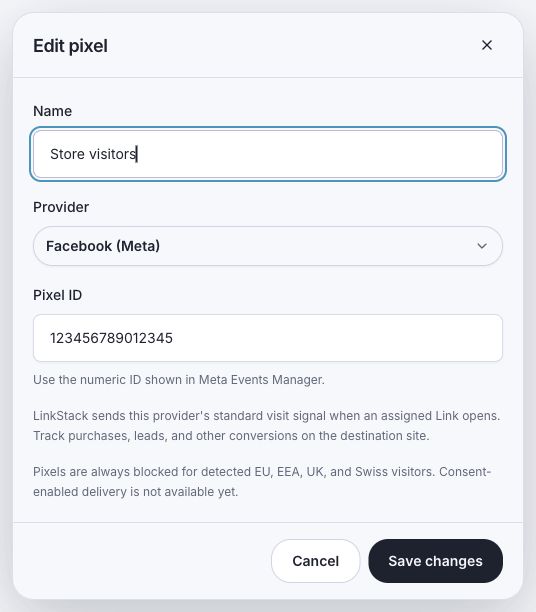
What fires
An eligible assigned Link sends Meta's standard PageView signal before the visitor continues. LinkStack does not claim a purchase, lead, or other destination conversion. Install the appropriate conversion tracking on the destination site for those events.
Check the setup
- Test the public Link, not the destination URL.
- Use Meta's event diagnostics or test tools to check for the PageView.
- Test outside the restricted region and without a browser privacy tool that blocks advertising scripts.
- Allow for provider reporting delay before changing a working ID.
Related articles
Still need help?
Support & feedback