
How to connect GTM, GA4, and Google Ads
Choose the correct Google ID and avoid treating an audience visit like a destination conversion.
6 min read
In this article
Choose the correct Google option
- Google Tag Manager uses a GTM- container ID. LinkStack loads that container; the tags and triggers inside it remain your responsibility.
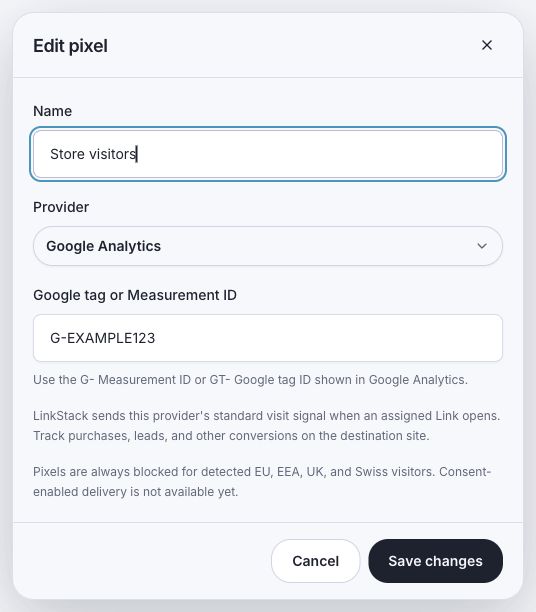
- Google Analytics 4 (GA4) uses a G- Measurement ID or GT- Google tag ID and sends the standard page_view configuration.
- Google Ads uses an AW- or GT- Google tag ID. LinkStack loads the base tag for audience building, not a purchase or lead conversion.
- Do not paste a GTM container into the Analytics or Google Ads field.
Save and assign the tag
- Open Links, then choose the Pixels tab.
- Click Add pixel.
- Choose Google Tag Manager, Google Analytics, or Google Ads.
- Paste the ID in the format shown for that provider.
- Save the tag, then assign it to the Links that should send the visit.
- Test the public Link after saving.
Avoid duplicate visits
A Tag Manager container can also load Analytics or Ads tags. Do not assign separate Google entries to the same Link when the container already sends the same visit, unless the duplication is intentional and documented.
Keep conversion tracking on the destination
- A Link click can build an audience or record a visit.
- A purchase, signup, or lead happens after the redirect and must be tracked on the destination site.
- Use the destination site's Google tag or Tag Manager container for conversion actions and values.
- Compare provider reporting with LinkStack click analytics; they measure different stages and will not always match exactly.
Related articles
Still need help?
Support & feedback