
How to configure and assign tracking pixels
Save reusable tracking pixels, assign them to Links, and understand what fires.
6 min read
In this article
Configure a pixel
- Open Links and choose the Pixels tab.
- Click Add pixel.
- Open the Provider menu and choose from 13 tracking platforms. Facebook (Meta) is selected by default. Scroll the menu to see every provider.
- Name the pixel and enter the IDs shown by that platform.
- LinkStack uses the provider's standard visit signal for retargeting. Track purchases, leads, and other conversions on the destination site.
- Pixel delivery remains blocked for detected EU, EEA, UK, and Swiss visitors.
- Click Add pixel.
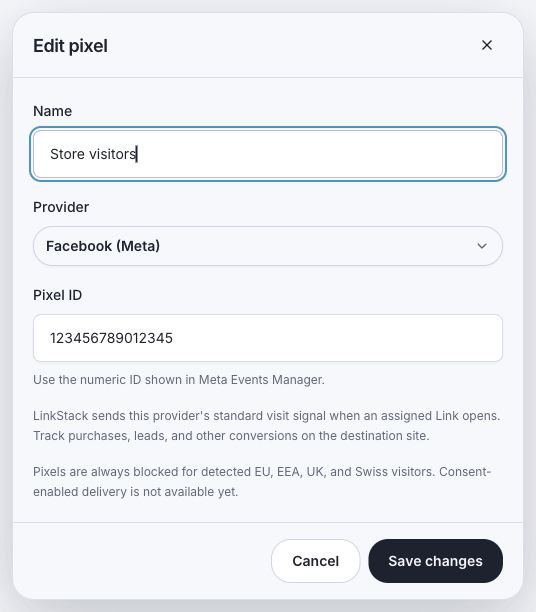
Supported platforms
LinkStack supports Google Tag Manager, Google Analytics, Facebook (Meta), Google Ads, LinkedIn, X (Twitter), AdRoll, Quora, Pinterest, Bing (Microsoft Ads), Snapchat, Reddit, and TikTok.
Assign Links
- Open Links and choose the Links tab.
- Select one or more Links.
- Click Assign pixels.
- Choose the saved pixels to add.
- Click Save assignments.
- You can also open one Link, expand Routing and Tracking, choose its saved pixels, then click Save tracking.
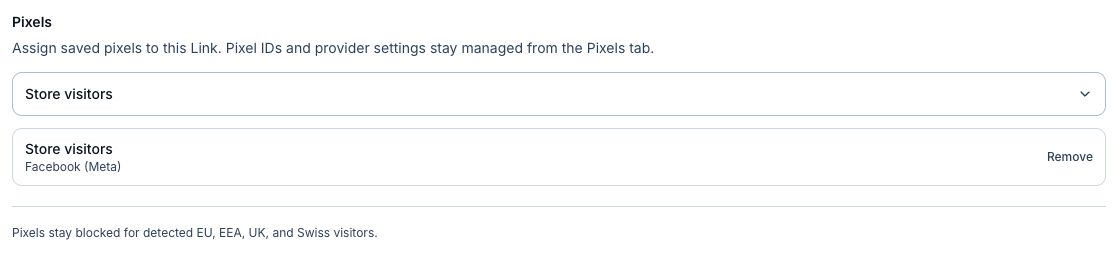
What LinkStack tracks
- A saved pixel only fires on the Links assigned to it.
- Editing a saved pixel updates every assigned Link without reassigning it.
- You can assign more than one pixel to the same Link.
- Pixels fire on Link clicks before the visitor continues to the destination.
- Purchases and other activity on the destination website require tracking installed on that website.
- LinkStack always blocks pixels for detected EU, EEA, UK, and Swiss visitors. Consent-enabled delivery is not available yet.
Related articles
Still need help?
Support & feedback