
When to use a program and how to set it up
Use a program when many Links share the same affiliate network, country destinations, and routing logic.
In this article
When to use one
Use a program when you want every link for a platform to reuse the same country setup. Amazon is the clearest example: US shoppers can go to Amazon.com, UK shoppers to Amazon.co.uk, and unsupported countries can fall back to your default storefront.
Choose the markets you can monetize
Programs lists available storefronts, including the US, UK, Canada, and Australia. Before activating a country, confirm that your Amazon Associates enrollment covers that market and use its valid store-specific tag. LinkStack does not enroll you in Amazon programs or verify your account eligibility. A correctly formatted tag alone is not proof of enrollment.
Start with one Amazon link
A tag detected in a full Amazon URL is prefilled only for its recognized storefront. A short link does not establish a market or tag. Program setup saves your existing Associates details; it does not enroll you, issue tags, guarantee equivalent products, or monitor stock.
- Choose Set up Amazon links on Home and paste an Amazon product or amzn.to URL.
- If you have an active configured Amazon program, review its storefronts. Otherwise, enter your primary storefront and its Associates tag, add optional storefronts, and choose Save program and continue. An existing paused program is edited instead of duplicated. In affiliate setup, Continue without an affiliate program skips setup for a basic link without country routing.
- Review the active tagged storefronts and default. Keep Use country routing selected when visitors should use those regional destinations, or turn it off for this Link.
- Choose Create Smart Link, then copy the saved URL. Use Review product destinations to check the generated regional URLs in the Link editor.
Manage a program directly
- Open Links and go to the Monetization tab.
- Click Add platform to open New program.
- Click Add Amazon program in the hero or Start setup on the Amazon program card. If you already have an Amazon program, open it from the platform list instead.
- Name it something clear, like Main Amazon program.
- Pick the Default country under Primary storefront and enter its valid affiliate tag. Country flags appear beside storefront names in the pickers.
- Under Additional destinations, click Add storefront. Each click adds the next unused market and puts the cursor in its tag field, so you can keep working through the list.
- To choose a different market, use the storefront dropdown in that row. Markets already on the page are excluded. Changing the storefront clears the previous tag; enter the tag for the newly selected market.
- Edit affiliate tags directly in the compact rows. Keep Country routing enabled only for countries covered by your Amazon Associates enrollment that have valid local tags. Pause a row to keep its tag without routing visitors there, or remove it with the trash button.
- Click Create program.
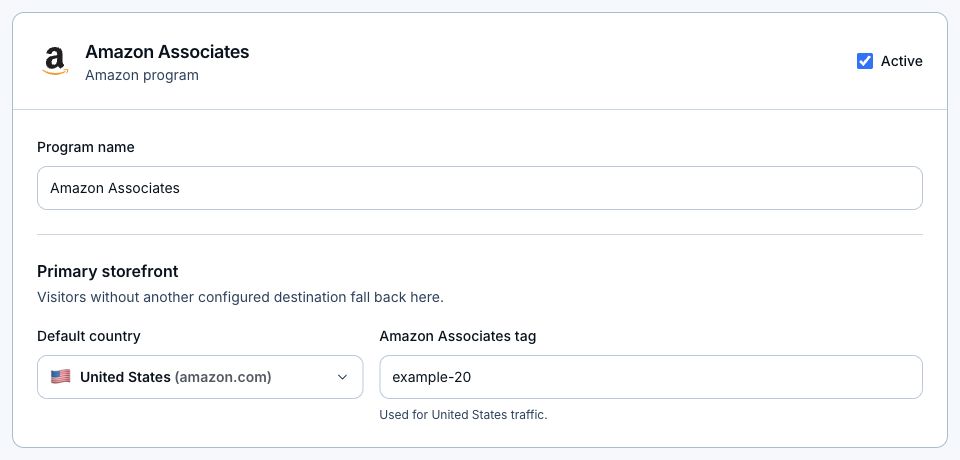
After setup
- To update storefronts later, open the saved program, edit the rows, and click Save changes. The primary storefront stays separate and cannot be removed from Additional destinations.
- Attach the program to Amazon Links so routing can reuse the country rows.
- Review every generated destination. LinkStack starts with the same ASIN and may use local search results when a product check fails and search words are available; it does not choose an equivalent product.
- Use analytics to decide which countries deserve tags next.
- Keep the default country as the destination you would choose by hand. Visitors without an active local destination fall back there unless a manual rule applies.
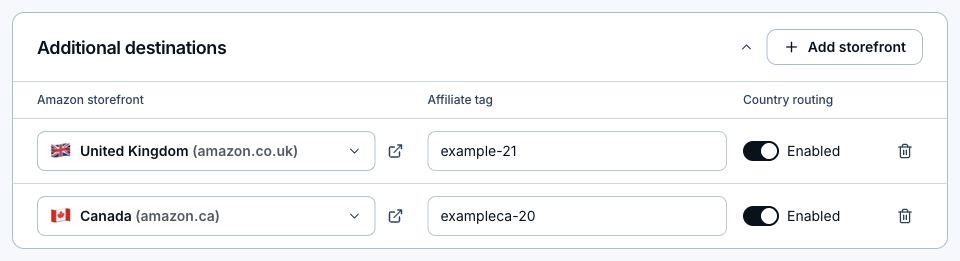
If you already use Amazon OneLink
Amazon OneLink offers free geo-redirection. LinkStack adds manual destination control, app opening when supported, click analytics, and links you can reuse in your bio page and automations. If Amazon geo-redirection is all you need, OneLink may be enough. Neither adding a LinkStack program nor a country destination replaces Amazon's enrollment requirements.
Related articles
Still need help?
Support & feedback