
Get started with LinkStack
Choose your first task and find help when you need it.
In this article
Choose your first task
Setup saves your work as you move forward; the automation editor also autosaves changes. Products and automations stay drafts until you explicitly publish; bio setup hands its draft to the editor for publishing. In an automation, Continue on my own hides the guide and Continue setup reopens it. Ordinary Smart Links start without country routing. Guided Amazon review lets you choose country routing for a configured program or continue without a program for a basic link. LinkStack does not create Amazon Associates accounts or tags.
- Create an account with Apple, Google, or email and password. Confirm your email if asked.
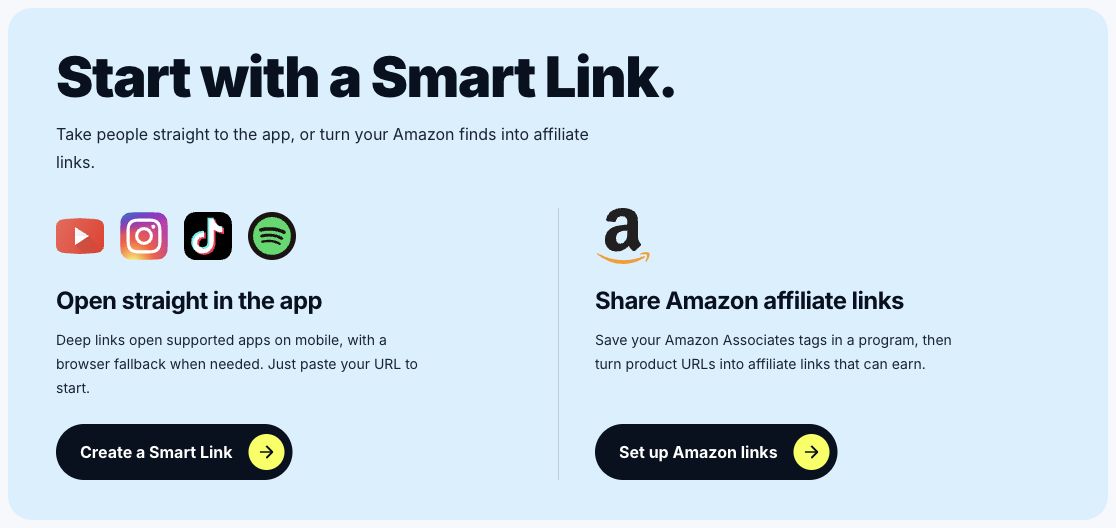
- Smart Links leads your first Home screen. Choose Create a Smart Link, paste your destination, then review supported app opening and browser fallback before saving. More options holds optional program and slug settings.
- Choose Set up Amazon links to start with an Amazon URL, reuse or configure your Associates tags and storefronts, then review and create the Link. Copy link copies the saved URL; you can also continue into Instagram automation setup with that Link selected when automations are available.
- Create your Link in Bio guides you through Address, Style, Content, and Review. When available, Add a product starts with your available product types, then guides you through the existing editor. Create an Instagram automation first offers Connect Instagram or Continue without Instagram, then opens a workflow draft with a guide for sharing a Link or product, trigger settings, message settings, and conversation preview/review on the same canvas.
- Choose Create your media kit. This opens the existing kit setup. If you do not have a bio page yet, create one first, then return to Media Kit from Pages or the Do this next suggestion on Home. Choose a bio page, then connect Instagram or skip it to create a draft. Publish separately when ready.
- Use the compact Import existing links button below the starter cards if you already have a link export. The Import a bio page button appears when bio import is available.
Choose what to do next
- Once your selected goal is complete, the main setup card and More ways to start disappear. You can still open your saved work from navigation.
- After your first task, Home shows unfinished setup suggestions in Do this next.
- Open a suggestion to continue setup, or choose its × to dismiss it. Completed steps disappear automatically.
- The remaining cards fill each row. The final suggestion becomes a compact row, and the section disappears once every step is completed or dismissed. You can still open those features from navigation.
Find help when you need it
You can start creating from Home without completing a tour.
- Open Help. On mobile, open More → Help.
- Choose FAQ for common questions.
- In the Help Center, search for a question or choose a topic group, then a topic. Open a question to read its answer. Use All topics to return to the overview.
- Choose All step-by-step guides to browse walkthroughs. Filter by topic and use Show more to see more entries. Choose Support & feedback to get in touch.
Test onboarding with an existing admin account
Sign-ins, saves, file uploads, Amazon programs, Instagram connections, publishing, and automation activation are simulated. No real checkout, email, DM, account connection, or public content is created. The automation canvas, setup guide, conversation preview, and history use local test data; live Instagram Test and AI actions are unavailable. Bio setup ends when the editor opens. Actions in the normal workspace use your real data.
- Open Admin → Testing → Open onboarding preview. This tool is available to admin accounts.
- Choose Login, Signup, First Home, Smart Links, Bio setup, Products, or Automations. Use test details. After simulated email signup, choose Continue to Home to simulate confirmation.
- Try a Smart Link, Amazon affiliate setup, or bio draft. For a digital product, use a sample file and try publishing. Continue from the saved product or Link into automation setup. Choose Try with a sample Instagram or Continue without Instagram before the editor opens. Edit the trigger and message on the canvas, then choose Review & publish and confirm Publish workflow.
- Open Test options and activity to hide optional features, fail the next save, or review what happened. Use the handle taken to test an unavailable address.
- Choose Reset preview to clear the test session and start over, or Exit preview to return to Admin. Your real account and saved tour progress are unchanged.
Related articles
Still need help?
Support & feedback