
How to create and fulfill a custom product
Collect a made-to-order request, price it, publish the page, and track the work through fulfillment.
8 min read
In this article
When to use a custom product
Use a custom product for personalized videos, designs, audits, commissions, or other work you complete for each buyer. LinkStack records checkout and intake answers, but you handle delivery, revisions, and buyer communication. Use a Digital Product when the same file should be delivered automatically.
Build the product page
- Open Dashboard, then Products.
- Click New product and choose Custom Product.
- On Product, add the title and URL slug. On Landing page, expand Page content for the description and media.
- Use the Page content rich-text toolbar for text, images, and videos. Page content always appears first.
- Edit the checkout button, summary, and details inside Checkout.
Collect buyer instructions
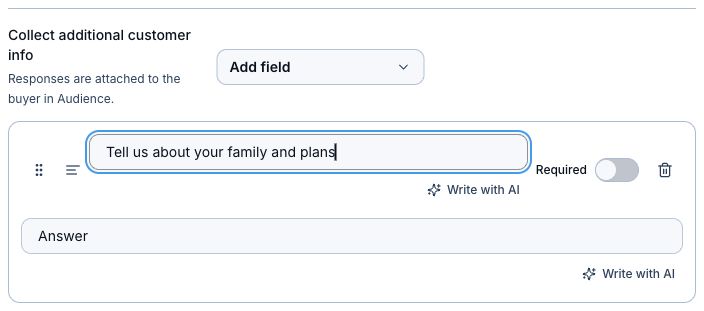
- Open the Checkout section under Landing page.
- Keep Email so LinkStack can identify the buyer and send the receipt.
- Add name, phone, text, choice, or checkbox fields for every detail needed to start the work.
- Mark only truly necessary questions as required.
- Preview the form and make sure a buyer can understand each question without messaging you first.
Set pricing
- Open Product → Pricing and choose a free or fixed one-time price. Expand More pricing options for the controls below.
- For a flexible offer, turn on Let buyers choose their price, then set the minimum and optional suggested price.
- For fixed pricing, add an optional original price, discount codes, or sales limit.
- Choose whether the price appears on the product page or only at checkout.
- Remember that pay-what-you-want disables discounting.
Finish settings and publish
- Open Landing page to adjust Appearance, then open Settings for reviews and SEO.
- Choose whether fulfilled buyers can leave verified reviews and whether ratings appear publicly.
- Set the SEO title and description or hide the page from search engines while keeping the direct link available. Under Social preview image, upload a separate image and choose a 1:1 square or 1.91:1 banner crop. Save the product to use it in shared links. Removing the social image restores the product-image fallback without changing the cover.
- Click Save as Draft if the offer is not ready, or Publish when the scope, price, and intake form are complete.
- For a paid offer, confirm Stripe shows Payments ready before sharing it.
- Use Add to bio or share the public product link.
Review new orders
- Open Products and find the Custom product fulfillment queue.
- Click Review orders.
- Read the product, buyer, total, and saved checkout answers before starting work.
- Contact the buyer directly when an answer is unclear or a delivery detail is missing.
- Use the saved field labels and answers as the order record; they remain a snapshot even if the product form changes later.
Track fulfillment
- New means the confirmed order is waiting for work.
- In progress means work has started.
- Fulfilled means you delivered the order. Only fulfilled LinkStack orders qualify for a verified review.
- Canceled means the order will not be completed and sends the buyer a cancellation message.
What LinkStack sends
- The buyer receives a receipt with the order ID and total.
- The creator receives a new-order alert with the intake answers.
- A canceled order sends the buyer a cancellation message.
- LinkStack does not attach or deliver the finished custom work. Use your chosen delivery and communication method.
Troubleshooting
- If an order is missing, confirm checkout completed and look in the global custom-product order list, not a file-delivery screen.
- If the buyer answers are incomplete, revise the checkout fields for future orders and contact the current buyer directly.
- If paid checkout is unavailable, confirm the product is Published, Stripe shows Payments ready, and the sales limit is not reached.
- If you need automatic file delivery, create a Digital Product instead of adding a delivery file to the custom offer.
Related articles
Still need help?
Support & feedback