
How to choose and customize a product theme
Start with your bio appearance or choose a product theme that carries through checkout and customer access.
5 min read
In this article
Start from your creator appearance
- A new product starts from the colors and font on your most-viewed bio page.
- If you do not have a bio page yet, LinkStack starts with Ocean.
- The purchase-button color starts from the same accent, then stays independently editable so a later theme choice does not overwrite a button you customized.
Choose a complete theme
- Open Products and create or edit a product.
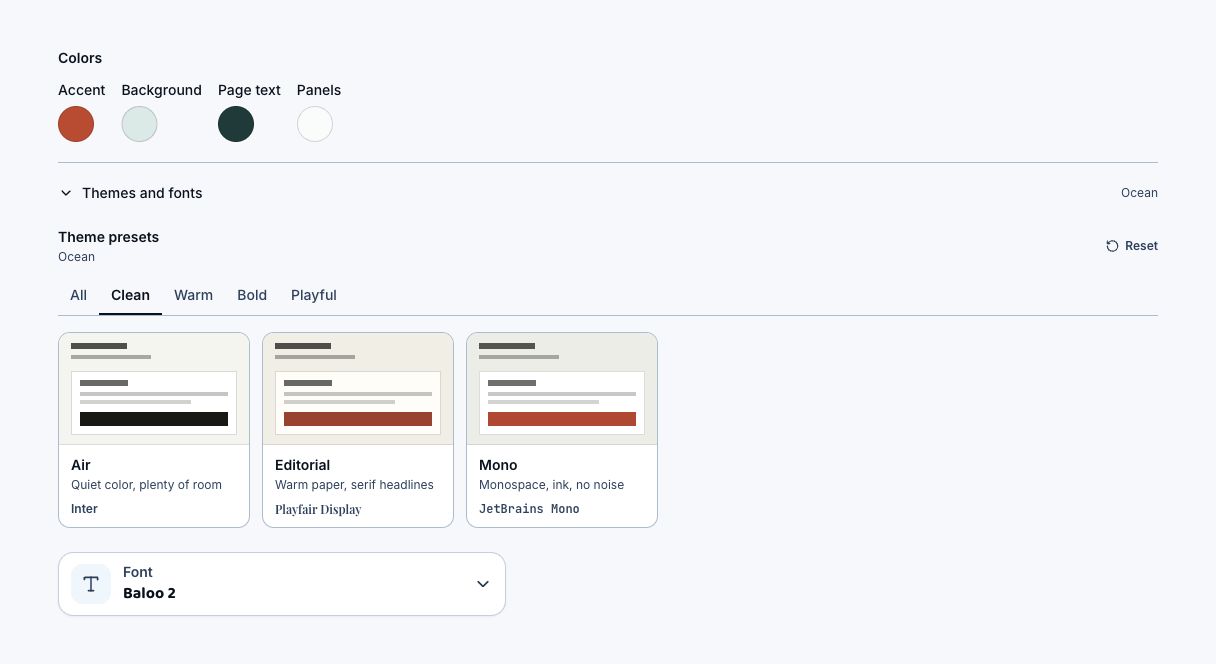
- Open Landing page, then Appearance. Colors and Button color are available immediately; expand Themes and fonts to choose a preset.
- Browse All, Clean, Warm, Bold, or Playful.
- Choose a tile, including the pastel Daydream, royal-blue Cobalt, lemon-lime Citrus, warm Cocoa, or night-mode Afterglow looks. Its background, panels, text, accent, and font update together in the preview.
- Save as Draft or Publish to keep the selection.
Customize your theme
- Change Accent, Background, Page text, Panels, or Font after choosing a starting point.
- The picker shows Custom when the six appearance fields no longer match a preset.
- Reset returns to the appearance that was loaded when you opened the editor.
- Appearance changes never replace your copy, media, pricing, checkout fields, dates, curriculum, or customer data.
Write your landing page content
- Open Landing page → Page content. Every product type uses the same rich-text editing workflow.
- Use the toolbar to add headings, lists, links, images, and videos inside Page content. The old section builder has been removed, and existing standalone text is now part of Page content.
- Expand Checkout to edit the supported checkout controls. Page content always appears first.
- Existing FAQ groups remain editable with up to 20 questions. Use Show FAQ before checkout to choose the position or Remove FAQ to remove the group. Adding a new FAQ group is currently unavailable.
- Choose Save as Draft or Publish.
Where the theme follows buyers
The shared appearance works on digital products, free resources, memberships, custom products, and appointments. It follows the public product page and the matching download, membership-management, receipt, or booking view.
Troubleshooting
- If the public page still shows the old look, save the product and refresh its public URL.
- If the picker says Custom, one or more colors or the font differs from every preset.
- If only the purchase button differs, edit Button color under Landing page → Appearance; it is intentionally separate from the page theme.
Related articles
Still need help?
Support & feedback