
How to choose and customize a bio theme
Choose a theme, then adjust it to suit your page.
4 min read
In this article
Choose a preset
- Open Dashboard, choose Bio, and open the page you want to edit.
- Open Appearance, then choose Themes.
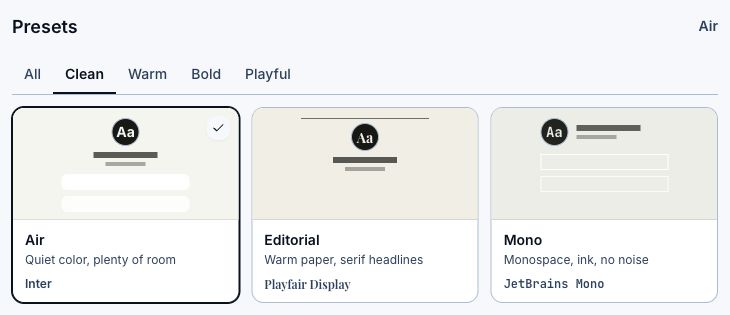
- Use All, Clean, Warm, Bold, or Playful to narrow the gallery.
- Choose a theme tile. The colors, font, background, header layout, and block treatment update together.
- Check the phone preview before you leave the editor.
Make it yours
Use Header, Page, Blocks, and Advanced for individual changes. Once a setting no longer matches the preset, Appearance shows Custom. LinkStack keeps the preset as the reset point, so Reset returns that section to the look you chose.
Choose a page background
- Open Appearance, then Page, and find Background.
- Choose Solid for one color, Gradient for two colors and a direction, or Image to upload a background or choose a Pexels photo.
- Check the phone preview. All three options work with every header layout, including Portrait overlay. Changing the header layout keeps your background choice.
Change block outlines
- Open Appearance → Blocks and turn on Block outline.
- Choose Outline color and pick a color or enter its hex value.
- Check the phone preview and let autosave finish. The selected color appears at full strength, including on image-only cards.
- Turn Block outline off to remove the border. Your color stays saved if you turn it back on. Choosing a theme restores that theme's outline settings.
Show only a card image
Until an image is added, the card shows its title so visitors still have a usable link. Collections keep their own layouts. Image-only links retain a screen-reader label from the card title.
- Open a link or product card outside a collection in the bio editor.
- Use Thumbnail in its toolbar to add or replace the image. Product cards can use their existing product image.
- Choose Card → Format → Image only. The image keeps its original proportions, and the whole image opens the card's destination.
- Check the phone preview and let autosave finish. Choose another format to show the saved title, badge, price, and action again.
Animate a card
Animations respect reduced-motion preferences in both the preview and public page. Changing an animation does not change the card's link or product settings.
- Open the card in the bio editor, then choose Animate in its toolbar.
- Choose Jitter, Shimmer, Sway, or Pulse. Sway gently tilts the card from side to side; Pulse makes it grow slightly and settle back every few seconds.
- Check the phone preview and let autosave finish. Each card keeps its own animation. Choose None to keep it still.
What stays unchanged
- Themes do not add, remove, or reorder cards.
- Your profile and background images stay attached unless you replace them.
- Theme changes autosave. A published page updates after autosave finishes; a draft still needs to be published.
Choose a starting theme
- Clean keeps the page quiet when your card images carry the color.
- Warm suits food, family, wellness, and outdoor pages.
- Bold works when launches, music, or events need more contrast.
- Playful uses expressive type and color; keep card labels short so they stay readable.
- Daydream, Cobalt, Citrus, Cocoa, and Afterglow add pastel, primary, high-energy, earthy, and night starting points.
Related articles
Still need help?
Support & feedback