
How to fix deep link app and web fallbacks
Check the destination, app detection, device settings, and fallback in the order LinkStack uses them.
7 min read
In this article
The wrong app or content opens
- Open the final web destination and confirm it points to the exact public content you expect.
- Check country routing first; app routing uses the final routed destination.
- Use automatic mode for a recognized provider unless you have a verified reason for a custom app URL.
- Remove extra shorteners or redirects that hide the final provider URL.
- If using custom mode, confirm the app URL format is valid for the intended app and device.
Only the web fallback opens
- Confirm Mobile behavior is enabled for the Link and the change has been saved.
- Confirm the current device is enabled.
- Check whether LinkStack recognizes the final provider and URL shape.
- Confirm the destination app is installed and allowed to open links.
- Check the Instagram or TikTok switch when testing inside those apps.
- Desktop traffic is expected to use the web destination.
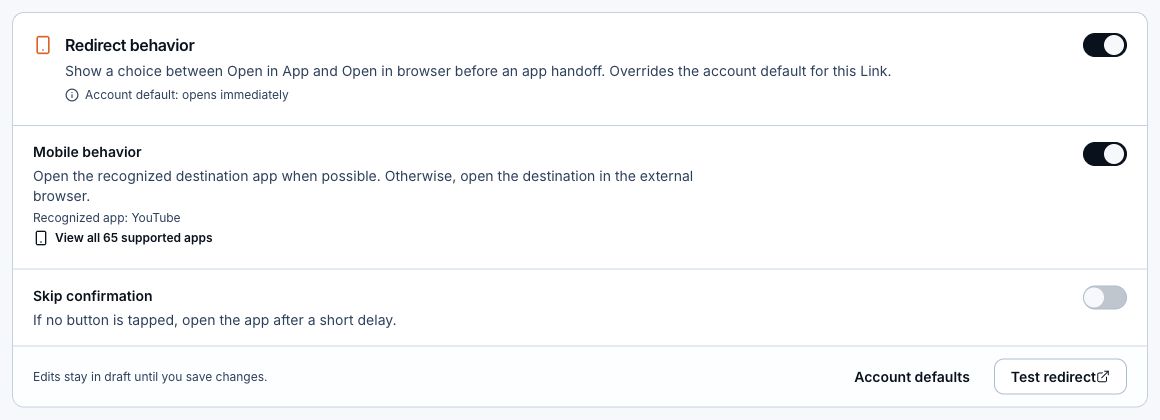
The fallback uses the wrong browser
- Open the Link's Redirect behavior section and check Mobile behavior.
- Leave Mobile behavior on to try the destination app and external-browser fallback when supported.
- Turn Mobile behavior off to keep the destination in the current browser, including the social app's in-app browser.
- Save changes, then retest the public Link inside the social app. Turning off only Skip confirmation changes the app timer; it does not stop the Link from opening an app or external browser.
Test again
- Save every routing section you changed.
- Open the public Link in a new browser session.
- Test the installed-app and fallback cases separately.
- Record the device, browser, destination, and result before changing another setting.
Related articles
Still need help?
Support & feedback