
Set up Instagram conversation starters
Add questions people can tap when opening a new Instagram conversation, then connect each question to a useful reply.
In this article
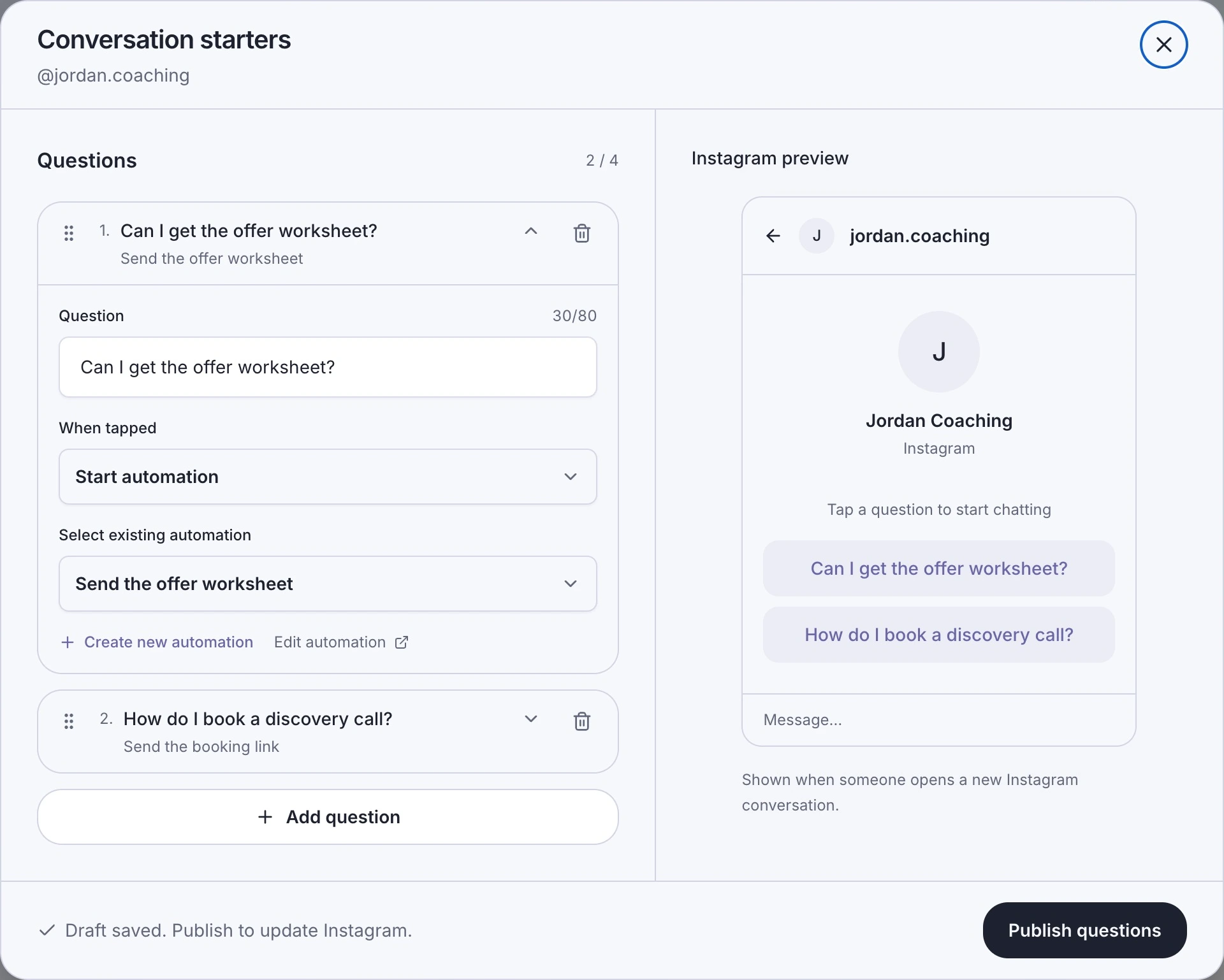
Open the connected account’s questions
You need a connected Instagram professional account with messaging access. An automation target must be a published, compatible Instagram DM workflow for this account. Assigning an AI agent needs an eligible active, published agent and Starter or above.
- Open Automations and find your connected Instagram account. Choose Conversation starters. You can also reach it from the account in Settings → Integrations.
- Check the Instagram handle at the top so you edit the right account.
- Choose Add question and enter a question of up to 80 characters. You can add up to four. Start with a specific request, such as Can I get the offer worksheet?
Choose what happens when someone taps
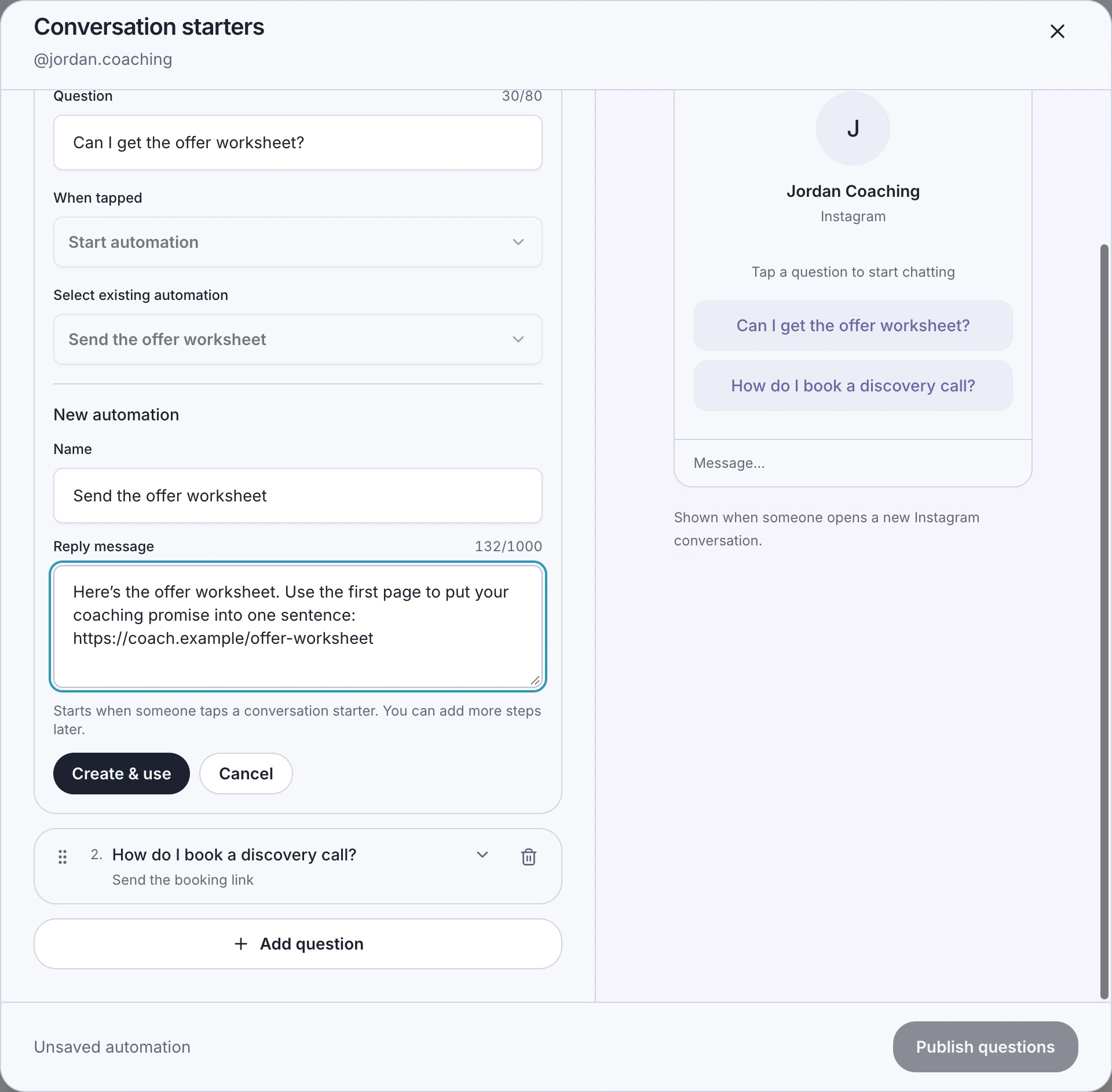
Create & use prepares and attaches the workflow; it does not publish the Instagram questions. A workflow created here responds to its starter tap. Typing the same question does not trigger it unless you separately configure a normal message trigger.
- Under When tapped, choose Start automation. Select an existing compatible workflow under Select existing automation.
- For a simple reply, choose Create new automation instead. Enter a Name and Reply message, then choose Create & use. The reply can contain up to 1,000 characters.
- For the worksheet question, give the worksheet link in the first reply. For How do I book a discovery call?, select a workflow that provides the booking link.
- To use an agent, choose Assign AI agent and select an eligible agent. Check its instructions and approved knowledge before publishing the question.
Publish the questions and check the tap
Tapping a published question starts its selected action. Typing the same words is a different event. Existing pauses, usage limits, workflow rules, and agent availability still apply.
- Review the Instagram preview and wait for Draft saved. Autosave keeps your LinkStack draft; it does not update Instagram.
- Choose Publish questions. When editing questions already published through LinkStack, choose Update Instagram questions. Wait for Your questions are live on Instagram.
- From another Instagram account, open a new conversation in the Instagram app and tap a question. Check that the expected reply arrives, then check LinkStack Activity or Inbox if it does not.
Change, remove, or troubleshoot questions
- Change questions and targets, then choose Update Instagram questions to apply the new version.
- To remove every question from Instagram, delete them in the editor, choose Remove from Instagram, and confirm.
- If LinkStack warns that another tool or localized questions already exist, review the replacement warning before confirming. Publishing replaces that account’s existing question set.
- If saving or publishing fails, keep the editor open and use the offered Retry or Refresh action. A saved draft alone is not confirmation that Instagram changed.
- If a target is missing, check the connected account, workflow publication and compatibility, or the agent’s active published version and plan access.
Related articles
Still need help?
Support & feedback