
Organize links in Collections
Browse folders, drag links into Collections, and manage several links at once.
In this article
Browse your Collections
- Open Links. Collection folders and uncollected links appear in one table. Choose New Collection to create one. Inside a folder, New Collection creates a subfolder there. Return to the top with the Links breadcrumb to create a top-level Collection.
- Open a folder to see its subfolders and links. Use an ancestor breadcrumb to go up a level or the Links breadcrumb to return to the top, or All links to see your full library. The browser Back and Forward buttons also work between folders.
- Search from the top level to find links across Collections. Inside a Collection, search covers that folder and its subfolders. Status, Campaign, and sort controls still apply; folder counts and click totals reflect the matching links. The total at the bottom includes links inside Collections, counting each link once.
- Choose Analytics on a Collection row, or Collection analytics inside a folder, to open its aggregate report.
Move links to a Collection
A link has one direct Collection at any folder depth. Dropping it on another folder replaces its previous Collection and saves immediately. Parent folders include links from their subfolders for browsing and reporting without adding another direct assignment. Only selected links visible in the current view are included. For more than 2,000 links, use smaller batches.
- Drag a link by the grip beside its checkbox onto a Collection folder. To move several links, select their checkboxes and drag one of the selected links.
- You can also select links and choose Move to Collection. The modal shows the complete folder tree, with child folders indented beneath their parents. Select one destination. Create new Collection creates a folder inside the Collection you were viewing when you opened the modal. On mobile or with a keyboard, the same selection actions are available.
- With a keyboard, focus a drag handle and press Space. Use the arrow keys to choose a target, then Space to drop or Escape to cancel.
Remove links from a Collection
Collections can contain subfolders. Parent link counts, click totals, and analytics include every descendant link once. A link assigned to a child is included in its parents without receiving extra Collection assignments. Dragging changes the link’s folder; use the sort control to change link order.
- Open the Collection and drag a link onto the Links breadcrumb. You can also select links and choose Remove from Collection.
- The links stay active and keep their Campaign assignments. They return to the uncollected list.
- If saving fails, the list keeps its previous membership and shows an error. Try again. Archived links can be viewed with the status filter but cannot be dragged or selected.
Delete a Collection
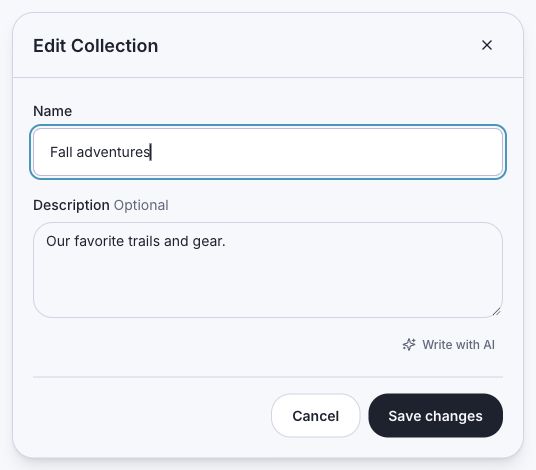
- Use Edit Collection on its row to rename it or change its description. Use Delete Collection and confirm when you want to remove the folder.
- The Collection is removed. Links assigned directly to it become uncollected while their analytics and Campaign assignments stay intact. Immediate subfolders move to the top level and keep their contents.
Related articles
Still need help?
Support & feedback