
Import links with the CSV template
Fill in the downloadable template and review your links before importing.
3 min read
In this article
Download and fill in the template
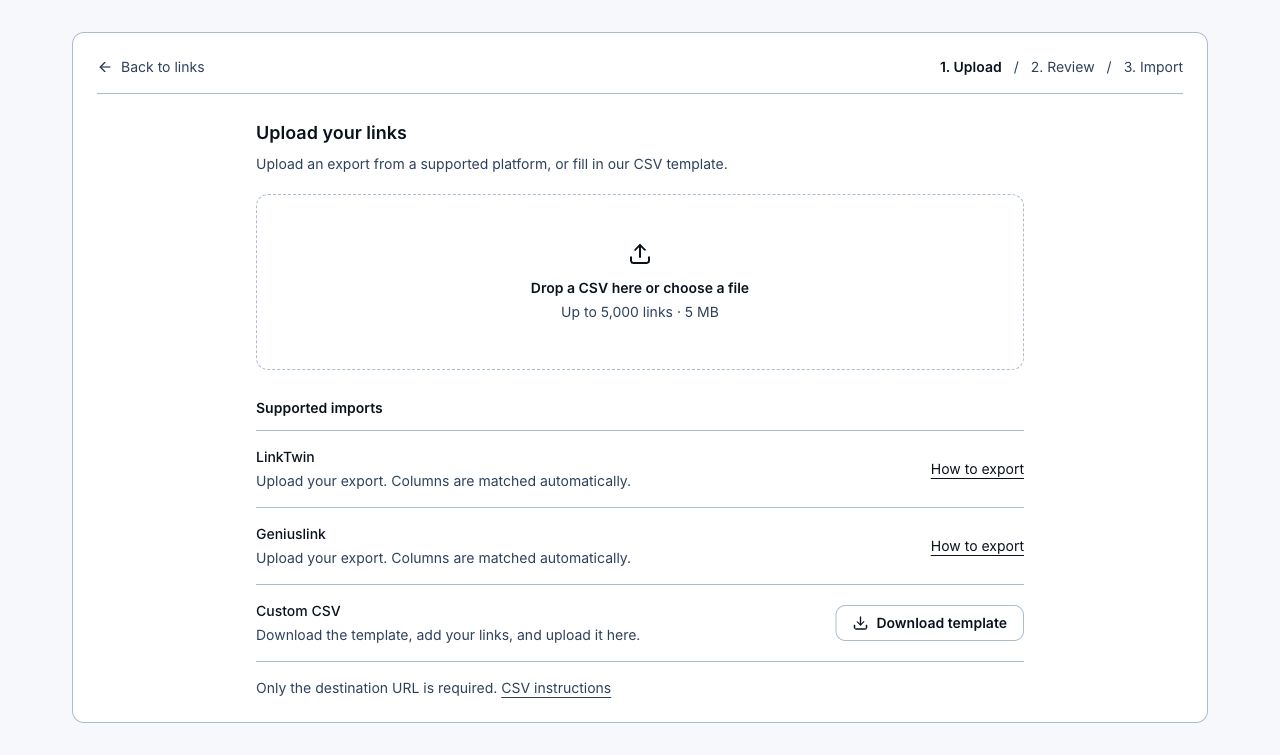
- Open Links and choose Import links beside Create a new link, or just below it on smaller screens. You can import before creating your first link. Choose Download template under Custom CSV.
- Open the file in Excel or Google Sheets. Keep the header row, replace the example rows, and add one link per row.
- Fill in destination_url. The title, description, alias, and collections columns are optional.
- Enter one Collection name in the collections cell, such as Outdoor gear.
- Save or download the file as CSV, then upload it to LinkStack. No column-mapping screen or platform connection is needed.
Review before creating links
- Wait for supported short URLs to resolve, then check each destination and title. Fix or skip unresolved rows. Expand Description, ending, and collections to edit optional fields.
- Amazon affiliate setup appears for Amazon destinations from LinkTwin, Geniuslink, and custom CSVs. Confirm saved settings, save a prefilled program, or skip to preserve existing tags. Conflicting tags require review; missing marketplace settings leave URLs unchanged. Saving updates your account program, but imported links keep the resolved destination and do not inherit program routing rules.
- Choose Generate new endings to avoid custom-alias conflicts. Use endings from my file requires Growth or grandfathered custom-ending access.
- Deselect any rows you want to skip. Use the previous and next controls to review larger files.
- Confirm the collections to import. Existing names are reused and missing collections are created.
- Choose Import links. LinkStack checks selected rows and available account capacity before the first batch is saved. Fix any marked rows directly on the page.
- Download the report and open View links. Imported links are active immediately.
- Open an imported link's edit page to view or change its Description in Basic settings, then choose Save changes. Cancel restores the last saved description. Saved descriptions also appear below the title on the link's analytics page; Social preview has its own separate description.
Opening imported links in apps
- Supported destinations get automatic app routing. Facebook links, TikTok profiles, Messenger links, and Wattpad chapters can need a lookup; LinkStack does this during import and stores the app destinations.
- Visitors use the saved app destinations without a new lookup when they click. If a provider blocks the lookup or takes too long, the link keeps its web fallback and the rest of the import continues.
- Previously imported links stay unchanged. To retry a missing app destination, open the link's edit page and save a change under Redirect behavior, then test on a phone with the app installed.
Limits and recovery
- Up to 5,000 links and 5 MB per file, processed in batches of 250. Your plan's available link slots still apply.
- Titles support up to 120 characters, descriptions up to 1,000, and each link can have one Collection with a name up to 80 characters.
- Generated endings are available on every plan. Custom endings must normalize to 4 to 40 lowercase letters, numbers, or hyphens and must be available.
- If a connection fails, keep the page open and use Retry import to confirm the batch safely. Completed batches stay saved. Download the report before leaving; a fresh upload starts a new import.
- Other columns are shown under What transfers? and are not saved to the new links. Existing short URLs keep pointing to the original platform.
Related articles
Still need help?
Support & feedback