
Export your links from LinkTwin
Download your LinkTwin CSV and import it directly into LinkStack.
3 min read
In this article
Download your LinkTwin export
Import into LinkStack
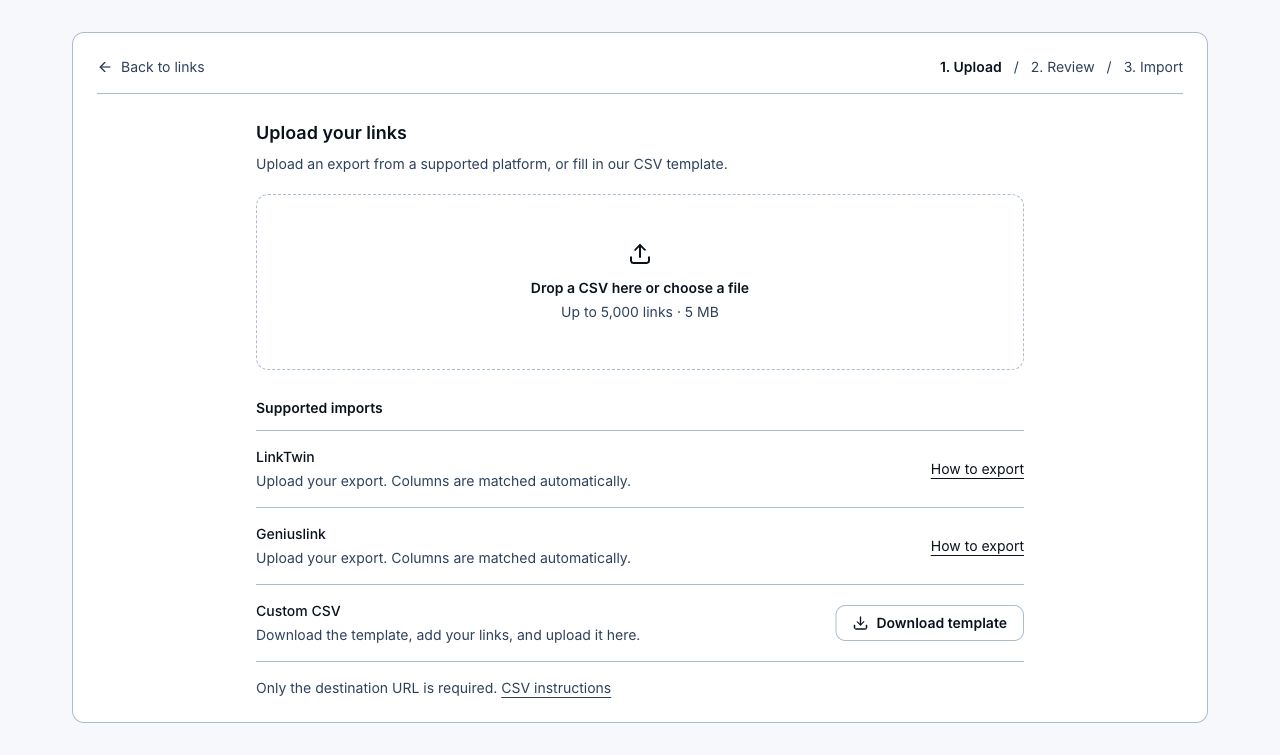
- Open Links in LinkStack and choose Import links beside Create a new link, or just below it on smaller screens. Upload the CSV. You can import before creating your first link.
- LinkStack recognizes the 11-column LinkTwin export and automatically matches longurl, title, description, alias, and collections. Supported short URLs inside longurl are resolved before review.
- Amazon links receive the same affiliate setup review as Geniuslink and custom CSV imports, even when a program or base tag already exists. Confirm a program, save the suggested tags, or skip setup to keep existing tags.
- Review the links. Choose generated endings or, with custom-ending access, use the endings from your file. Resolve errors directly in the review, or deselect rows to skip them.
- Leave Import Collections selected to reuse a matching Collection or create a missing one. Each link can import into one Collection; choose one in the review if the source file lists several.
- Choose Import links. Account capacity and aliases are checked before links are created. Keep this page open while batches finish.
- Download the report for the original-to-LinkStack URL mapping, then update your shared links.
Read the exported fields
- longurl becomes the destination; title and description become the Link title and description.
- alias is an optional custom ending. Endings are normalized to lowercase letters, numbers, and hyphens; review any changes. Generated endings work without an upgrade.
- collections contains the Collection name. Matching ignores letter case. Each link can use one Collection, and a name already used by a campaign must be changed.
- shorturl, date, clicks, and uniqueclicks remain in the downloadable migration report. They do not replace LinkStack URLs, creation dates, or analytics.
- pixels contains names, not tracking IDs. Configure pixels again after import. The original names remain in the report.
- qrcode points to the old QR image. Generate a new QR code from the imported Link. The original image URL remains in the report.
- Detailed per-click country, device, referrer, and timestamp data is not present in the LinkTwin export. Custom routing settings are not in this export either.
File limits and retries
Upload up to 5,000 links and 5 MB per file. LinkStack processes 250 links per batch and respects your current plan's available slots. If a connection fails, keep the page open and choose Retry import; the same batch will not create duplicate links. Completed batches stay saved if a later batch fails. Download the report before leaving. Starting a new upload is a new import, so do not reupload a partially completed file without removing already imported rows.
Related articles
Still need help?
Support & feedback