
How to write and rewrite text with AI
Draft messages, bios, button labels, email subjects, product copy, and formatted content with AI. Review each draft before using it.
In this article
Where it works
Generate with AI appears in every editable rich text toolbar, including product descriptions and sections, course copy and lessons, confirmation and release emails, broadcasts, automation emails, funnel messages, and checkout consent copy. Read-only previews do not show the button. Write with AI is also available beneath supported DMs, comment replies, bios, button labels, headlines, descriptions, FAQs, captions, email subjects and preview text, form copy, product setup, booking reschedule notes, internal inbox notes, and media-kit copy. These fields produce plain text that fits their character limits. URLs, search, credentials, and public visitor forms keep their normal inputs.
Generate copy
- Open the text field or rich text editor you want to update.
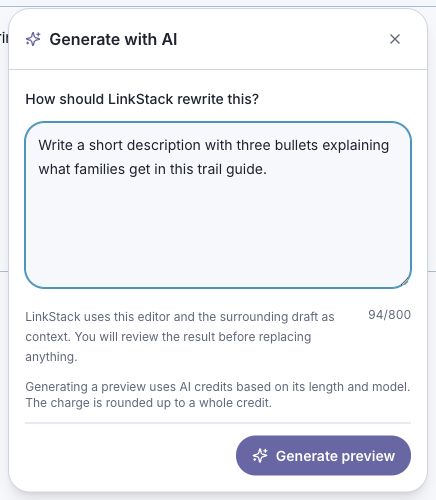
- Click Write with AI beneath a supported plain text field, or Generate with AI in a rich text formatting toolbar. In the visual email editor, choose Write with AI for the message or Edit with AI from a block’s grip menu.
- Describe what to write, who it is for, the facts it must include, and the tone. Short requests such as ‘polish,’ ‘expand,’ or ‘add more context’ work because LinkStack includes the editor and surrounding context.
- Click Generate preview, or press Command+Enter on Mac or Control+Enter on Windows. This uses AI credits.
- Review the separate AI draft. The editor has not changed yet.
- For plain text fields, edit the suggested draft if needed, then choose Use text. Dismiss keeps your original. Undo AI edit restores the previous value while the accepted text is unchanged. If you edit the original field while drafting, generate a new draft before applying.
- In the visual email editor, choose Insert to keep existing content and add the draft after the selected block or at the saved cursor. Choose Replace to update the selected block or full message, or Cancel to leave it unchanged. Other rich text editors use Replace to apply the draft and Dismiss to keep the original.
- After inserting or replacing in a rich text editor, use Undo, Command+Z, or Control+Z to restore the previous version. Use Redo, Command+Shift+Z, or Control+Y to apply the AI draft again.
- Use the surrounding page's normal Save, Publish, or Send flow when it has one.
What happens to existing content
- Existing text is sent as context, but generation only creates a preview. Your text changes only after choosing Use text, Insert, or Replace. Cancel or Dismiss changes nothing.
- Markdown editors preserve existing images and videos. In the visual email editor, Insert keeps them; Replace changes the targeted block or full message.
- Existing or supported personalization tokens can stay in the result; AI cannot invent new tokens.
- Rich text drafts can use headings, emphasis, lists, quotes, and links, but AI does not add new media. Plain text fields receive copy without Markdown formatting.
- Generating each preview uses AI credits. Inserting, replacing, cancelling, dismissing, undoing, and redoing do not use additional credits.
Context and structure
- LinkStack includes the current editor, nearby form fields and section headings, your creator name, and up to three recent non-archived link-in-bio pages with their active blocks.
- Sensitive fields such as passwords, API keys, authentication values, session values, and hidden fields are excluded from page context.
- The writing framework changes with the editor. Course descriptions can include outcomes, audience fit, curriculum, delivery, objections, and a call to action; product, lesson, email, service, webinar, funnel, and checkout editors use their own structures.
- A request to polish keeps roughly the same scope. Expand or add more context creates a fuller draft in rich text editors. Plain text drafts stay concise and fit the field, such as a short button label or a single email subject.
- AI does not invent claims, testimonials, prices, policies, credentials, links, schedules, or guarantees. It omits unsupported sections or leaves a short square-bracket prompt for an essential missing fact.
Get a better result
- Give concrete facts. AI will not guess prices, policies, URLs, guarantees, or product details.
- Name the audience and tone instead of asking for something good or catchy.
- Use a short request such as "polish" when the draft already covers what you need. Ask for an expansion or more context when you want a fuller draft suited to that type of content.
- If the request fails, shorten the prompt, check the AI credit balance, and try again.
Related articles
Still need help?
Support & feedback