
Set up Facebook comment and Messenger automations
Connect a Page and publish comment-to-DM or Messenger replies when Facebook automations are enabled for your account.
3 min read
In this article
Connect your Page
- Open Settings → Integrations → Facebook and choose Messaging & automations. Facebook workflows are available only to enabled accounts.
- Select your Facebook Page and allow the requested access to posts, comments, and messages. Personal profiles and Groups are not supported.
- If you connected previously for Inbox or analytics, reconnect to grant comment access. Resolve any permission or Page-event error before publishing.
Create and publish
- In Automations, start a blank workflow. If you have several Pages, open New workflow, choose the Page under Account, and create a blank workflow.
- Add a Facebook comment trigger or Messenger message trigger. For comments, choose all posts or select a specific post by browsing or pasting its URL or ID. Enter the words that should trigger the reply.
- Add a Send Message step with one text opening message. Add a link button, postback button, or quick reply if needed. For comments, you can also enable a public reply in the trigger.
- Review your message and Page, then Publish. Saving a draft does not turn it on. Test with a separate person commenting or messaging the Page.
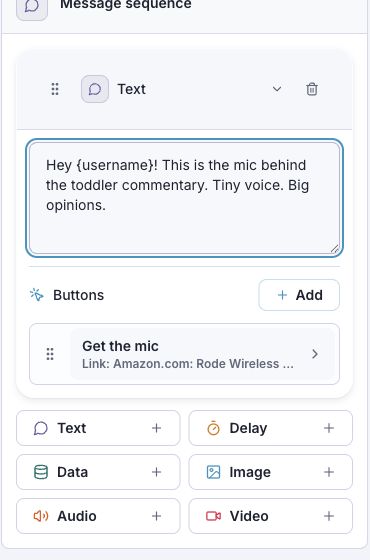
Opening replies and follow-ups
- A comment can receive one opening private reply within seven days. Use one text block; put later messages in another step. Initial Card replies are not enabled for this rollout.
- Additional DMs wait for the person to reply or use a qualifying postback or quick reply. That opens a 24-hour messaging window. A website-link click alone does not open it.
- Edited comments and the Page's own comments do not trigger a new opening DM. Pause or unpublish the workflow to stop it; hiding Facebook in Inbox does not stop automations.
- If publishing asks you to reconnect, the Page is missing required permissions or its event subscription. Reconnect the same Page and approve the requested access.
Related articles
Still need help?
Support & feedback