
Customize a Link's social preview
Set the shared title and image, choose a crop, and review the card before sharing.
2 min read
In this article
Edit the social card
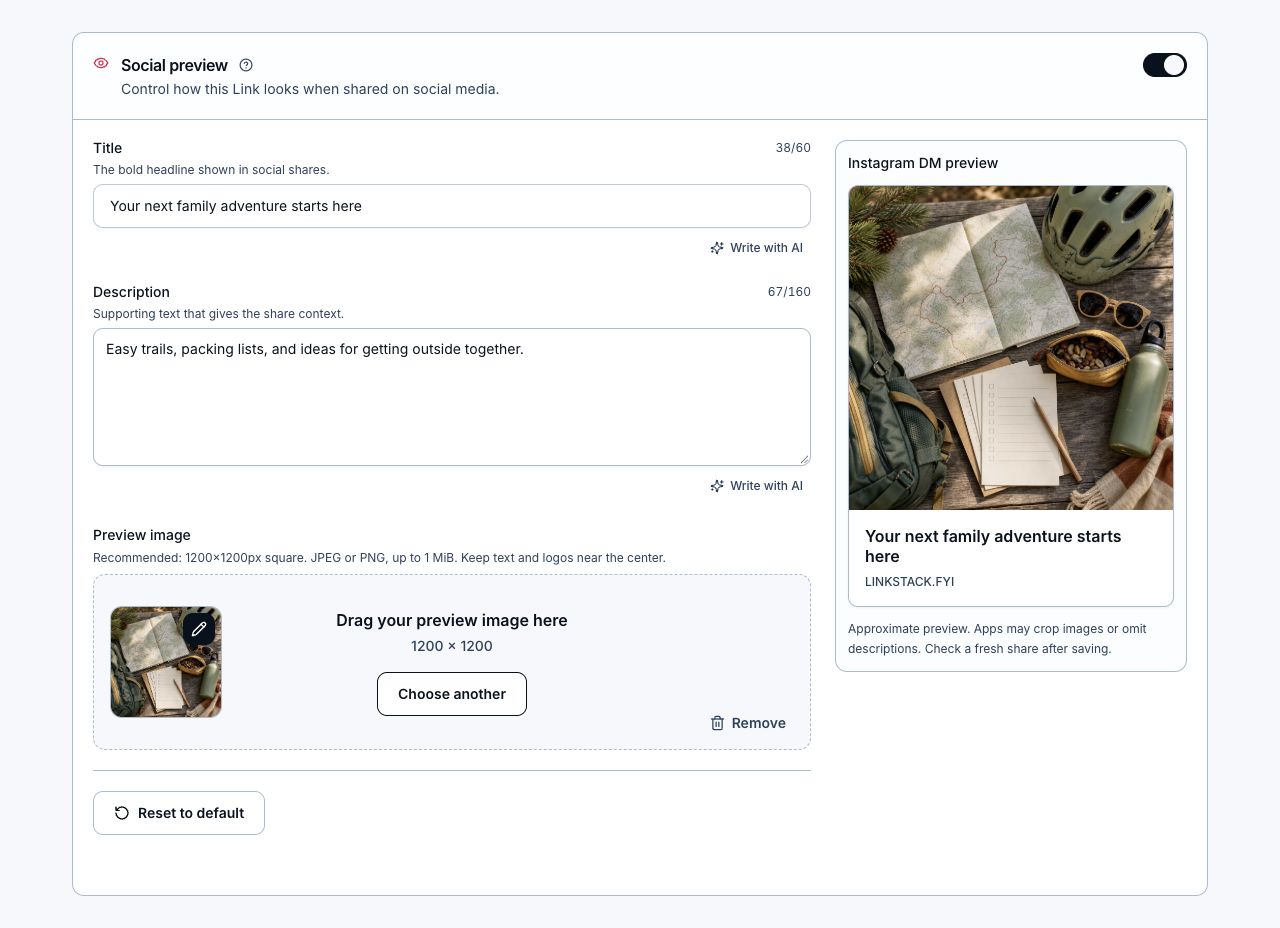
- Open Links, edit your Link, and turn on Social preview. Custom previews require Starter or Growth.
- Set the title and description. Some apps omit the description from their card.
- Choose a JPEG or PNG image up to 1 MiB. The recommended size is 1200×630 pixels.
- Use the default 1.91:1 landscape crop for a 1200×630 banner, or choose 1:1 square (1200×1200) or 4:5 portrait. Drag or zoom to frame the image. Crop stays within the image edges. Choose Fit full image to keep the entire image, zoom out for extra space, and select Transparent or White padding. Confirm with Use this photo.
- Optionally add a square alternative (450×450 recommended) for apps that use square cards. Your main image stays first. Removing the main image or resetting the preview clears both images.
- Review the Link preview, which shows your image's actual proportions. Keep text and logos inside the frame so they remain readable when an app crops the image.
- Save your changes, then share the public Link to check the card in the app where you will use it. Regular visitors still redirect to the destination.
Fix cropping or an old card
- Existing saved images are not resized automatically. If a wide image has empty bands above and below, upload the original again, choose 1.91:1, and save.
- LinkStack publishes uploaded image dimensions and lists your main image before the optional square alternative. Each app controls its card layout. The editor shows the image's proportions, but apps may crop differently or omit the description.
- Social platforms cache previews. A card that was already shared can keep the old image after saving; use the platform's preview validator or re-scrape tool when available.
Related articles
Still need help?
Support & feedback