
How to organize products with Collections
Group products in nested Collections and see their combined sales performance.
3 min read
In this article
Create and browse Collections
- Open Dashboard, then Products.
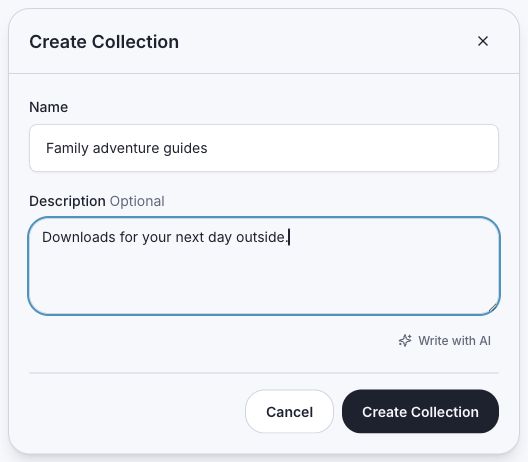
- Click New Collection. It is created at the top level, or inside the Collection you currently have open.
- Open a Collection row and use the breadcrumbs to move through its parents.
Move products
A download, membership, appointment, or custom product can be in one Collection at any depth. Drag a row onto a visible Collection, or select products and choose Move to Collection. Choosing a new destination replaces the old one. Remove from Collection returns a product to the root.
Review and remove Collections
- Collection rows include nested products in their product and sold totals.
- Click Analytics to see rolled-up views, sales, revenue, and product performance.
- Deleting a Collection keeps its products and sales history, unassigns direct products, and moves immediate child Collections to the top level.
Related articles
Still need help?
Support & feedback