
How to add and switch LinkStack accounts
Keep up to five accounts ready in one browser and move between them without signing out.
3 min read
In this article
Add another account
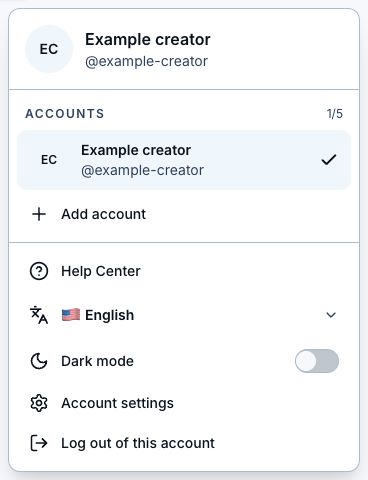
- Open the account menu in the top-right corner.
- Choose Add account.
- Continue with Apple, Google, email and password, or a magic link.
- For Google, choose the Google account you want to add.
- After sign-in, LinkStack opens the dashboard with the new account active.
- Your original account stays signed in.
- LinkStack remembers up to five accounts in the current browser.
Switch or remove an account
- Open the top-right account menu.
- Choose a remembered account to switch to it.
- Use the remove button beside an inactive account when you no longer want it remembered in this browser.
- Removing a remembered account does not delete the LinkStack account.
- Choose Log out of all accounts to clear every remembered account from the browser.
If your session is no longer valid
- Open Log in and use the same Apple, Google, email, or magic-link method you used before.
- After signing in, continue to the page you were opening. Your saved content stays in your account.
If Google does not add the account
- Make sure you choose a different Google account from the one already active.
- If the flow expired or was opened in another browser, return to the account menu and choose Add account again.
- A failed add-account attempt leaves the account you started with signed in.
Still need help?
Support & feedback